Pagerduty Migration Guide
Zenduty provides a guided migration flow to help you seamlessly move your incident management setup from PagerDuty. Using this migration tool, you can copy selected users, teams, schedules, escalation policies, and services into Zenduty with minimal manual effort.
Prerequisites
Before starting the migration, ensure the following:
- You have admin access to your PagerDuty account.
- You have admin access to your Zenduty account.
- A Read-Only API Access Token is generated in PagerDuty.
Zenduty only requires read-only access. No changes will be made to your PagerDuty configuration.
Step 1: Generate a Read-Only API Token in PagerDuty
- Log in to your PagerDuty account.
- Navigate to Integrations → API Access Keys.
- Click Create New API Key.
- Select Read-Only as the access level.
Step 2: Start the Migration in Zenduty
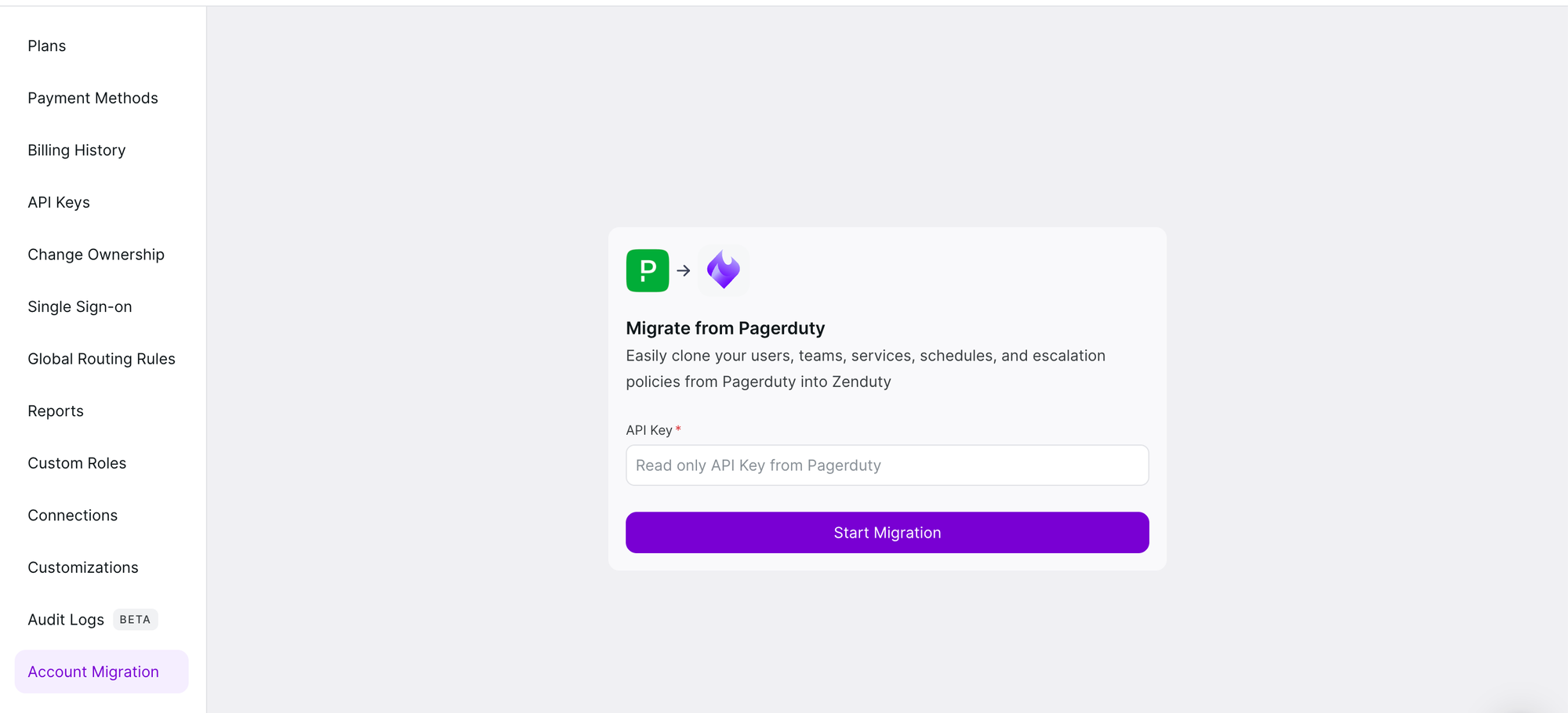
- Log in to your Zenduty account.
- Go to Profile → Account → Account Migration.
- Paste the Read-Only API key from PagerDuty.
- Click Start Migration.
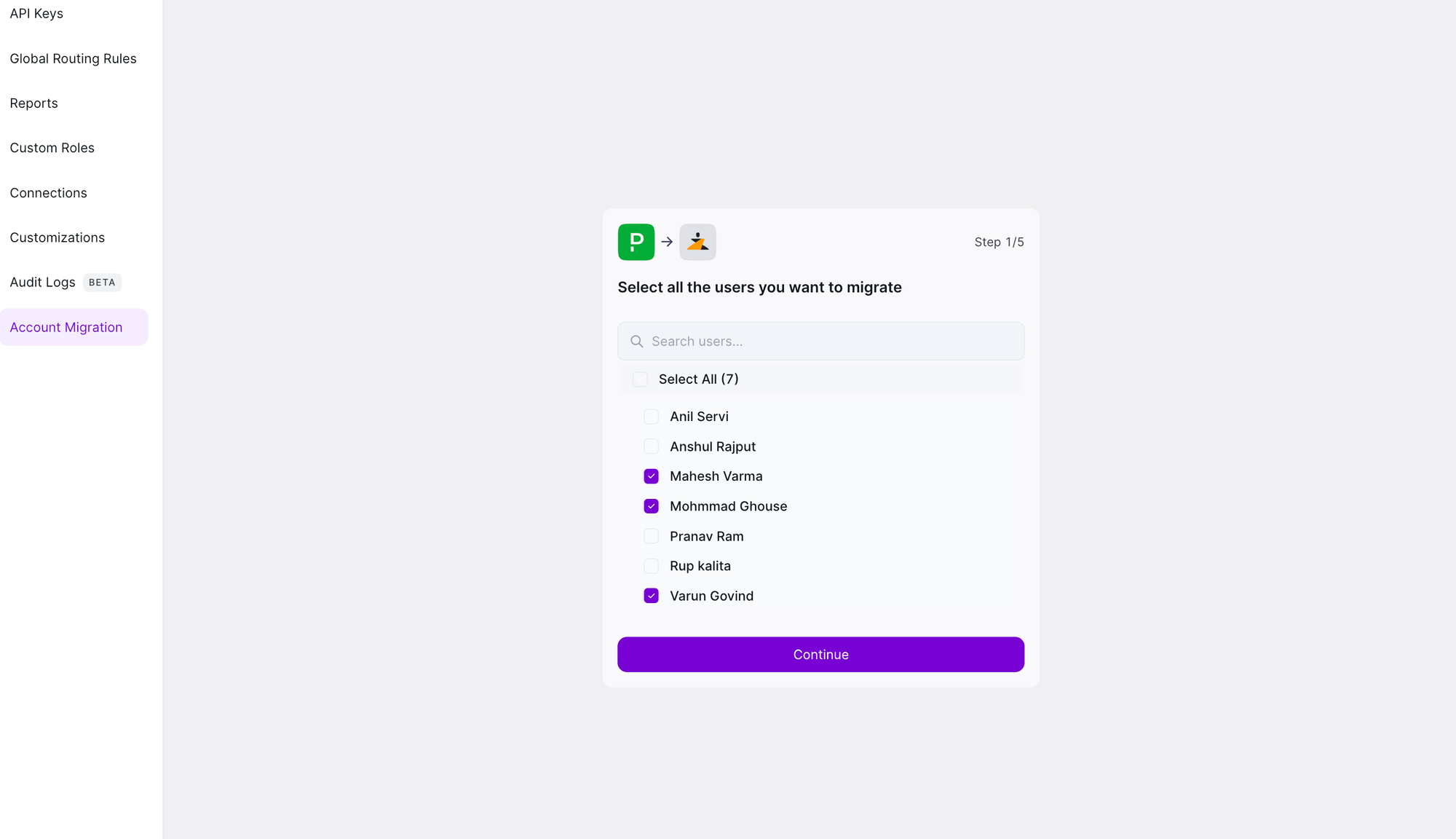
Step 3: Select Users to Migrate
- Select the users you want to migrate.
- Click Continue.
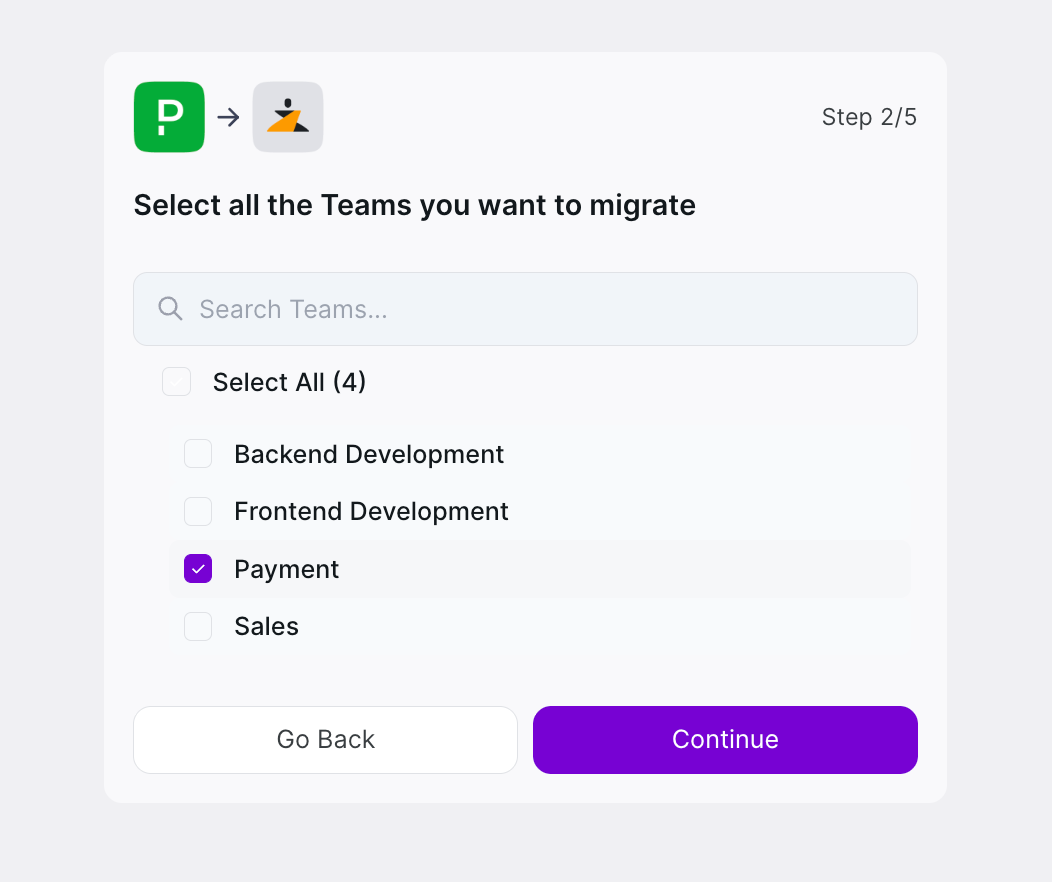
Step 4: Select Teams to Migrate
- Choose the teams you want to migrate.
- Click Continue.
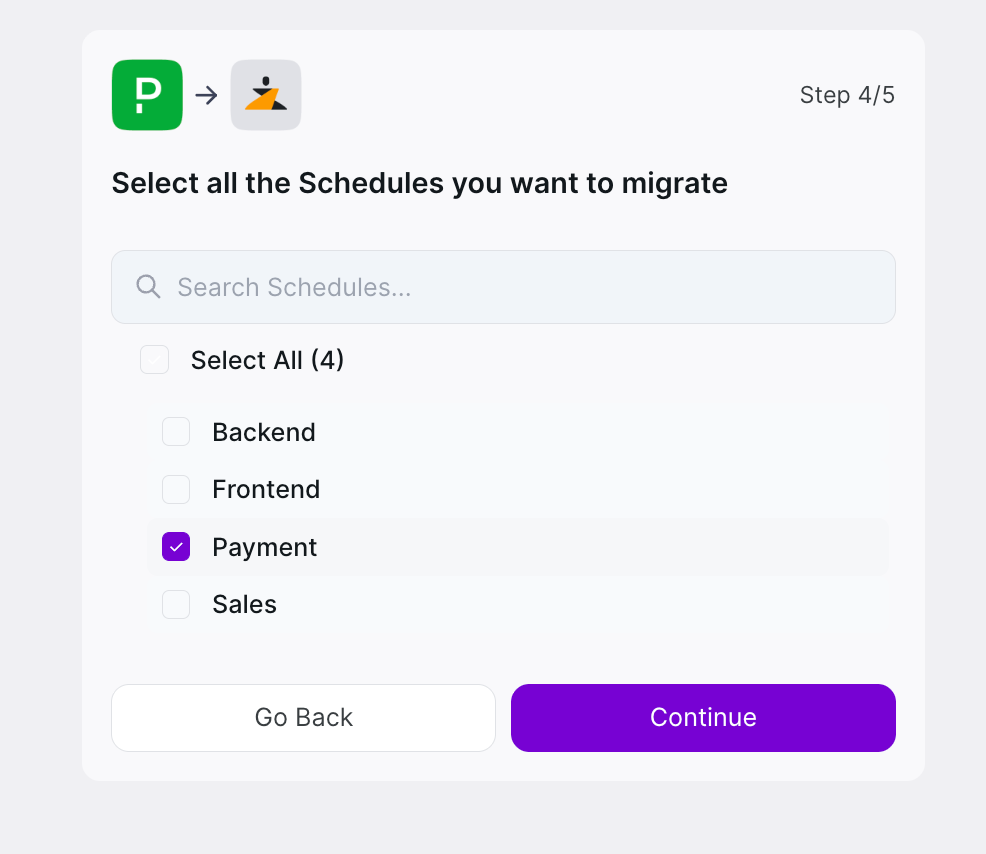
Step 5: Select Schedules to Migrate
- Choose the schedules you want to migrate.
- Click Continue.
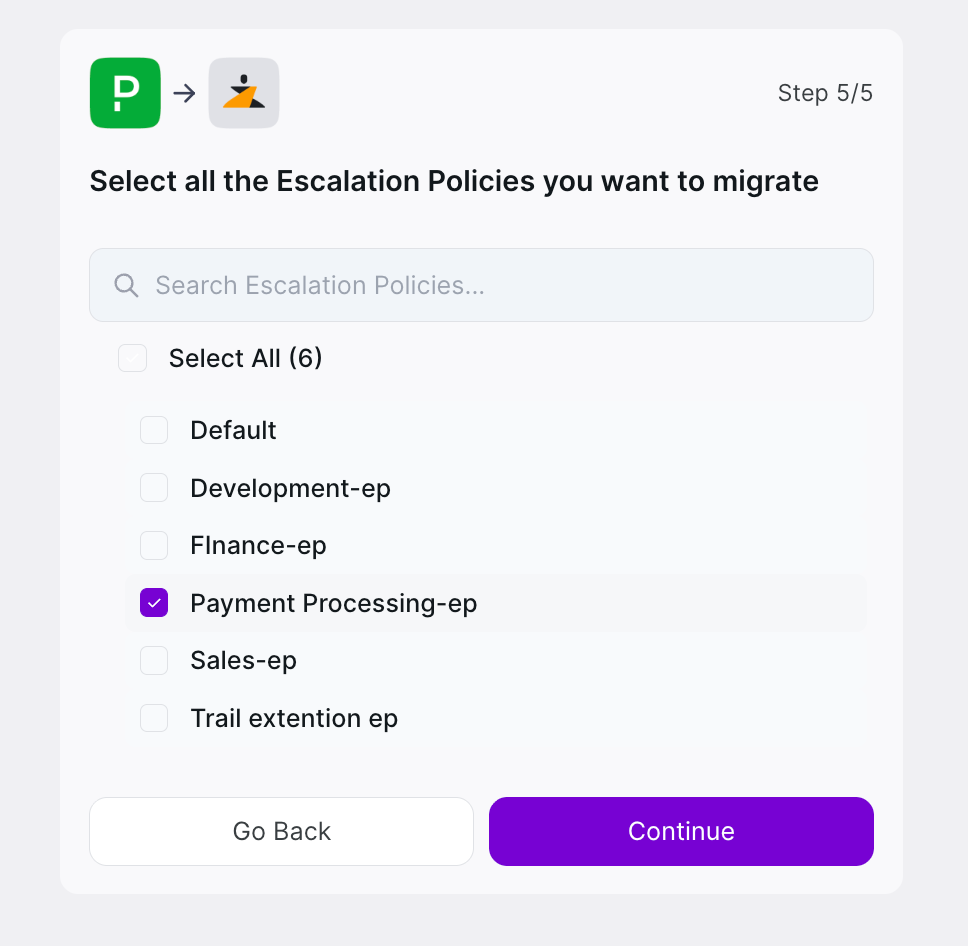
Step 6: Select Escalation Policies to Migrate
- Select the escalation policies you want to migrate.
- Click Continue.
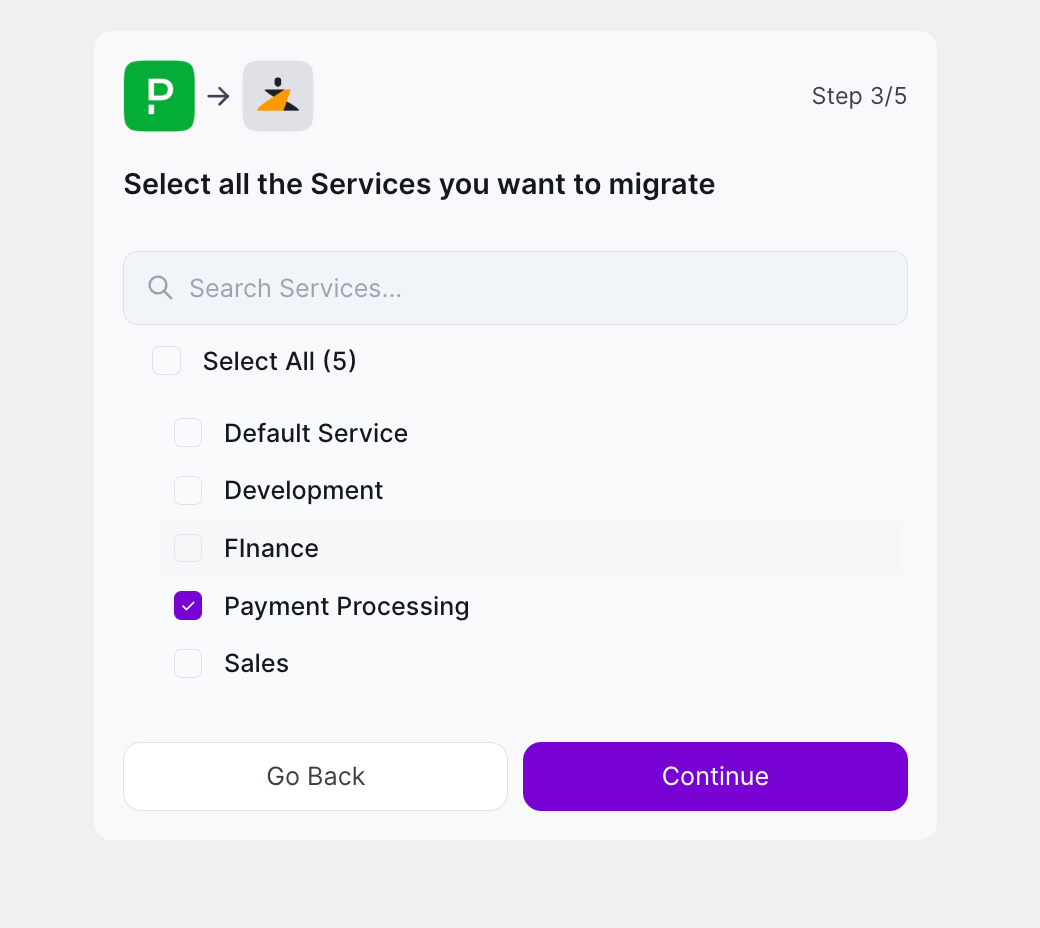
Step 7: Select Services to Migrate
- Select the services you want to migrate.
- Click Continue.
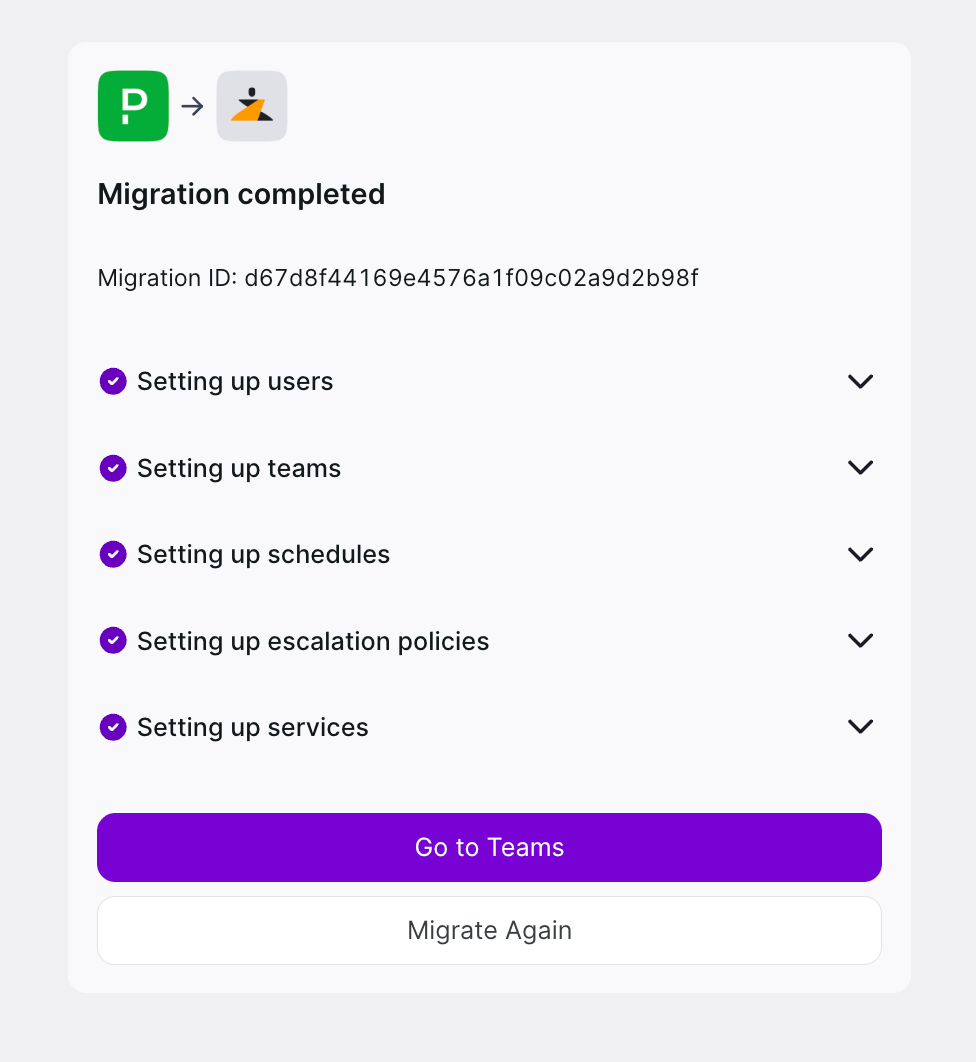
Step 8: Track Migration Progress
- Once the migration starts, Zenduty generates a Migration ID.
- Use this ID for support or troubleshooting.