Xurrent IMR Workflows
Workflows are powerful automated processes in Xurrent IMR designed to enhance incident response, task management, and team communication. By connecting system events to a sequence of actions, workflows enable teams to automate critical operations efficiently.
Getting Started
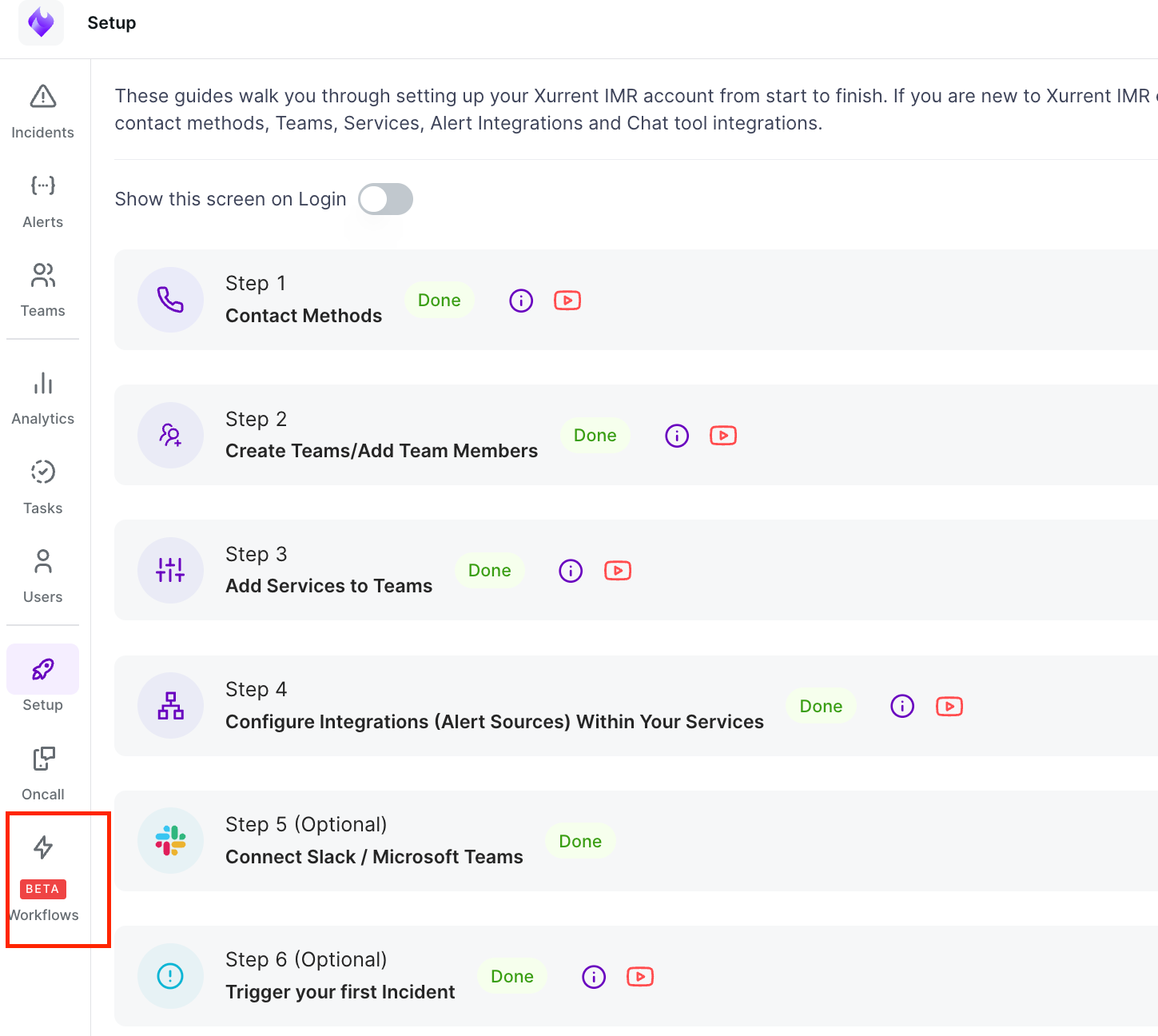
Accessing Workflows
- Navigate to the left-side navigation panel
- Click Workflows
- Click Create Workflow
Creating a New Workflow
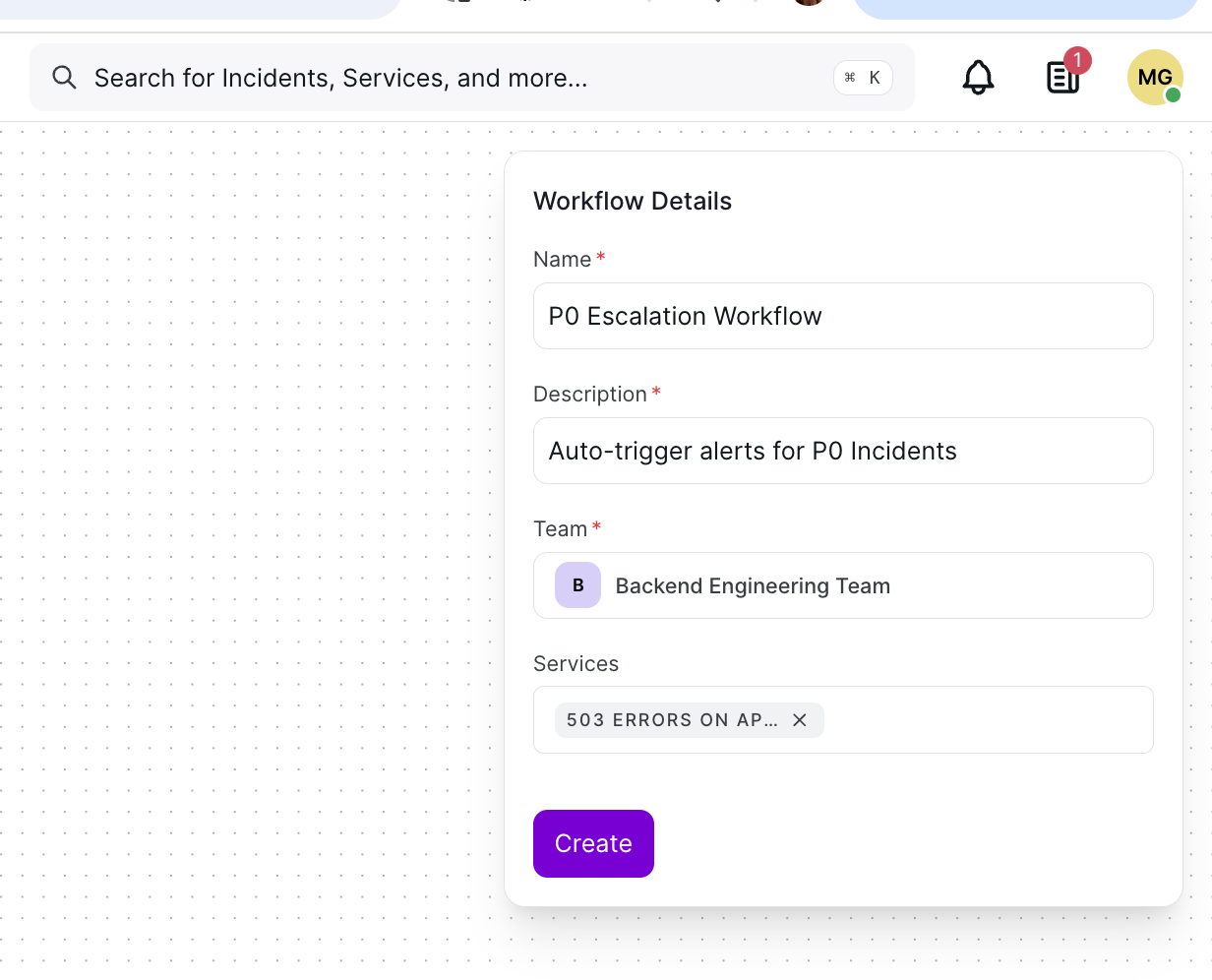
Provide the following details:
- Name: A clear, descriptive name (e.g., "P0 Escalation Workflow")
- Description: Brief explanation of the workflow's purpose
- Team: Select the team to which this workflow applies
Click Create to proceed to configuring the workflow components.
Workflow Components
Every workflow consists of four core components:
| Component | Purpose |
|---|---|
| Trigger | Defines when the workflow starts |
| Action | Defines what the workflow performs |
| Condition | Introduces decision-based logic |
| Delay | Pauses execution for a defined period |
1. Triggers
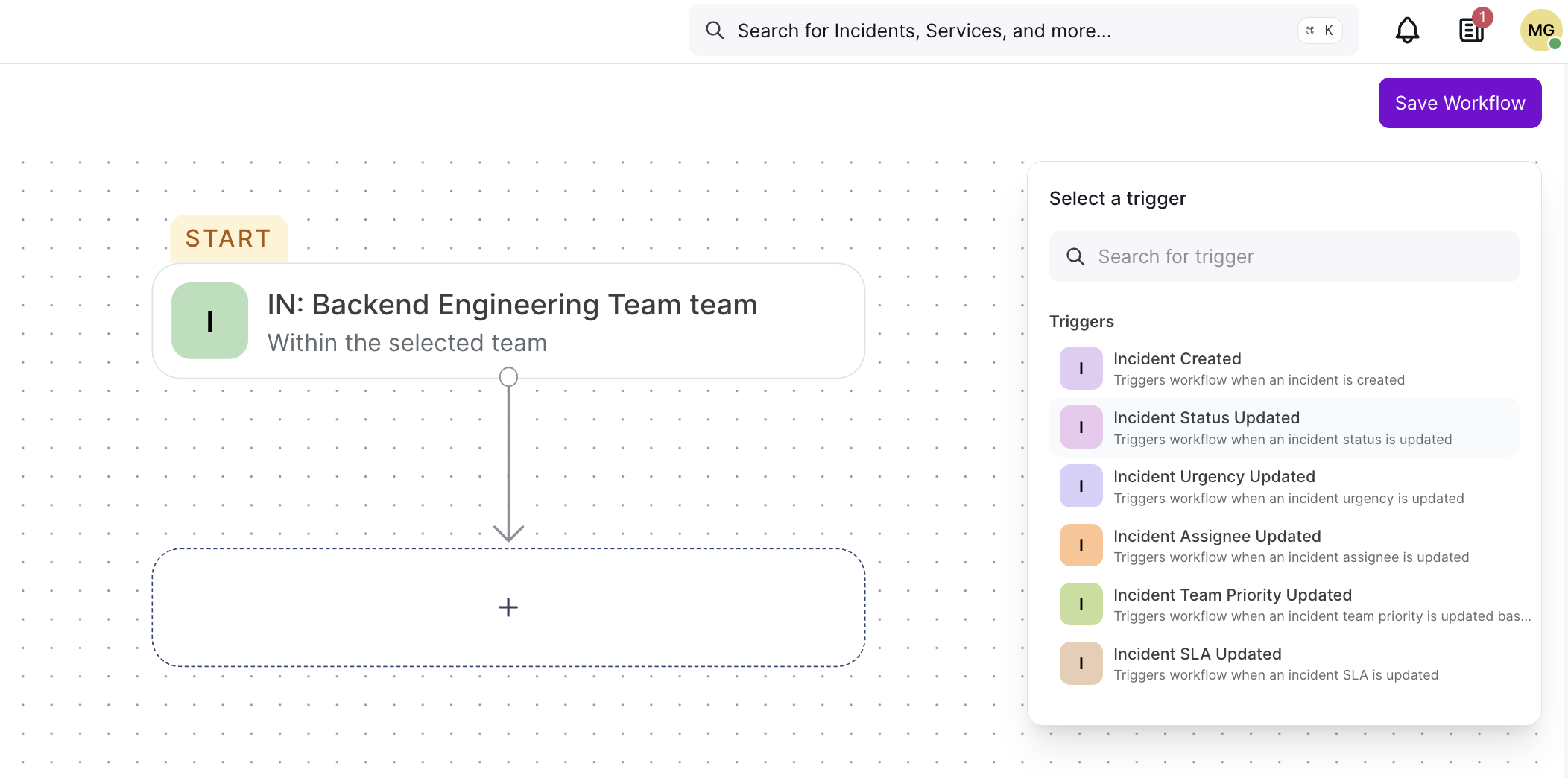
Triggers define when the workflow starts and execute automatically when the selected event occurs.
Available Triggers
- Incident Created
- Incident Status Updated
- Incident Urgency Updated
- Incident Assignee Updated
- Incident Team Priority Updated
- Incident SLA Updated
Incident Created
Triggers the workflow when a new incident is logged in the system. This is the most common starting point for most workflows.
Example: Automatically assign a P0 incident to the on-call engineer the moment it is created.
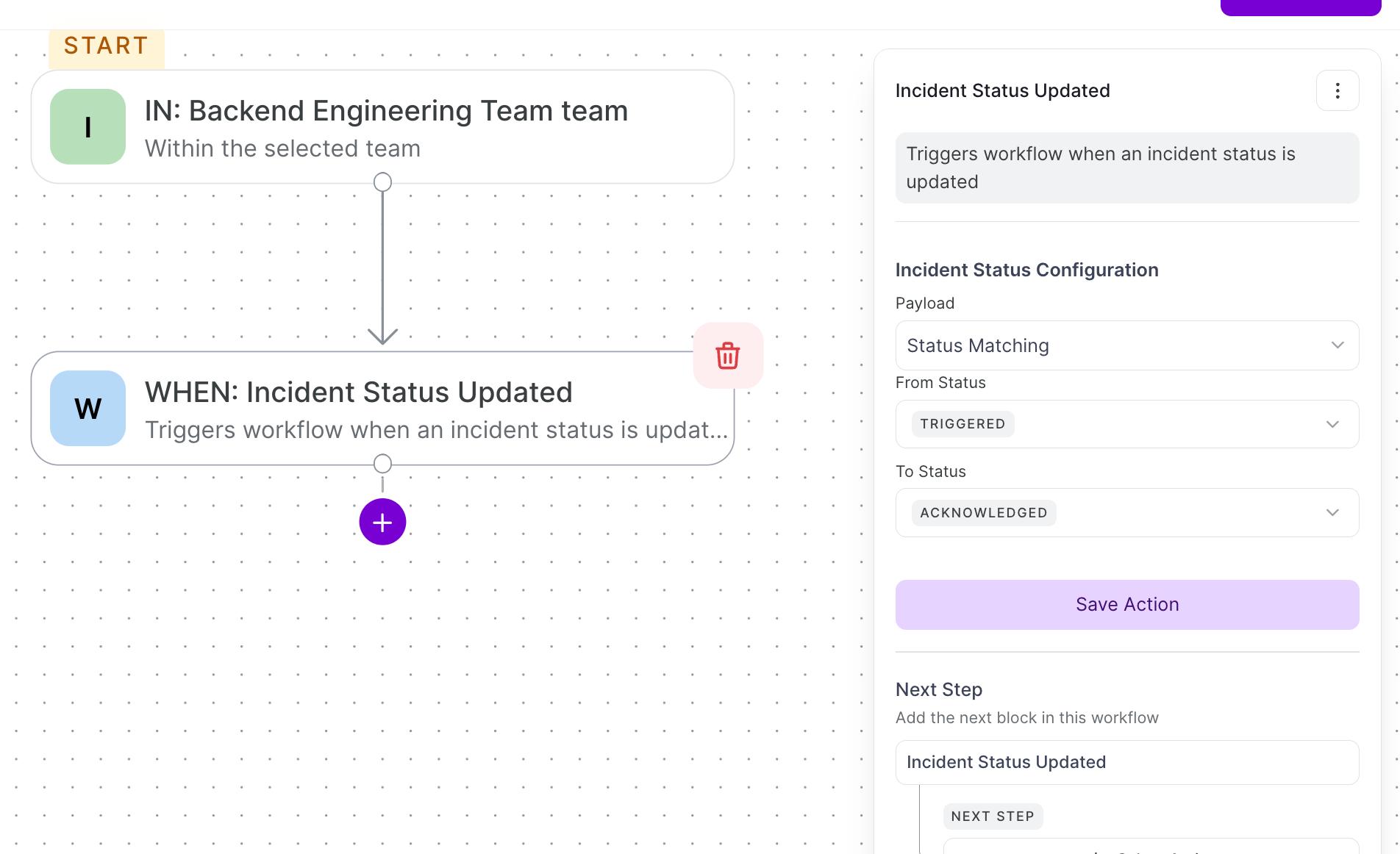
Incident Status Updated
Triggers when an incident moves from one status to another. You can configure the exact From Status and To Status.
Example: Send a Slack notification to the team when an incident moves from Triggered → Acknowledged.
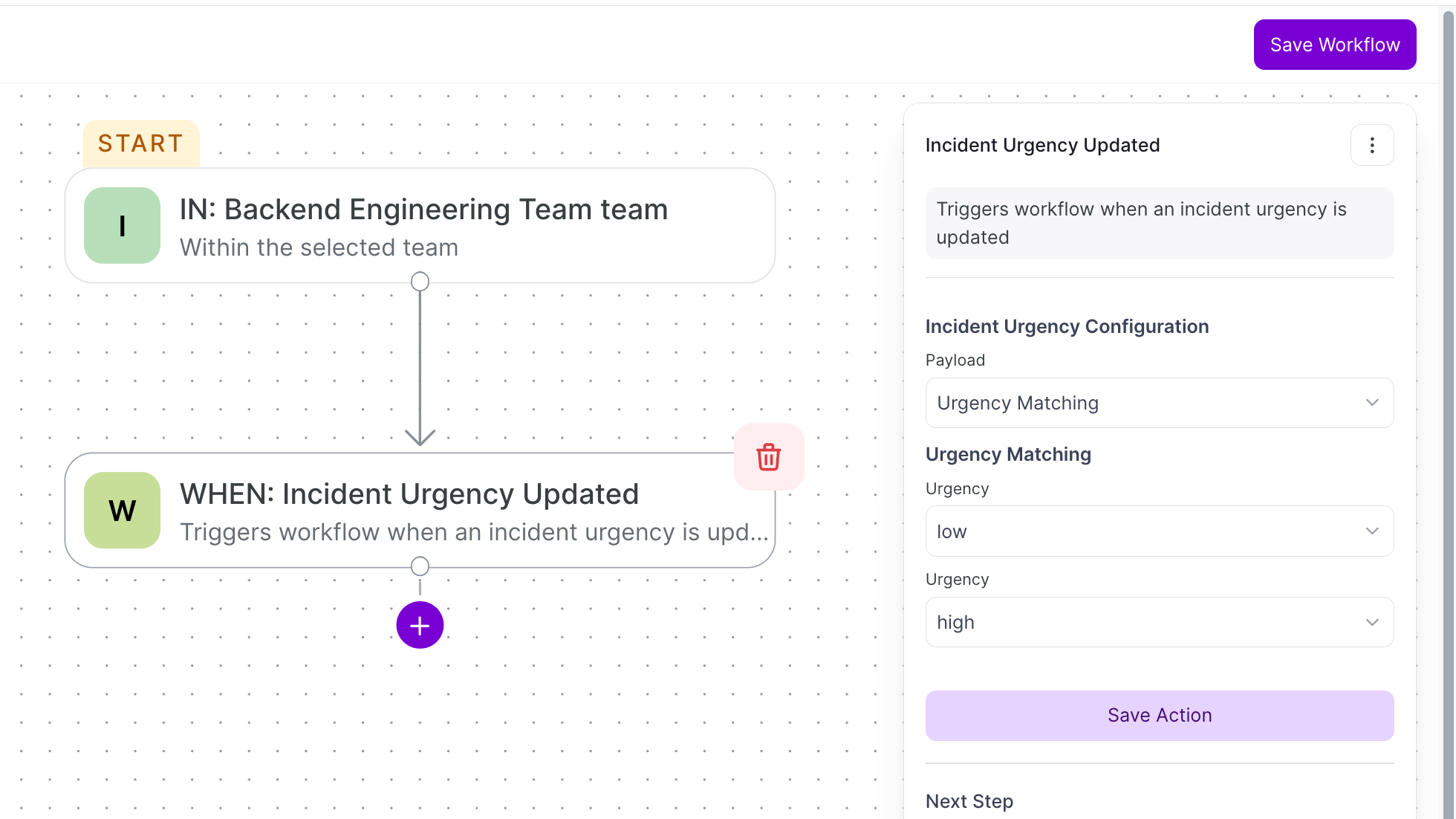
Incident Urgency Updated
Triggers when the urgency of an incident changes. Configure From Urgency and To Urgency (e.g. Low → High).
Example: Escalate to a senior engineer automatically when urgency is bumped from Low to High.
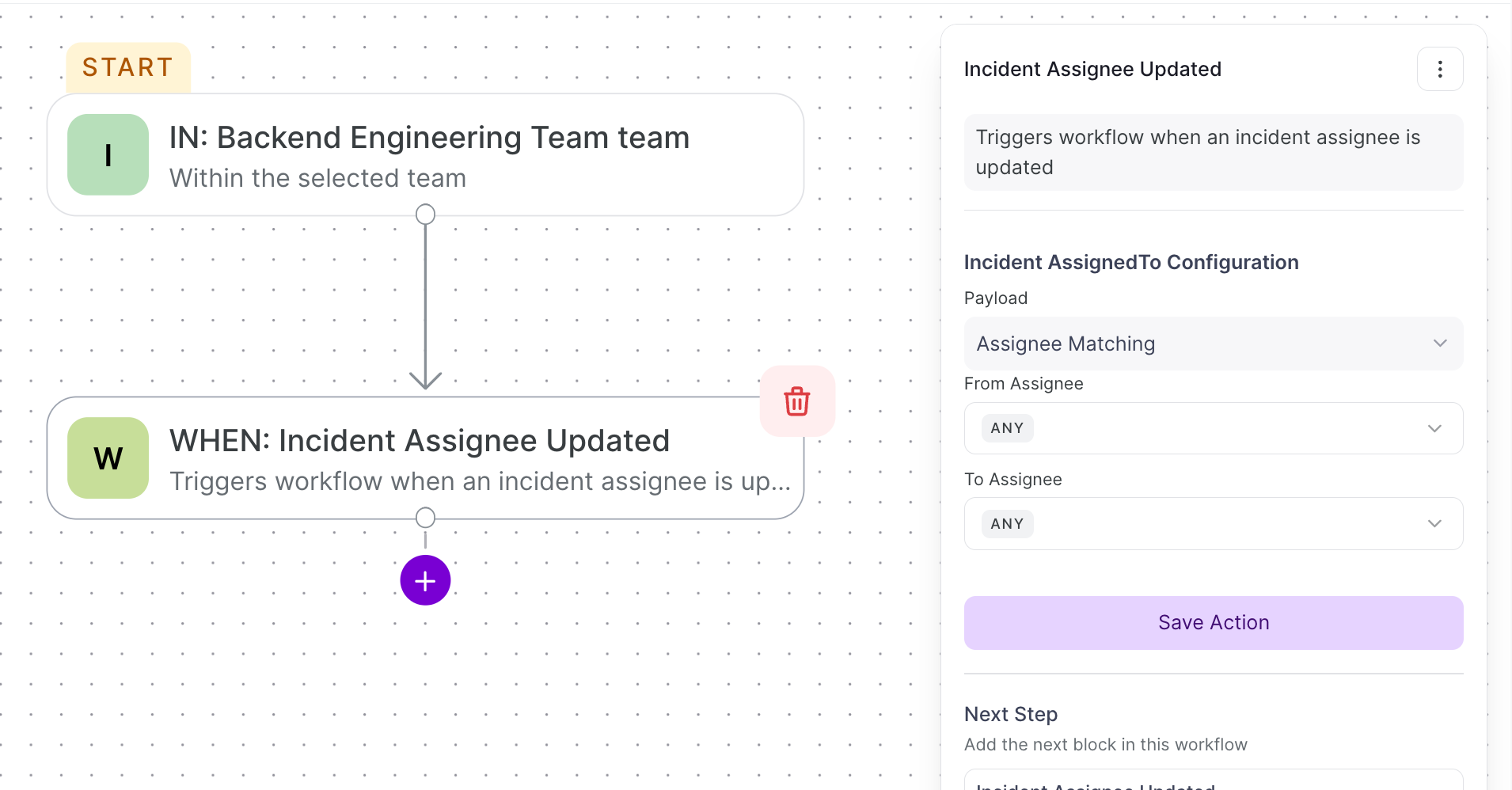
Incident Assignee Updated
Triggers when the incident is reassigned to a different user. Configure From Assignee and To Assignee (defaults to ANY).
Example: Send an email to the newly assigned engineer with full incident details when ownership changes.
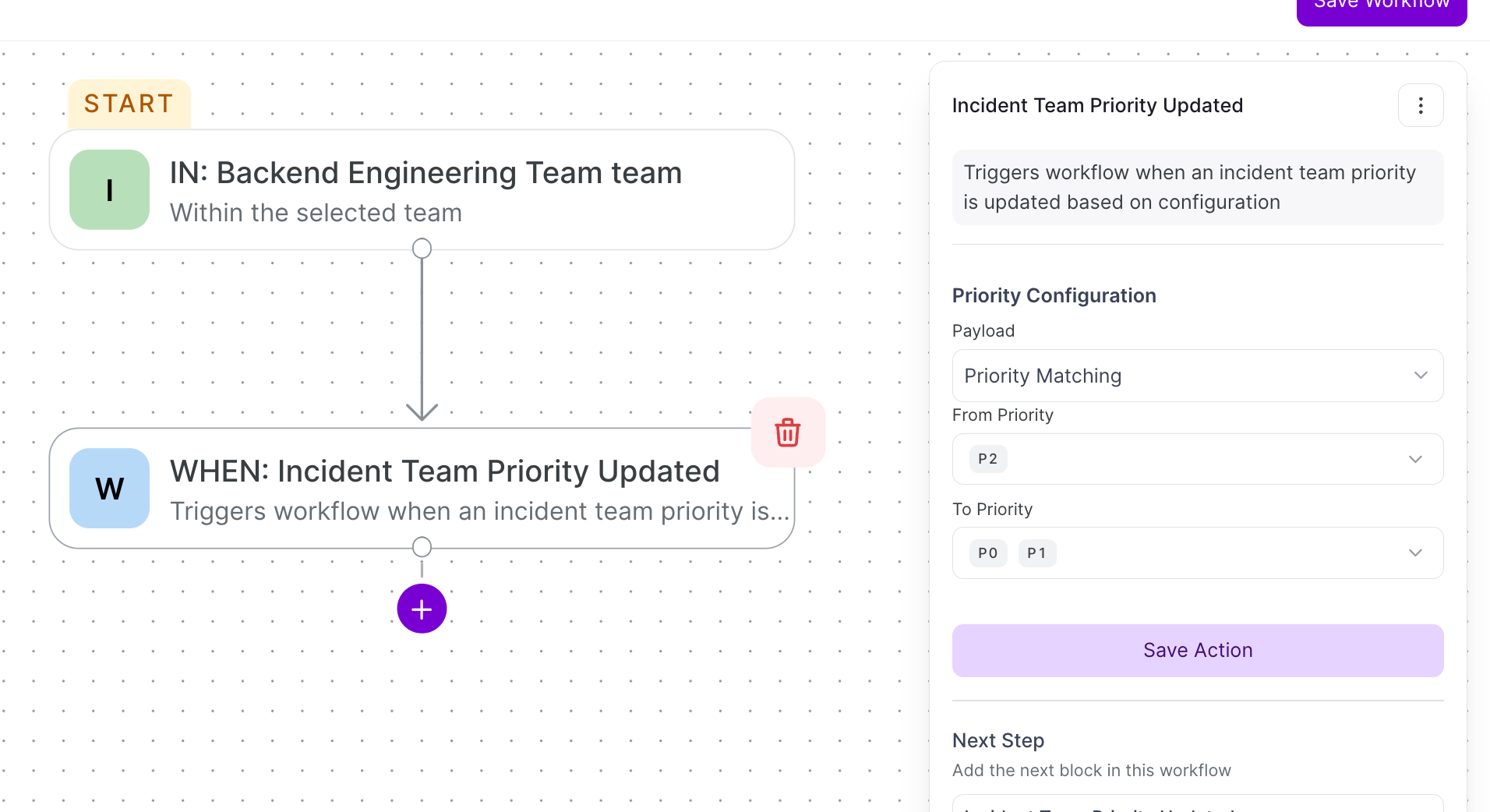
Incident Team Priority Updated
Triggers when the team priority of an incident changes. Configure From Priority and To Priority (e.g. P2 → P0 or P1).
Example: Trigger a major incident workflow and create a Jira ticket when priority escalates from P2 to P0.
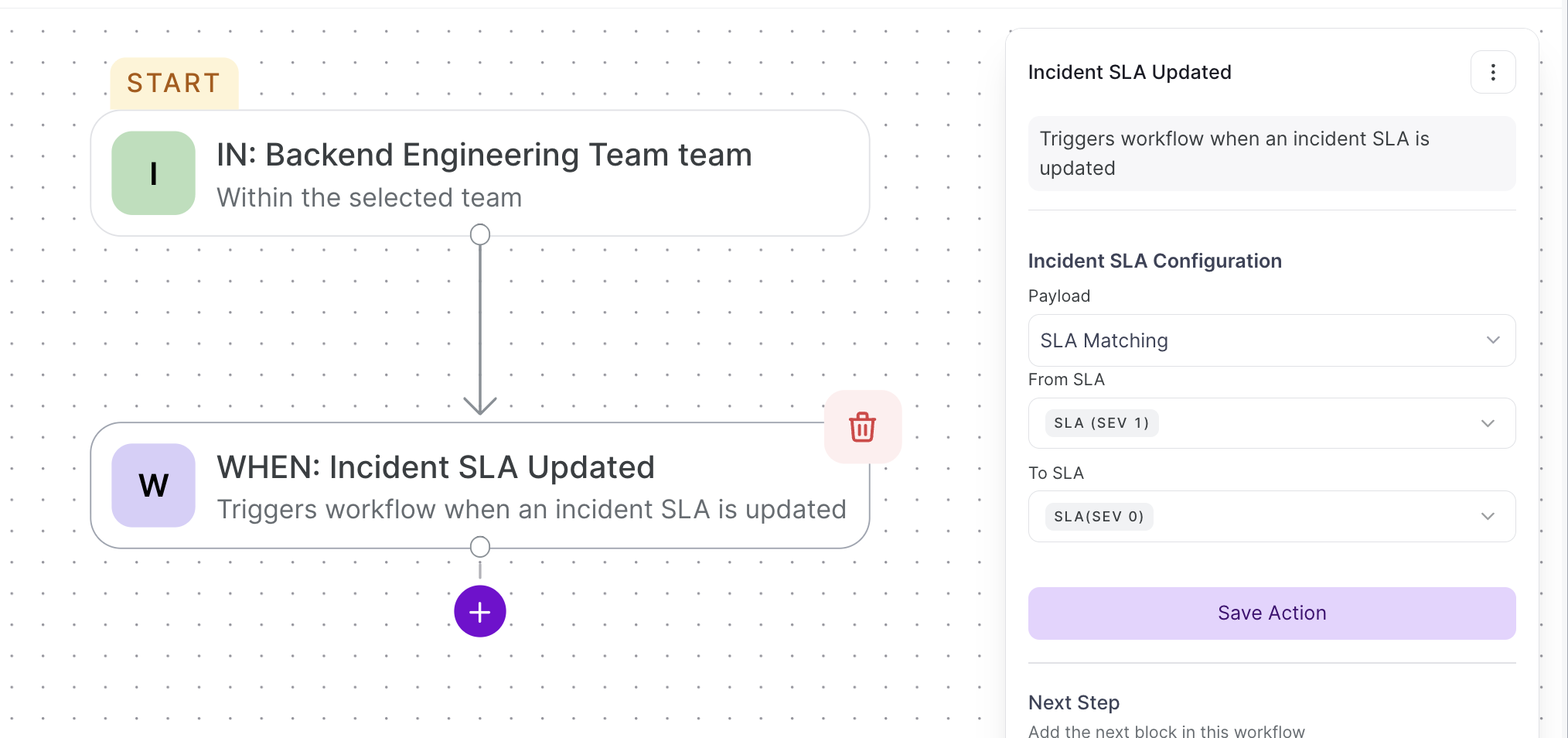
Incident SLA Updated
Triggers when the SLA associated with an incident is updated. Configure From SLA and To SLA (e.g. SLA SEV1 → SLA SEV0).
Example: Notify the team manager via email when an incident SLA escalates from SEV1 to SEV0.
Context Variables
| Variable | Description | Example |
|---|---|---|
{{Incident Created.unique_id}} | Unique identifier | 550e8400-e29b-41d4-a716-446655440000 |
{{Incident Created.summary}} | Incident summary | Database connection timeout |
{{Incident Created.incident_number}} | Sequential number | 1234 |
{{Incident Created.creation_date}} | Creation timestamp | 2024-01-15T10:30:00Z |
{{Incident Created.status}} | Status (1=Triggered, 2=Acknowledged, 3=Resolved) | 1 |
{{Incident Created.title}} | Incident title | Production Database Error |
{{Incident Created.service}} | Service UUID | abc123-xyz |
{{Incident Created.urgency}} | Urgency (0=Low, 1=High) | 1 |
{{Incident Created.assigned_to}} | Assigned user | john.doe |
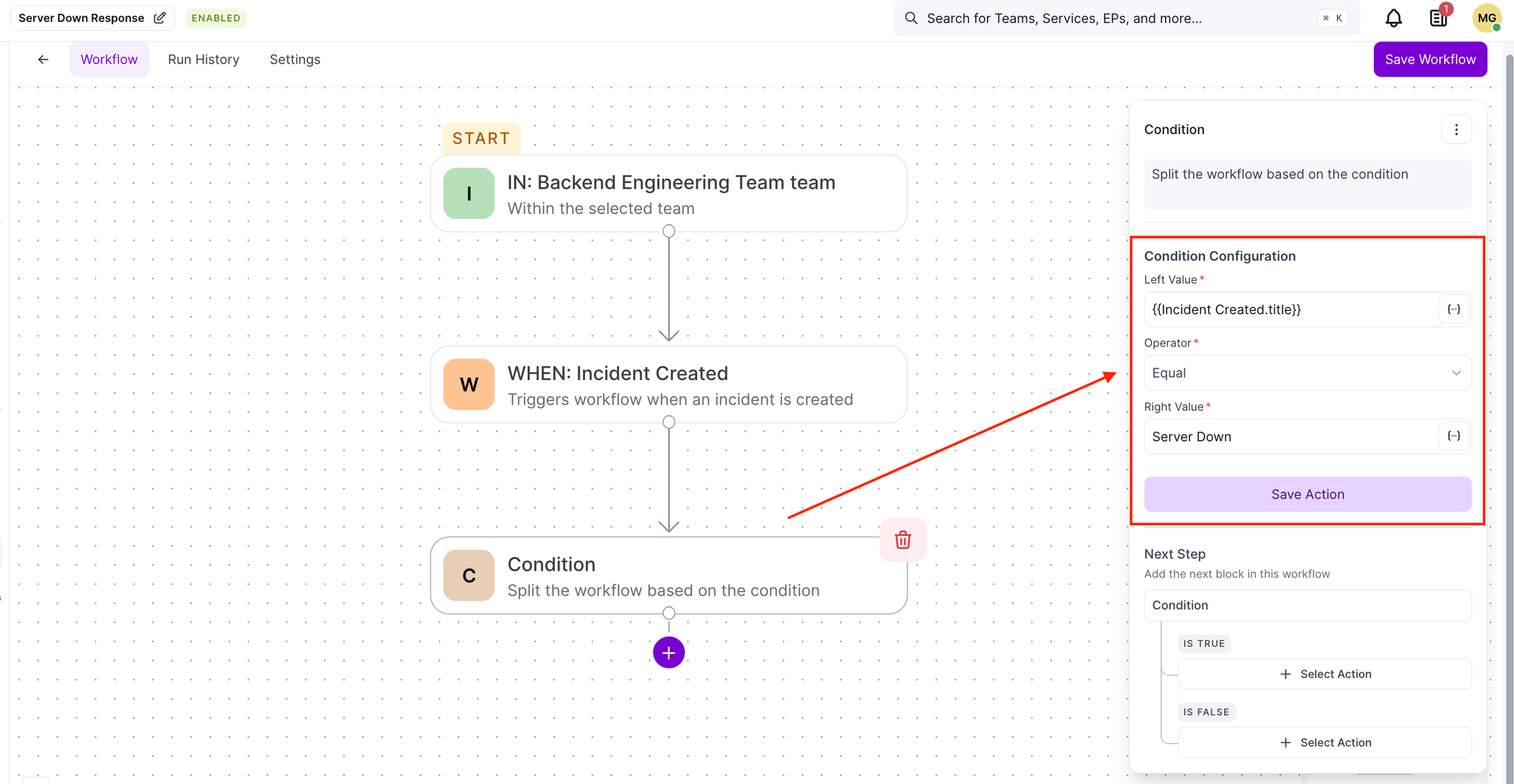
Example: A workflow triggers when a new incident titled "Server Down" is created, using the "Incident Created" trigger to initiate automated steps.
2. Actions
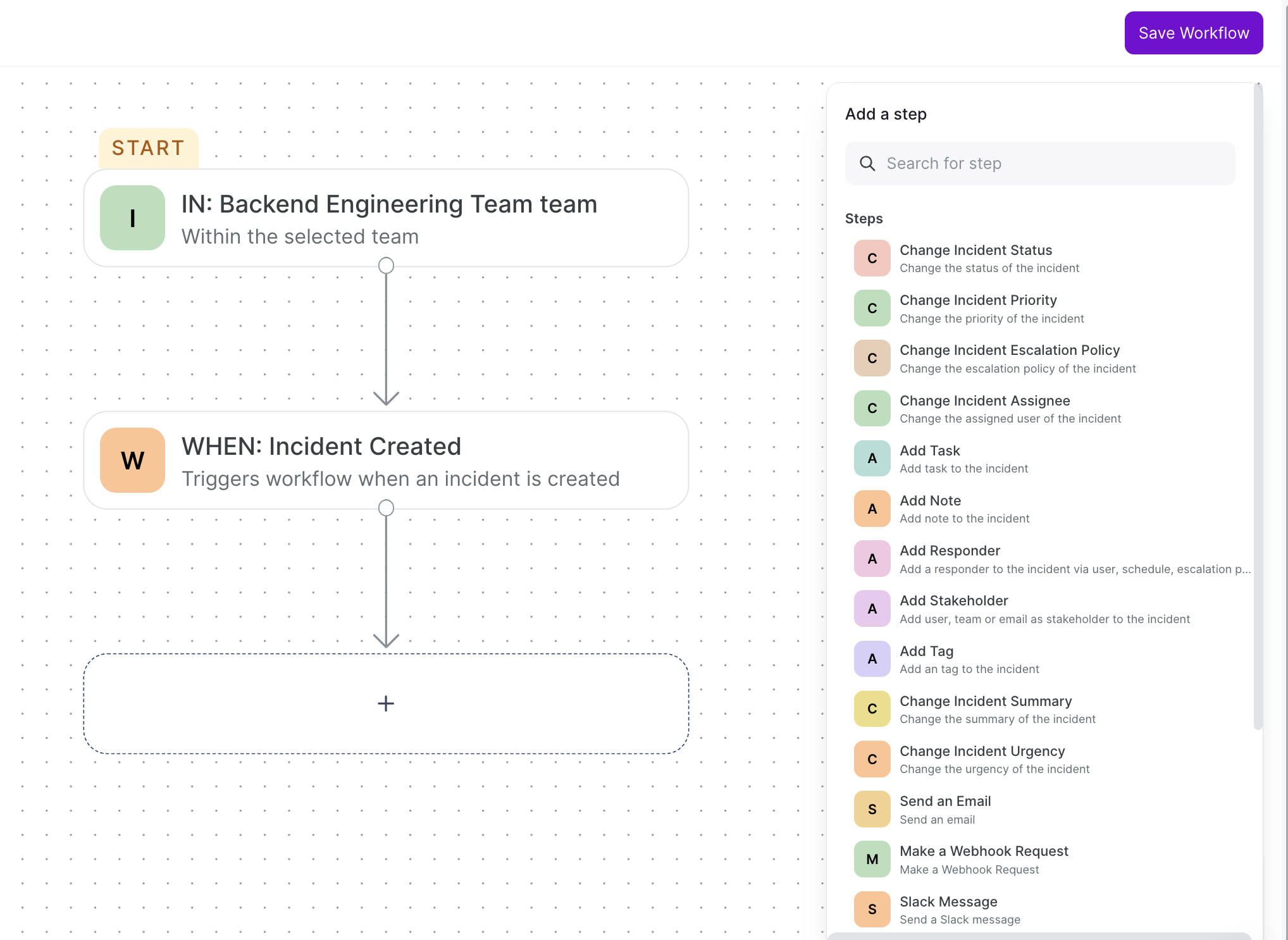
Actions define what the workflow performs after it is triggered. Multiple actions can be added and execute sequentially.
Incident Update Actions
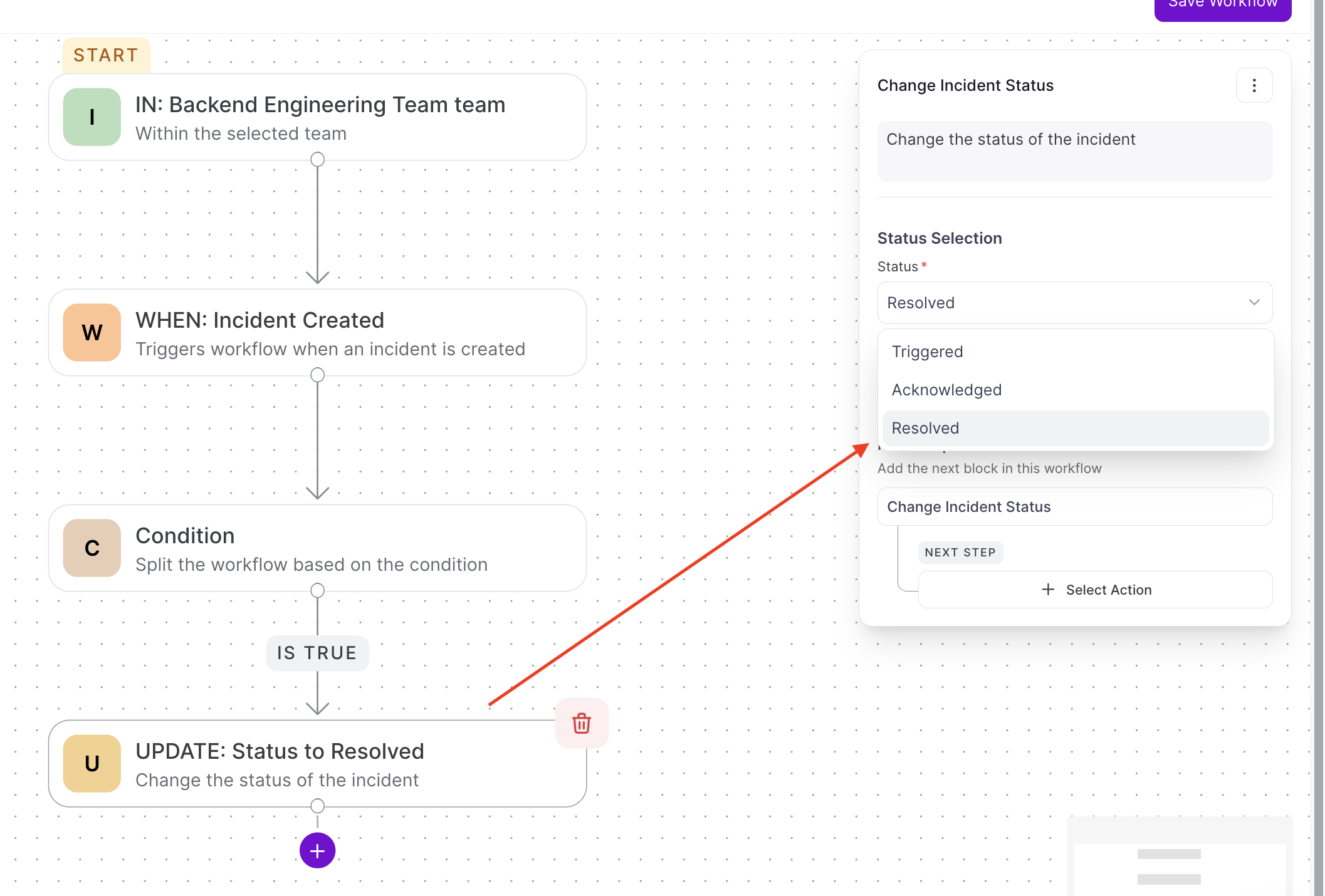
Change Incident Status
- Required:
status(1 = Triggered, 2 = Acknowledged, 3 = Resolved) - Example:
{"status": 3}sets status to Resolved
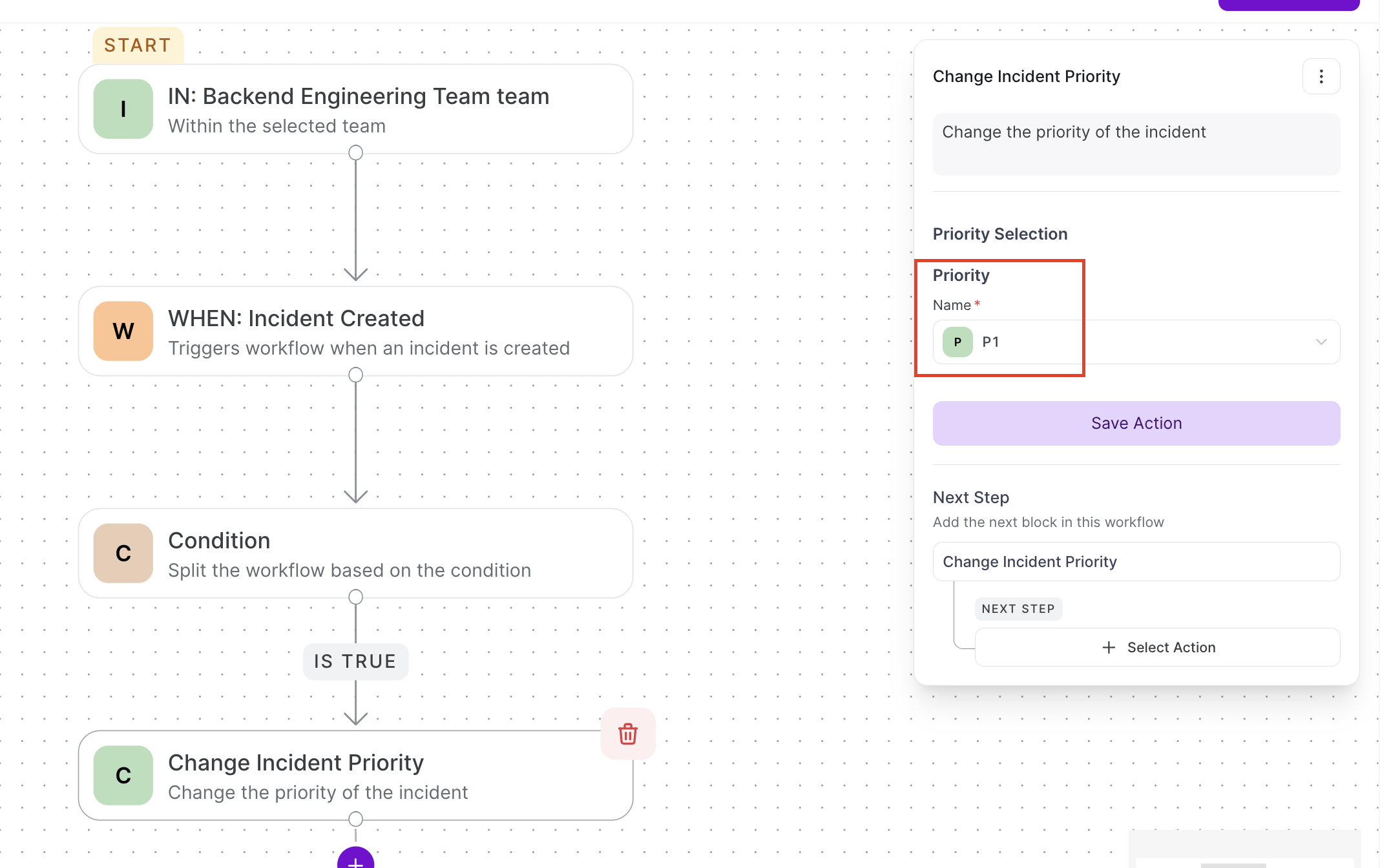
Change Incident Priority
- Required:
priority(must match your team's configured levels) - Example:
{"priority": "P1"}
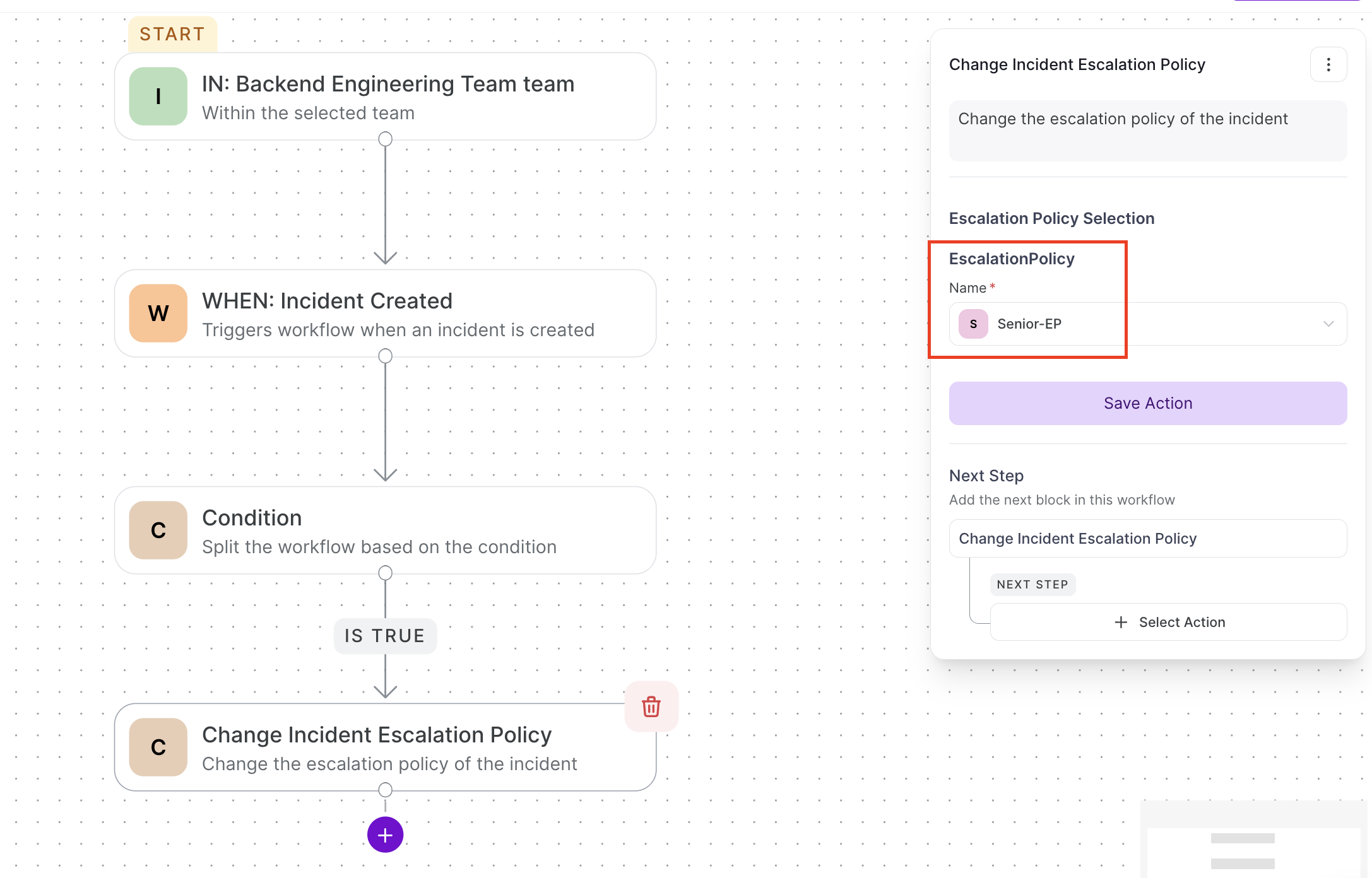
Change Escalation Policy
- Required:
escalation_policy(policy ID or name) - Example:
{"escalation_policy": "Senior-EP"}
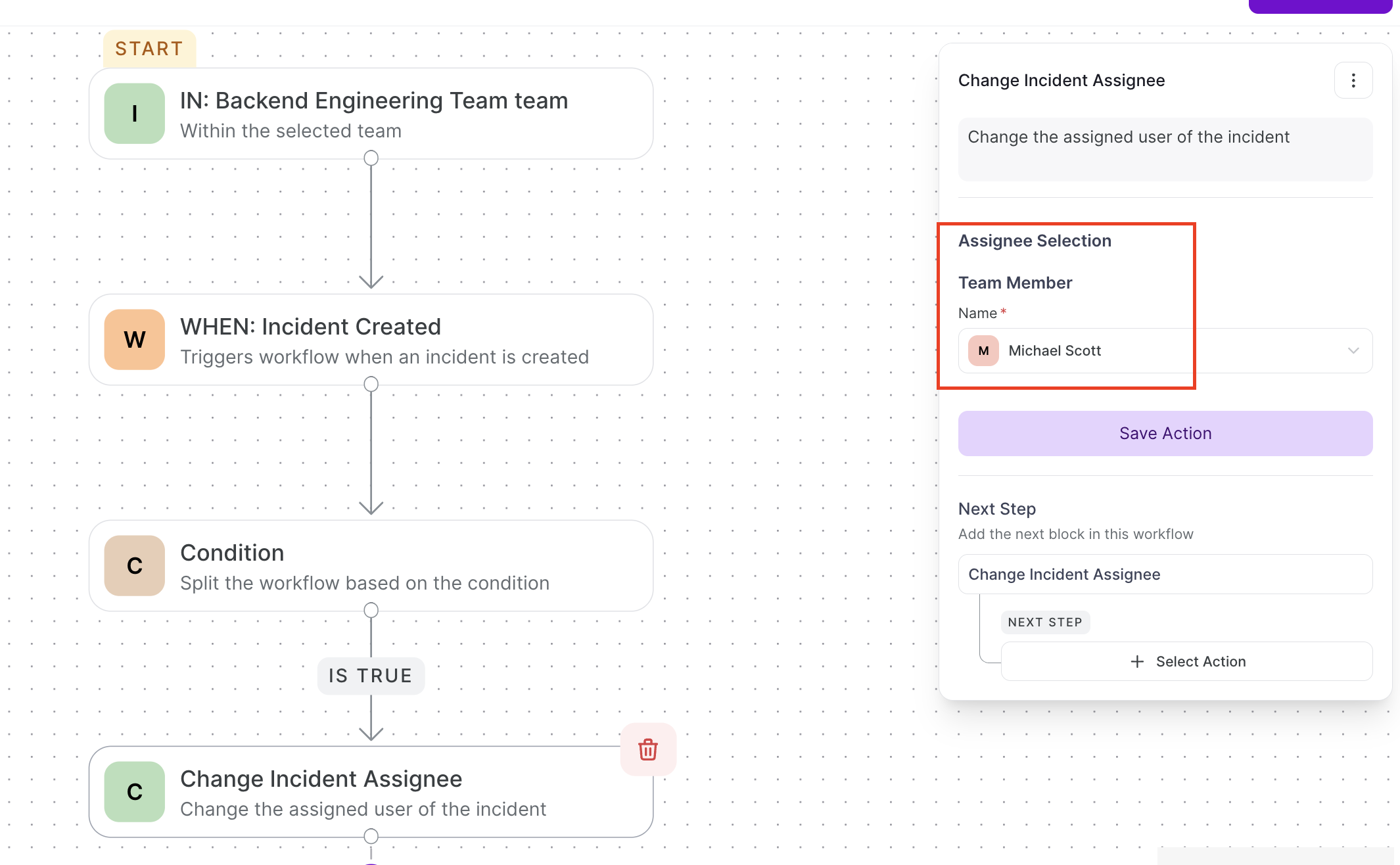
Change Incident Assignee
- Required:
assignee_username - Example:
{"assignee_username": "michael.scott"}
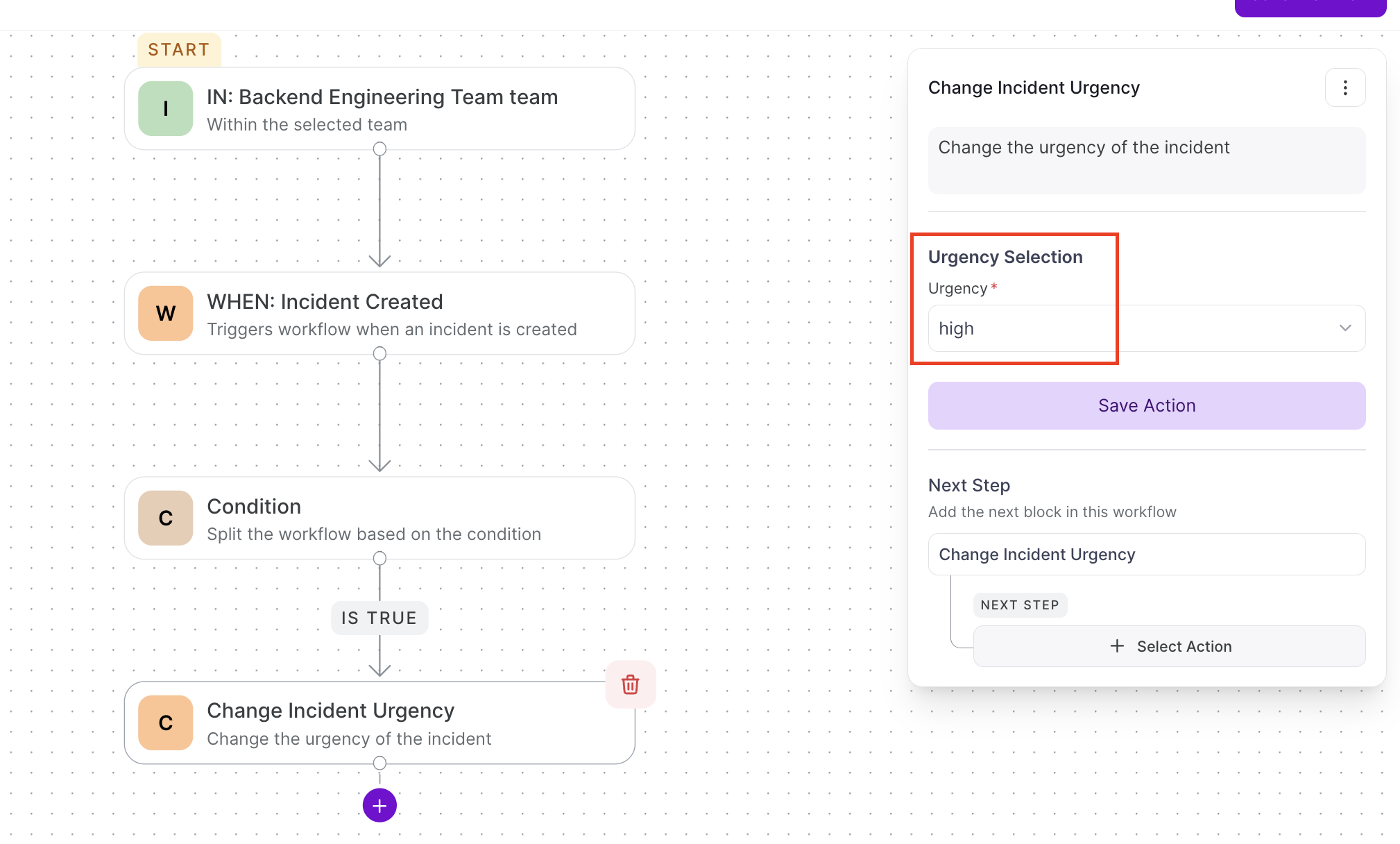
Change Incident Urgency
- Required:
urgency(0 = Low, 1 = High) - Example:
{"urgency": 1}sets urgency to "High"
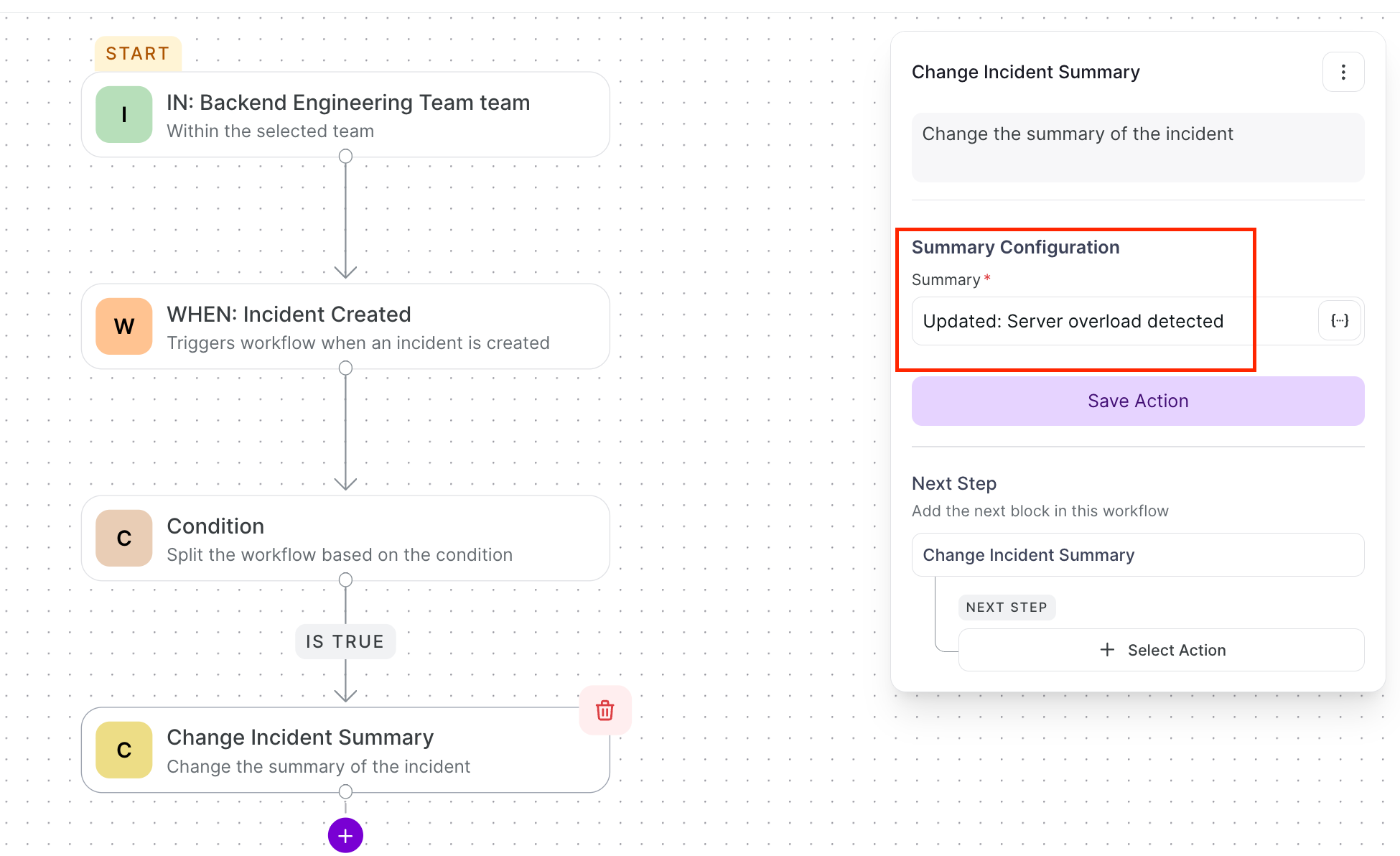
Change Incident Summary
- Required:
summary(new text) - Example:
{"summary": "Updated: Server overload detected"}
Collaboration Actions
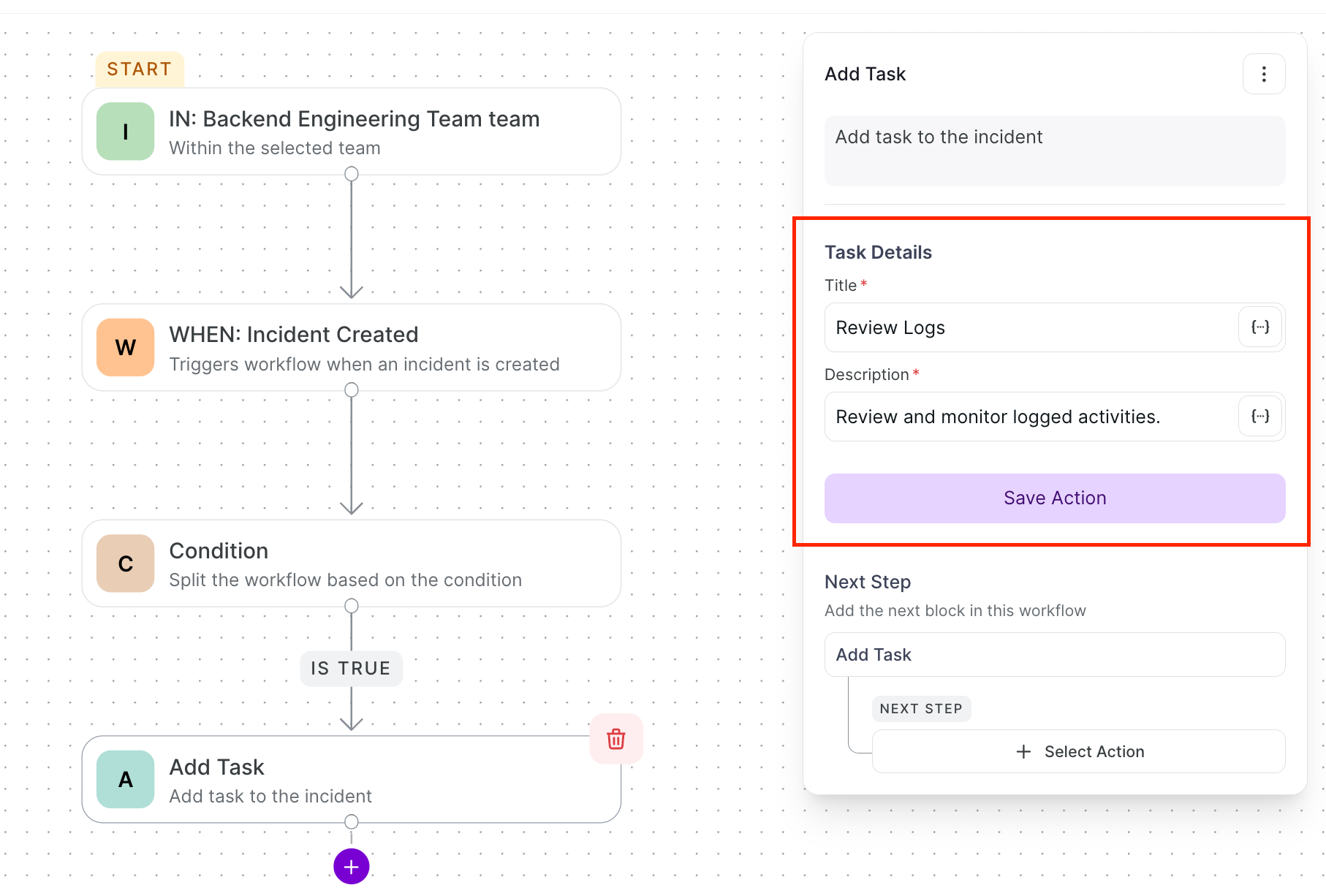
Add Task — Creates a task linked to the incident
- Required:
title,description - Example:
{"title": "Review Logs", "description": "Review and monitor logged activities."}
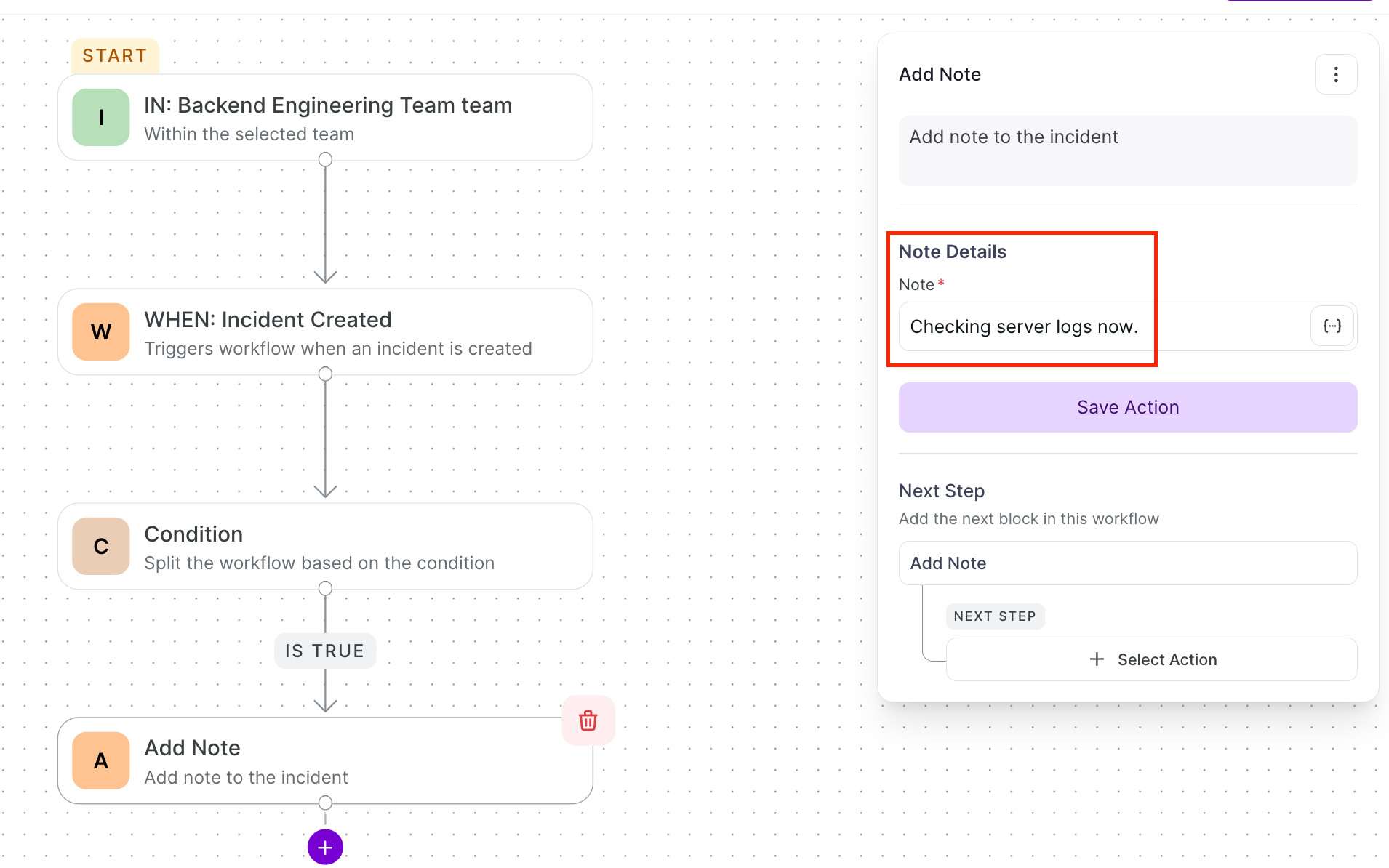
Add Note — Adds an internal note to the incident timeline
- Required: Note content
- Example:
{"note": "Checking server logs now."}
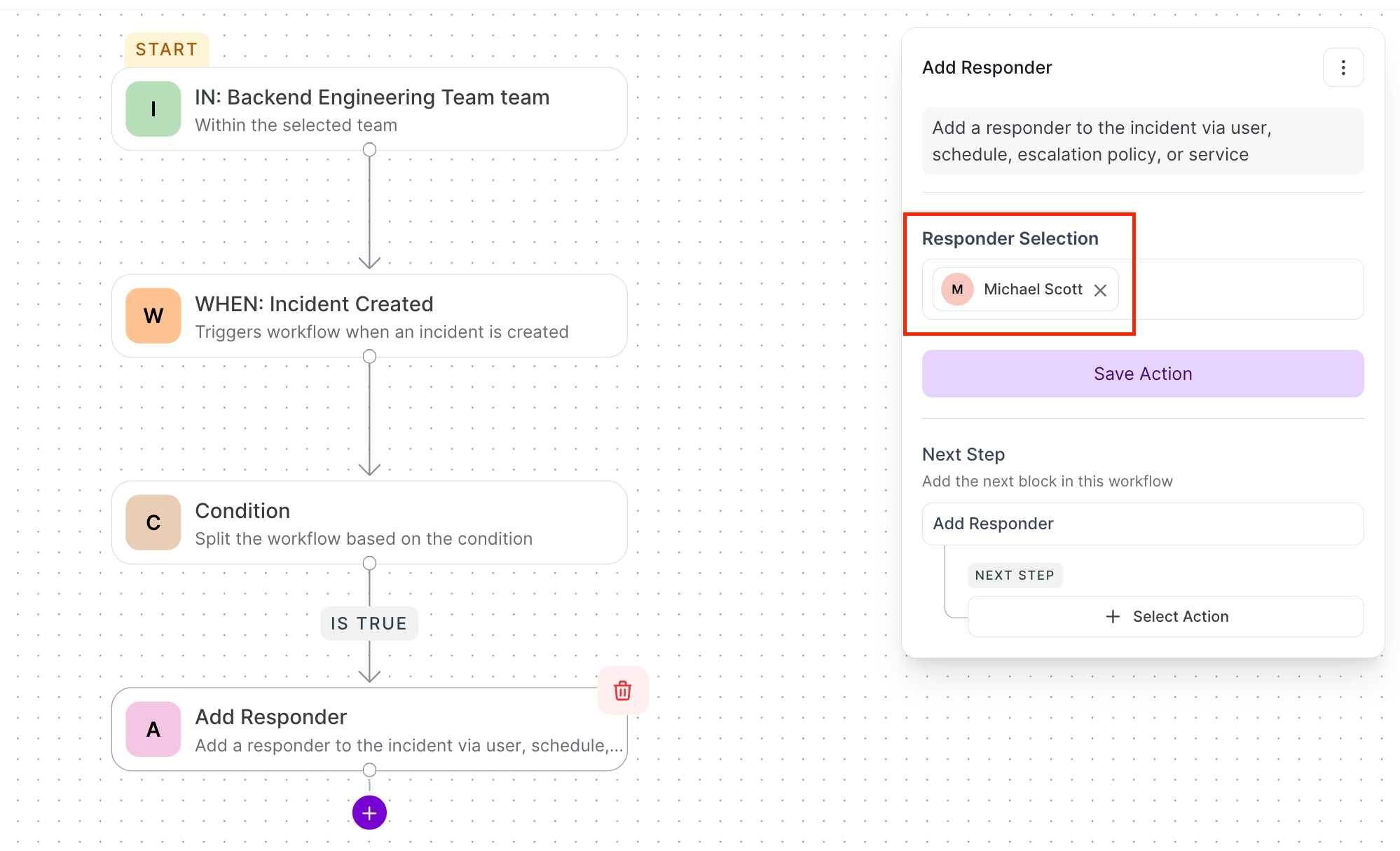
Add Responder — Adds a user as a responder
- Required:
responder_username - Example:
{"responder_username": "michael"}
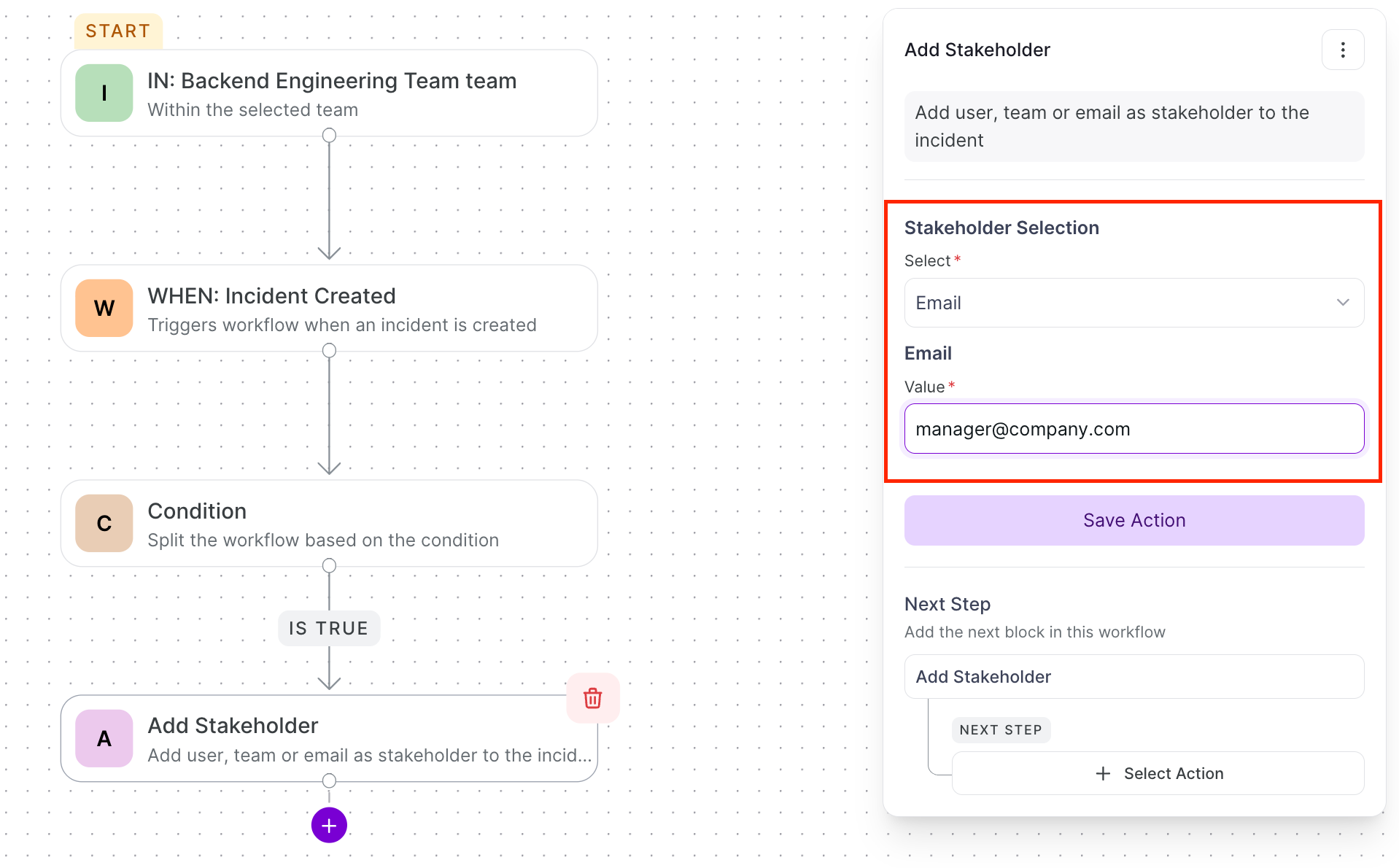
Add Stakeholder — Adds a stakeholder to the incident
- Required:
stakeholder_email - Example:
{"stakeholder_email": "manager@company.com"}
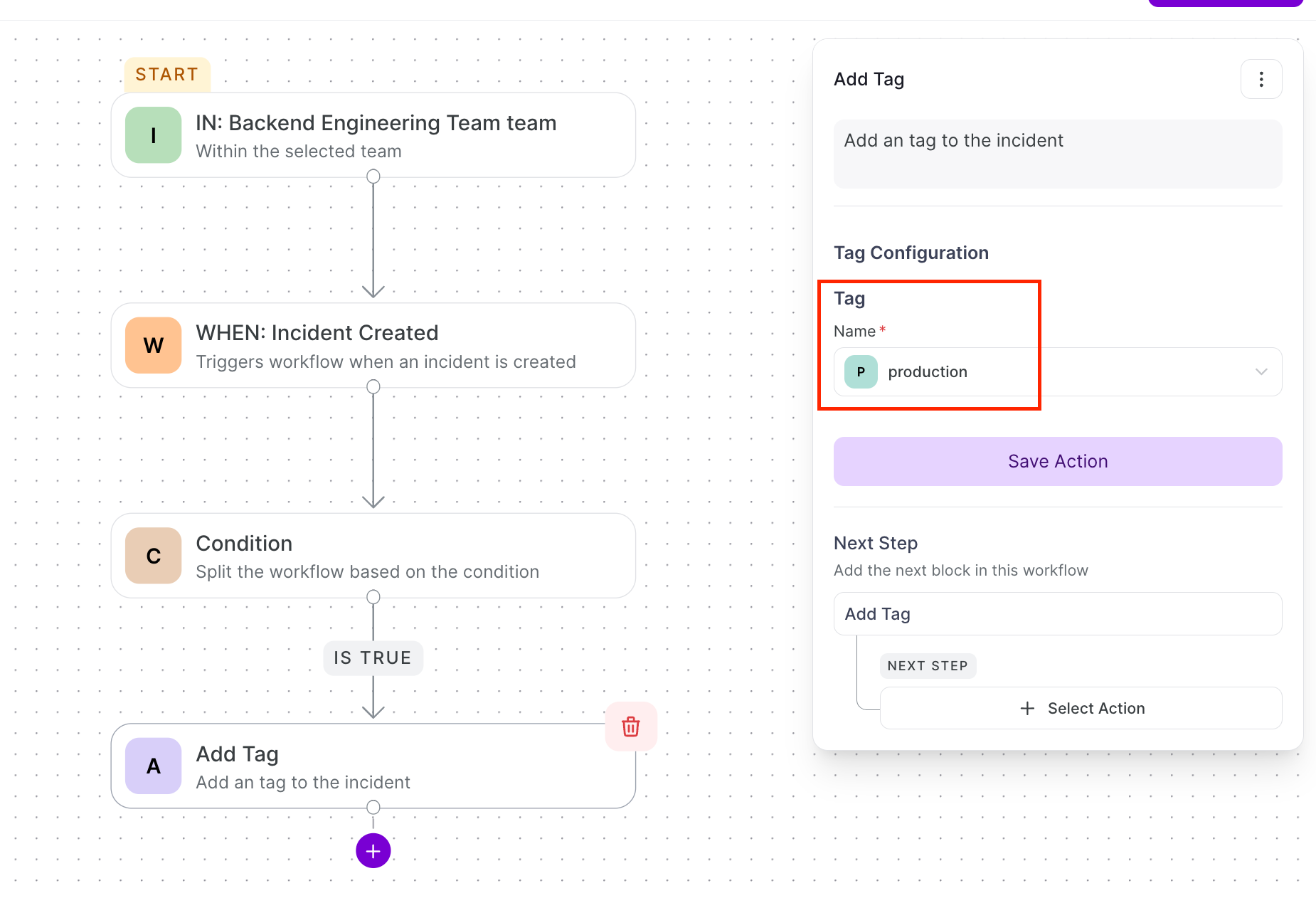
Add Tag — Adds tags to categorize the incident
- Required:
tags(array of strings) - Example:
{"tags": ["database", "production"]}
Communication & Integration Actions
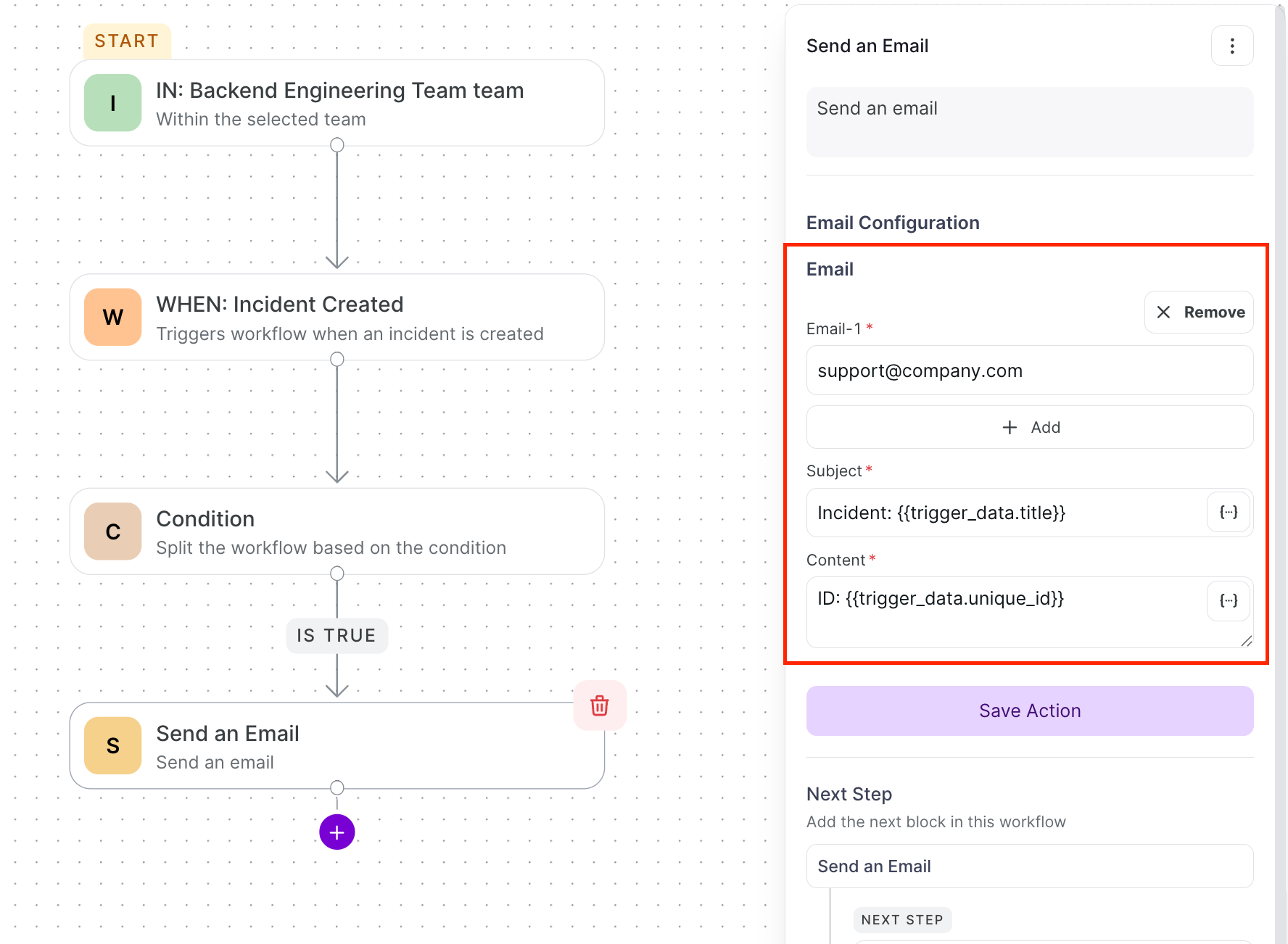
Send an Email — Sends an email notification (supports dynamic variables)
- Required:
to,subject,message - Example:
{"to": "support@company.com", "subject": "Incident: {{Incident Created.title}}", "message": "ID: {{Incident Created.unique_id}}"}
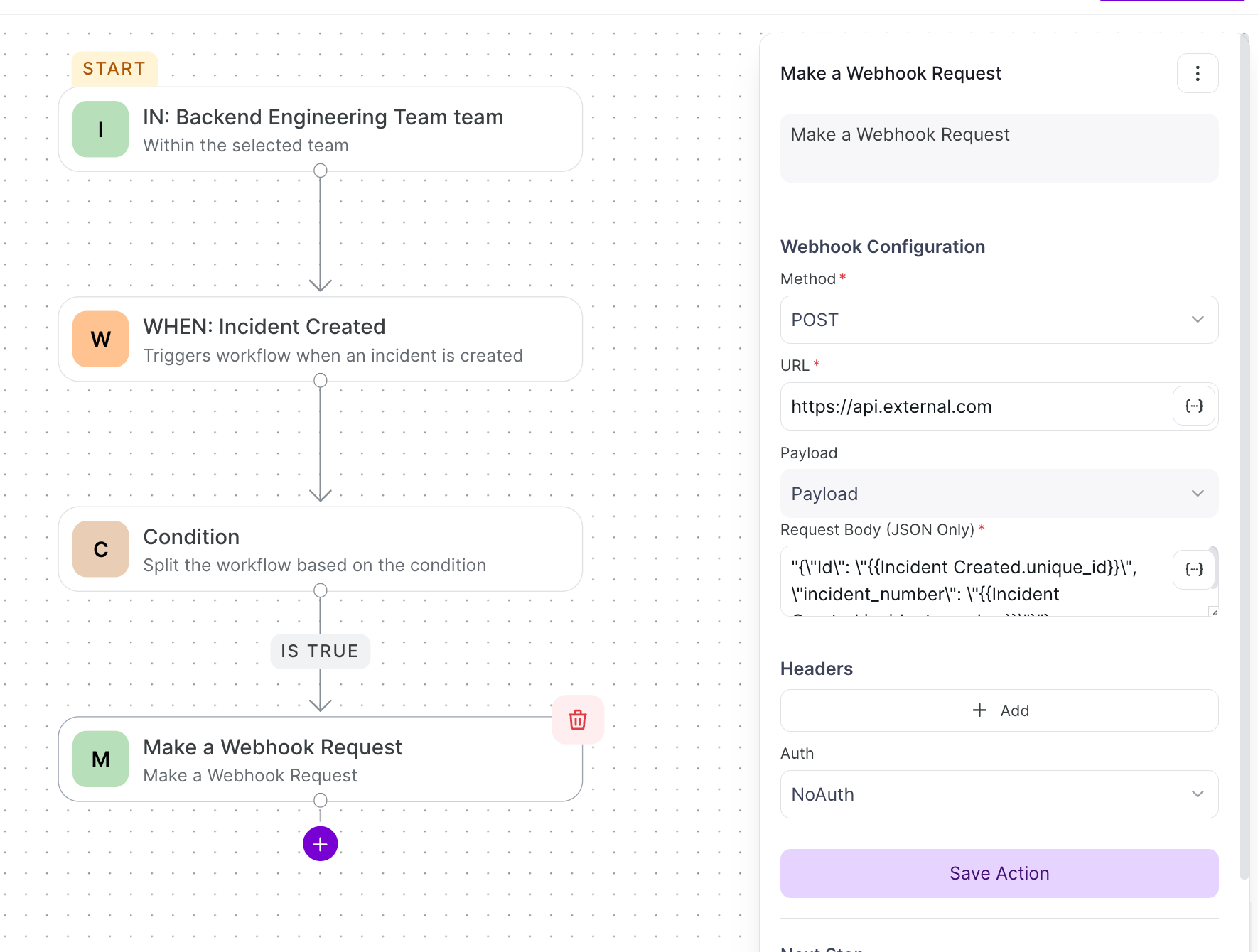
Make a Webhook Request — Sends an HTTP request
- Required:
url,method - Optional:
headers,body - Example:
{"url": "https://api.external.com", "method": "POST", "body": "{\"id\": \"{{Incident Created.unique_id}}\"}"}
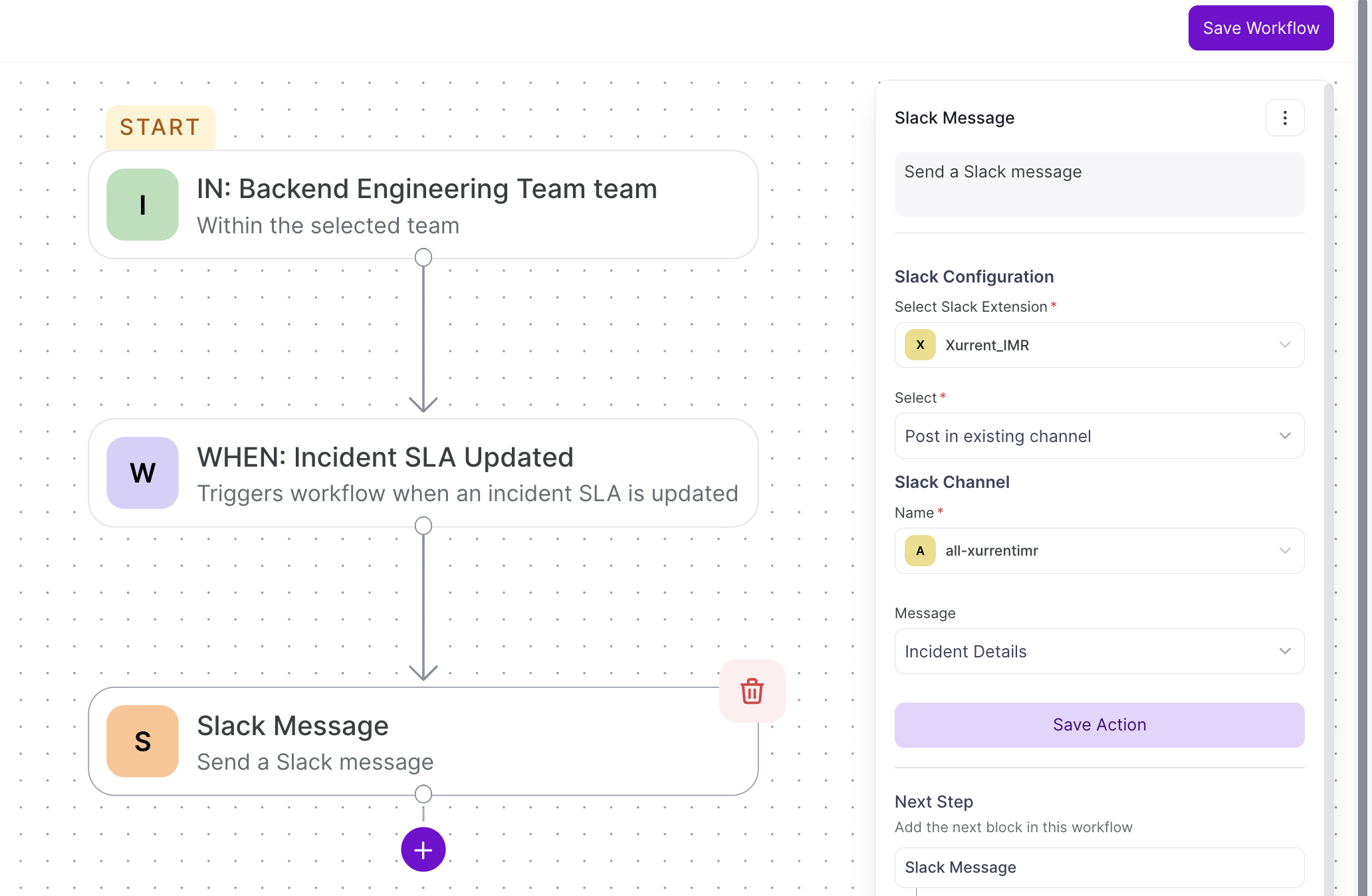
Send Slack — Sends a Slack message
- Required: Extension, Channel
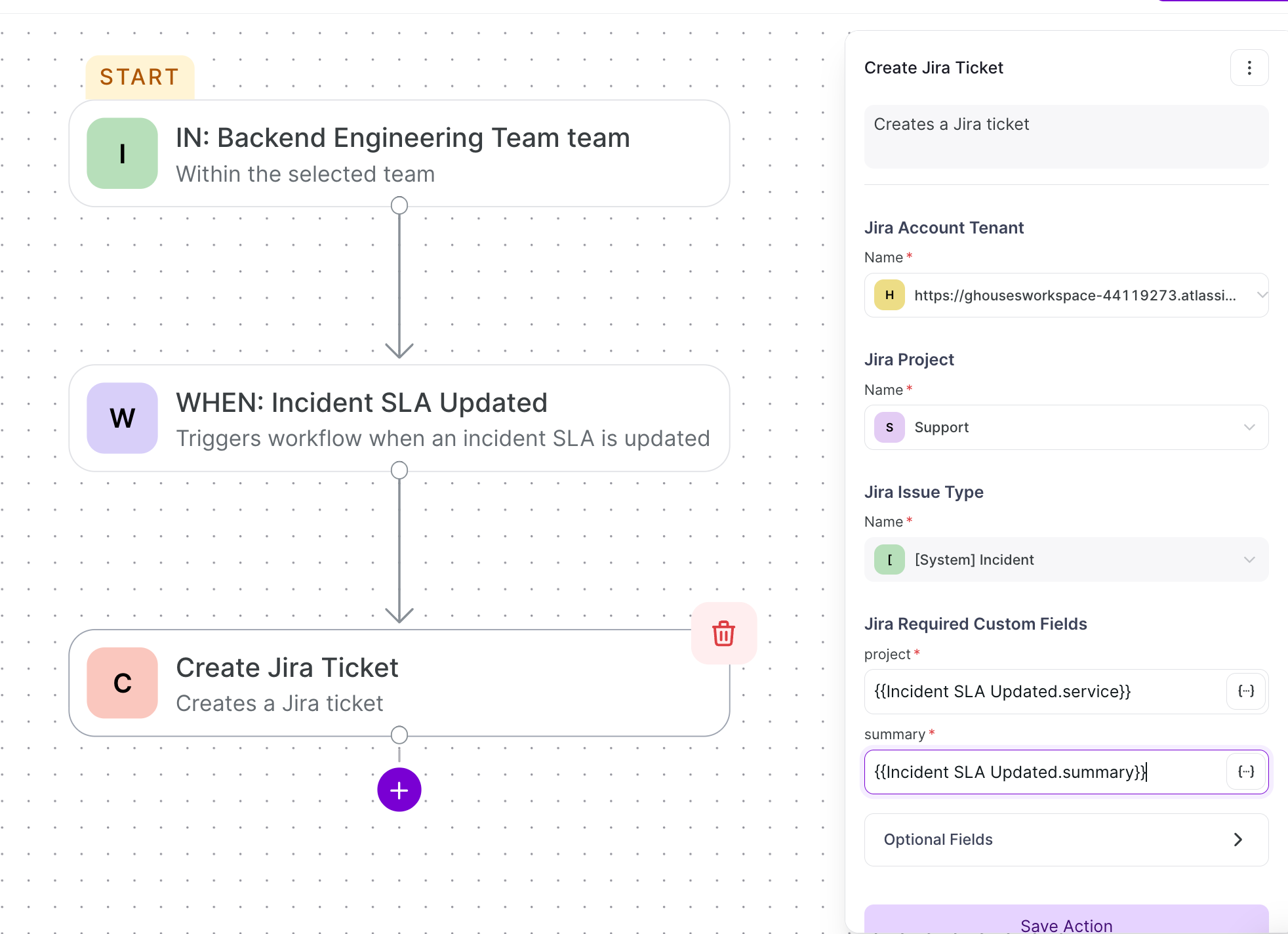
Notify Create Jira — Creates a Jira ticket
- Required: Tenant, Project, Issue Type
3. Conditions
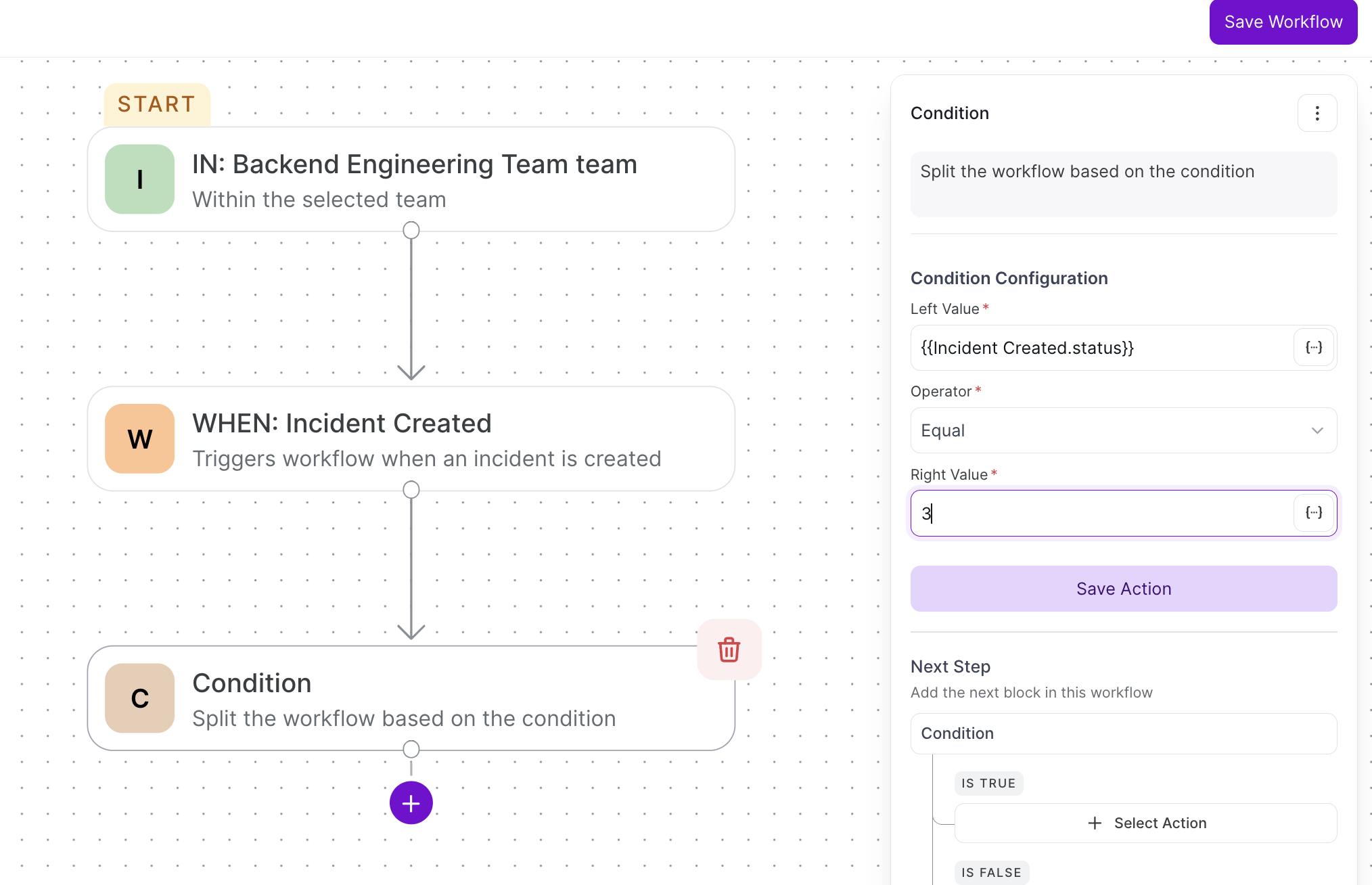
Conditions introduce decision-based logic. They evaluate a rule and branch into two paths: IS TRUE or IS FALSE.
Supported Operators
| Operator | Description |
|---|---|
eq | Equal |
neq | Not Equal |
lt | Less Than |
gt | Greater Than |
lte | Less Than or Equal |
gte | Greater Than or Equal |
contains | Contains |
does not contain | Does Not Contain |
Configuring a Condition
- Enter Left Value (e.g.,
{{Incident Created.status}}) - Select Operator (e.g., equals, not equal, greater than)
- Enter Right Value (e.g.,
3for Resolved) - Click Save
4. Delays
Delays pause workflow execution for a defined time period before continuing.
Configuring a Delay
- Click Add a Delay
- Enter the delay value (numeric)
- Select the time unit (
minutesorseconds) - Click Save
Example: A delay of 15 minutes {"delay": 15, "unit": "minutes"} waits before checking if the incident is resolved.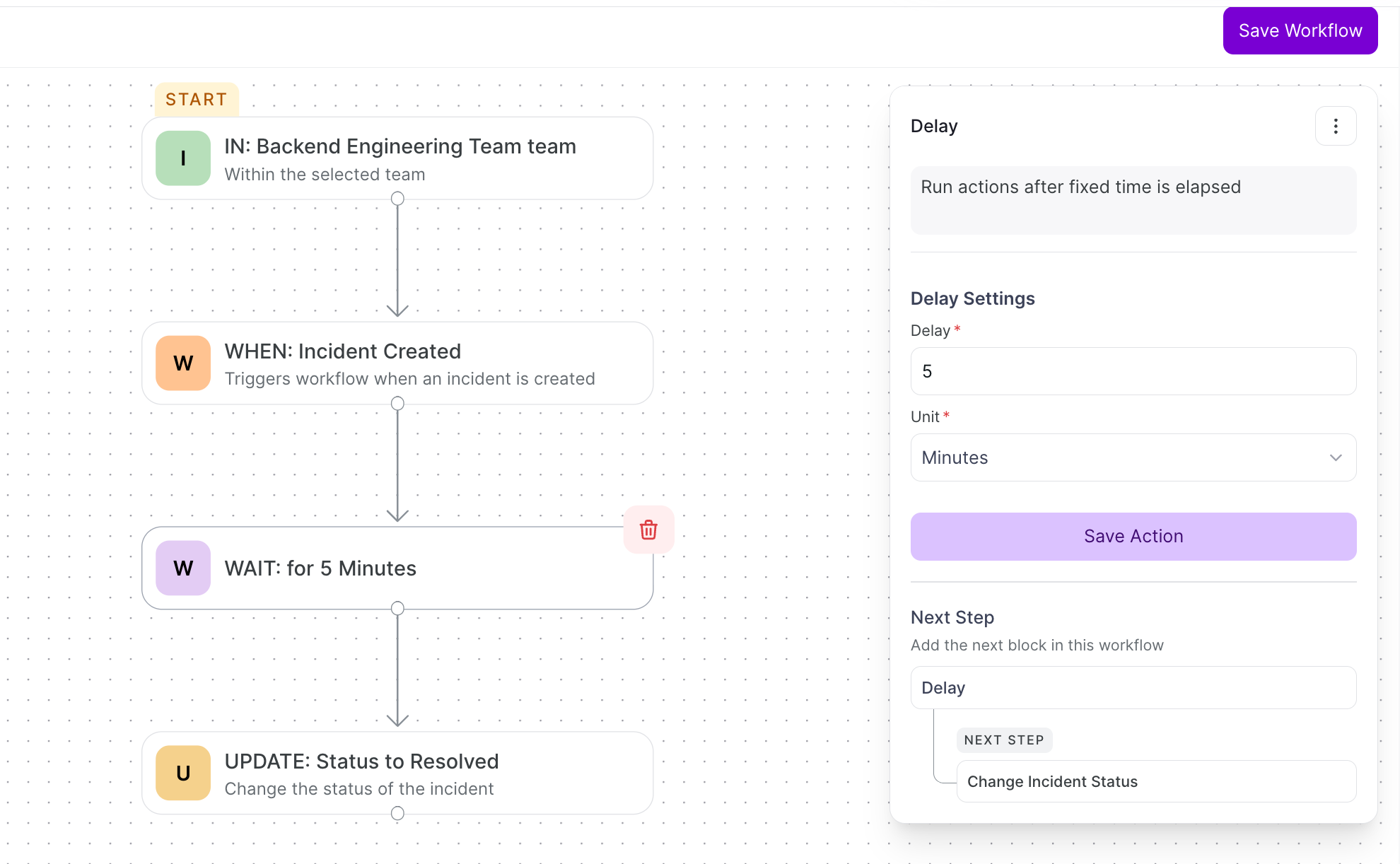
Practical Use Cases
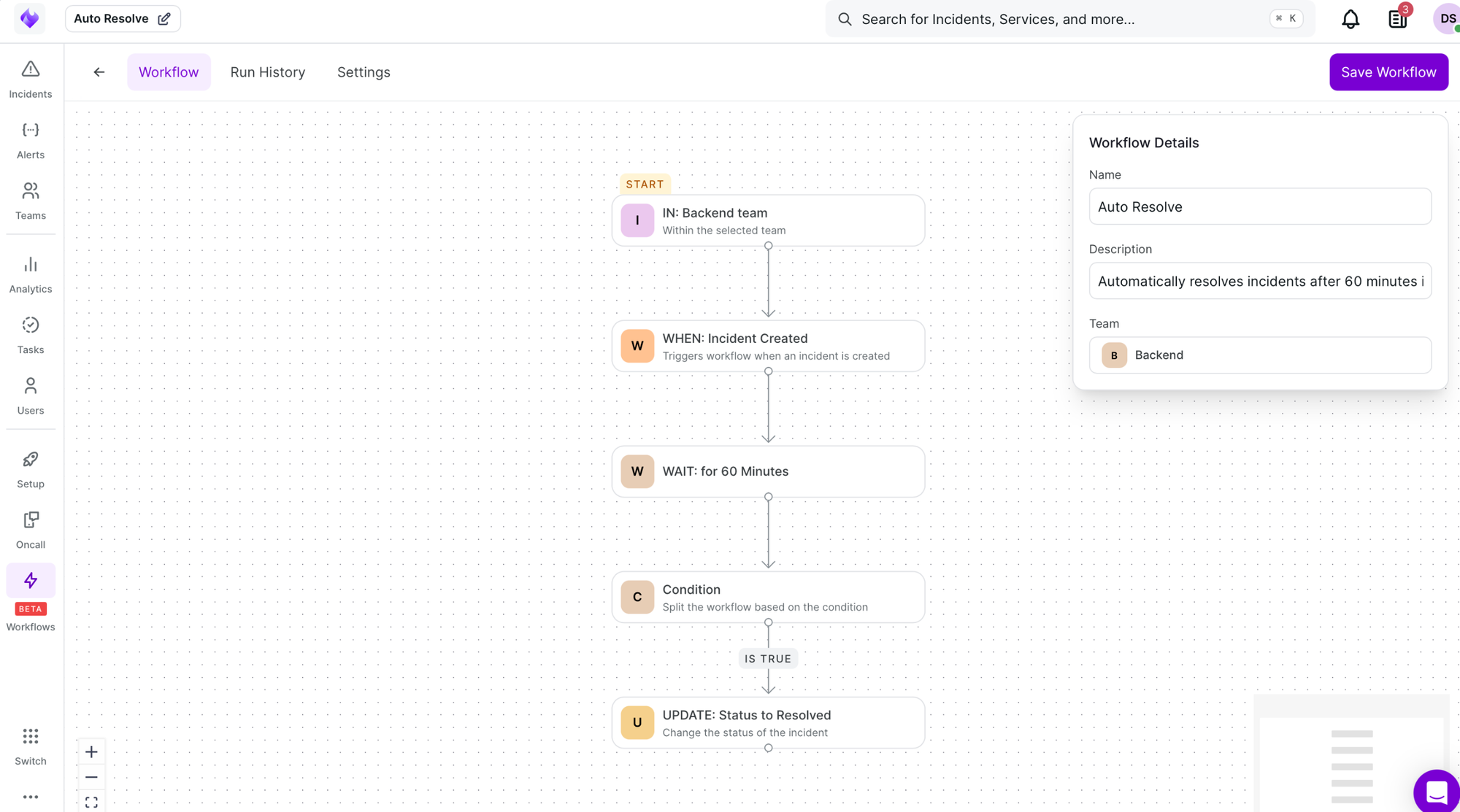
Use Case 1: Auto-Resolve Incidents
Automatically resolves incidents after 60 minutes if unresolved.
- Trigger: Incident Created
- Delay: 60 minutes
- Condition:
{{Incident Created.status}}not equal3 - Action (TRUE): Change status to Resolved
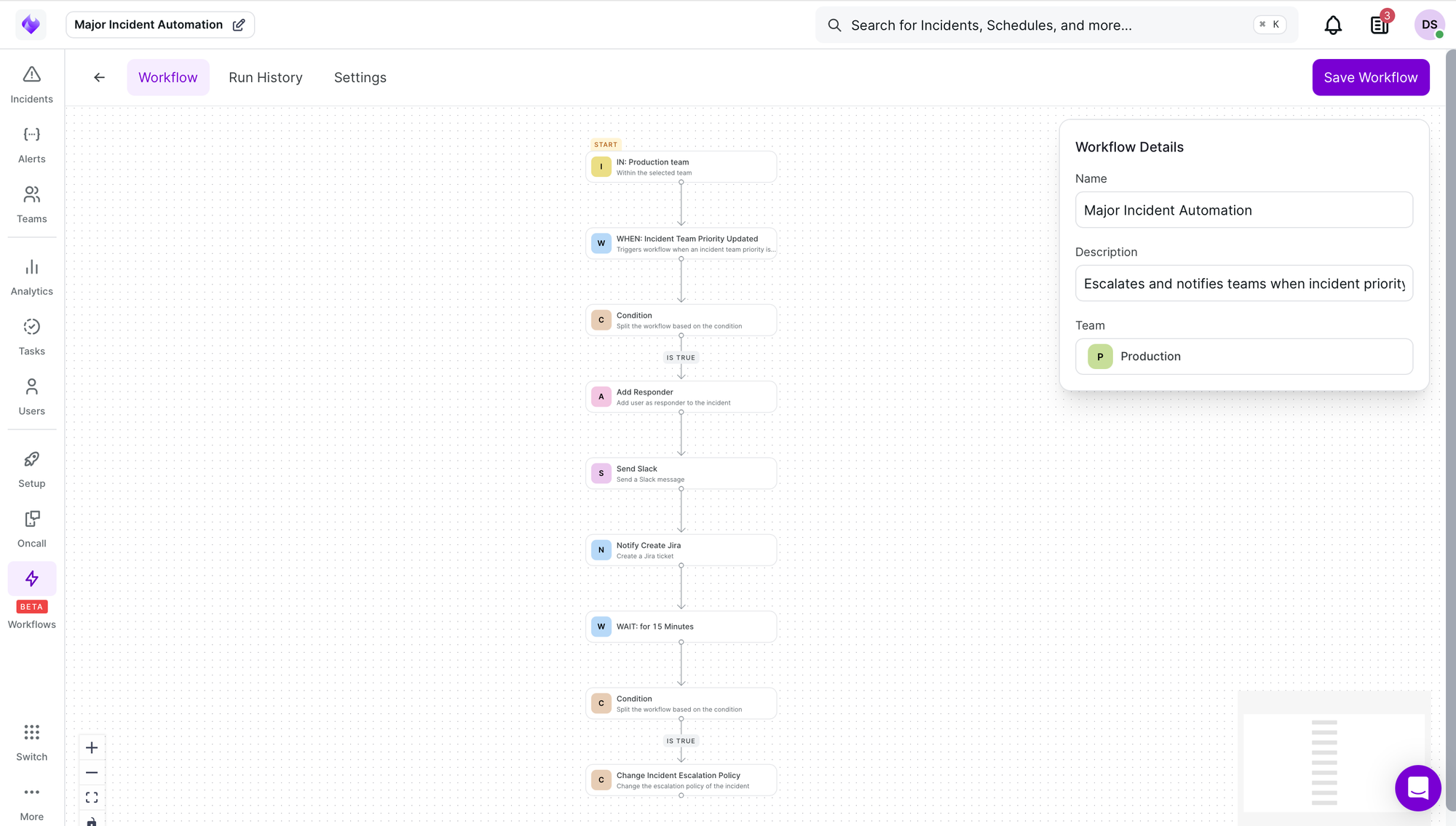
Use Case 2: Major Incident Automation
Manages critical P0 incidents with timely updates and notifications.
- Trigger: Incident Created
- Condition:
{{Incident Created.team_priority}}eqP0 priority UUID - Action (TRUE): Add Responder → Send email with subject
"P0 Incident Detected: {{Incident Created.title}} (Incident #{{Incident Created.incident_number}})" - Delay: 15 minutes
- Condition:
{{Incident Created.status}}eq3(Resolved) - Action (TRUE): Send resolution email to support@company.com
Note: The team priority condition uses the priority's UUID. Find this in your team's priority settings.
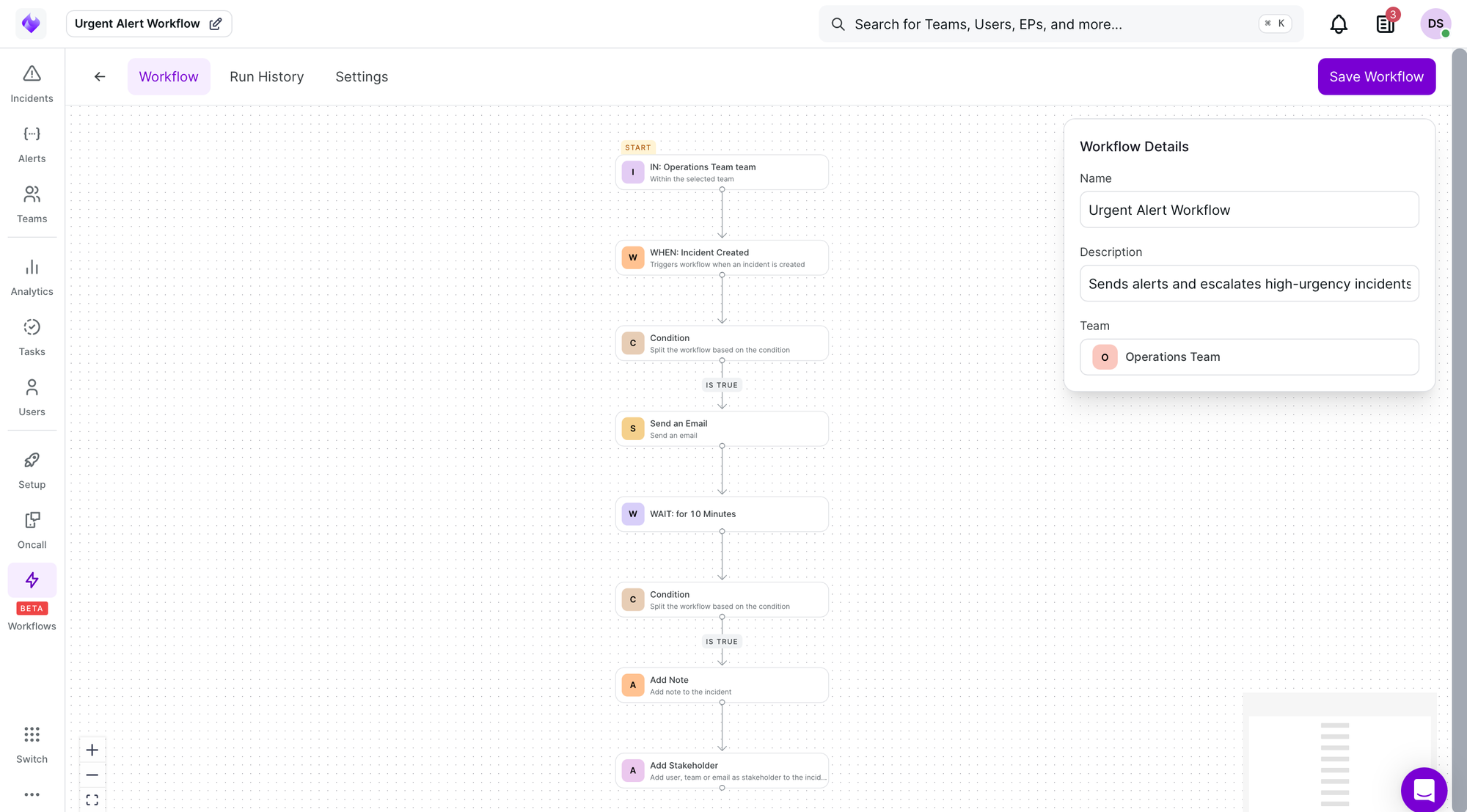
Use Case 3: Proactive Monitoring Alert
Sends alerts and escalates high-urgency incidents.
- Trigger: Incident Created
- Condition:
{{Incident Created.urgency}}eq1(High) - Action (TRUE): Send email to ops@xurrent.com
- Delay: 10 minutes
- Condition:
{{Incident Created.status}}neq3 - Action (TRUE): Add Note, Add Stakeholder
manager@company.com
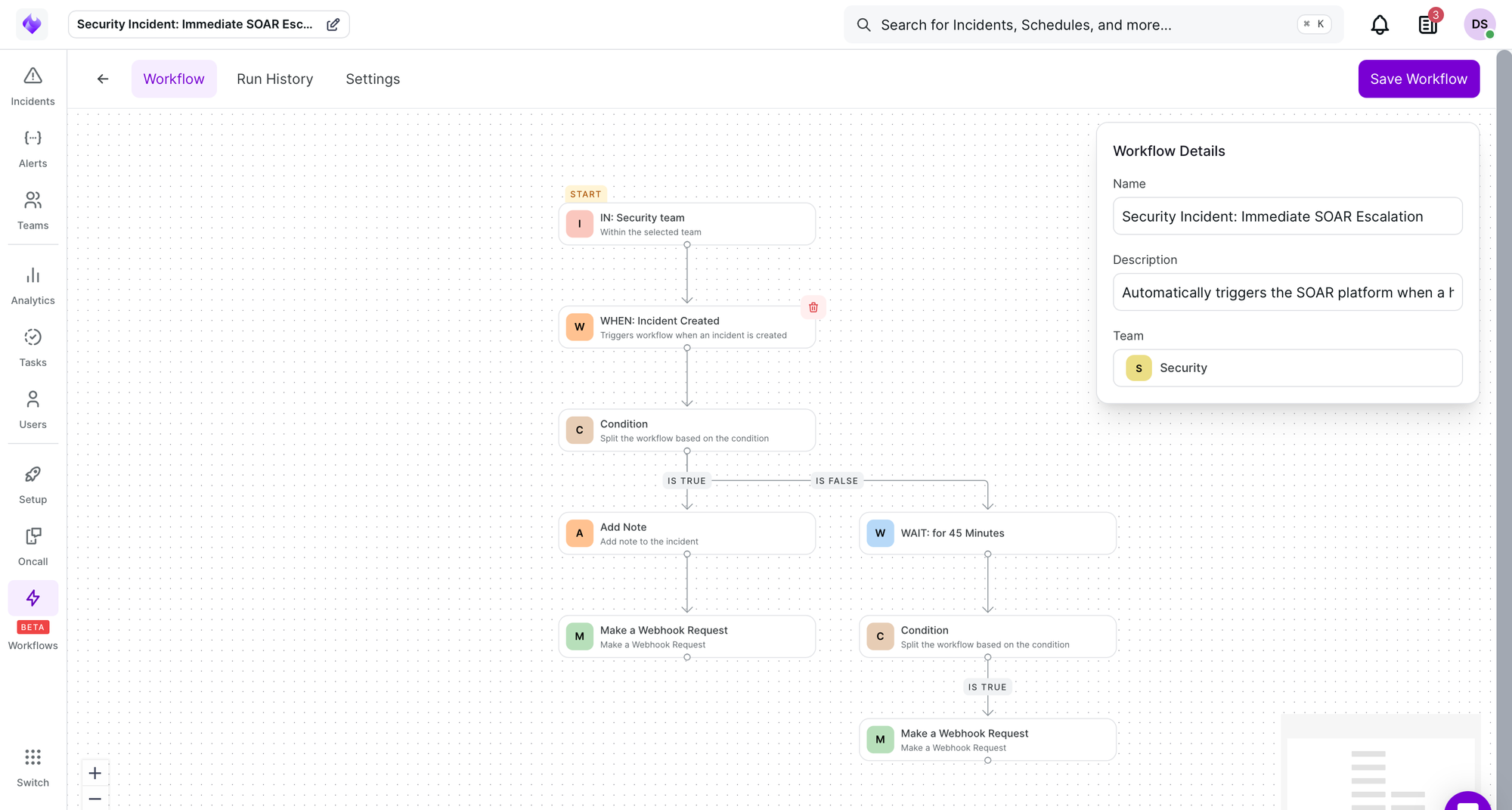
Use Case 4: Security Incident – Delayed SOAR Escalation
Automatically escalates critical P0 security incidents to the SOAR platform.
- Trigger: Incident Created
- Condition: Priority equals P0
- Action (TRUE): Add Note "Critical security incident detected. Initiating SOAR escalation.", Make Webhook Request
- Action (FALSE): Delay 45 minutes → Condition: Status equal
1→ Action (TRUE): Make Webhook Request
Best Practices
- Keep Conditions Simple: Use straightforward logic to avoid complex branching
- Monitor Delays: Set reasonable delay times aligned with your team's response expectations
- Document Changes: Clearly describe the workflow's purpose in the description field
- Assign Clear Teams: Ensure proper ownership and permissions for each workflow
- Use Templating: Leverage variables like
{{Incident Created.unique_id}}in emails and webhooks - Chain Actions Logically: Combine multiple actions in a structured sequence
- Test Before Deploying: Verify workflow behavior with test incidents before enabling for production
Troubleshooting
Workflow Not Triggering
- Verify the trigger event matches the incident activity
- Check that the workflow is enabled and assigned to the correct team
- Ensure team permissions allow workflow execution
Actions Not Executing
- Review Condition Logic: Ensure left_value, operator, and right_value are correct
- Inspect Action Parameters: Confirm all required fields contain valid values
- Check Variable Syntax: Verify dynamic variables use correct formatting (e.g.,
{{Incident Created.status}})
Unexpected Delays
- Examine Delay Timing: Verify delay duration aligns with expected behavior
- Check Condition Branches: Ensure delays are placed in the correct branch of conditional logic
FAQs
What happens if a delay exceeds the incident resolution time? The workflow continues after the delay and checks the latest incident status. If the incident is already resolved, condition logic can prevent unnecessary actions.
Are there limits on the number of actions per workflow? There are no strict limits, but workflows should remain efficient and focused.
Can I edit a workflow after it's created? Yes, changes take effect immediately for new trigger events.
Can workflows trigger other workflows? Yes, if a workflow action updates an incident property (like status or priority), it can trigger another workflow listening for that specific update.
For additional help, contact support with your workflow details and logs.