Xurrent IMR <> ServiceNow Bi-Directional Integration Guide
This guide walks you through setting up a secure, two-way connection between Xurrent IMR and ServiceNow. Once connected, incidents in either platform will stay in sync, ensuring your teams have real-time visibility and control.
Before You Begin
You'll need access to both:
- GitHub (to download the integration code)
- ServiceNow (admin permissions required)
We'll set up a few things in GitHub first, then in ServiceNow, and finally connect them inside Xurrent IMR.
1. Prepare GitHub
1.1 Create a Personal Access Token
1. Sign in to GitHub.
2. Go to Profile (top right) → Settings → Developer settings → Personal access tokens → Tokens (classic).
3. Click Generate new token → Generate new token (classic).
4. Name it something clear (e.g., ServiceNow Integration).
5. Select the following permissions:
- repo
- admin:repo_hook (optional but recommended)
6. Click Generate token.
7. Copy the token somewhere safe — you won't see it again.
1.2 Fork the Integration Repository
1. In GitHub, search for: Zenduty/xurrent-imr-servicenow.
2. Open the repository.
3. Click Fork (top right).
4. You'll now have your own copy at: https://github.com/<your_username>/xurrent-imr-servicenow
2. Prepare ServiceNow
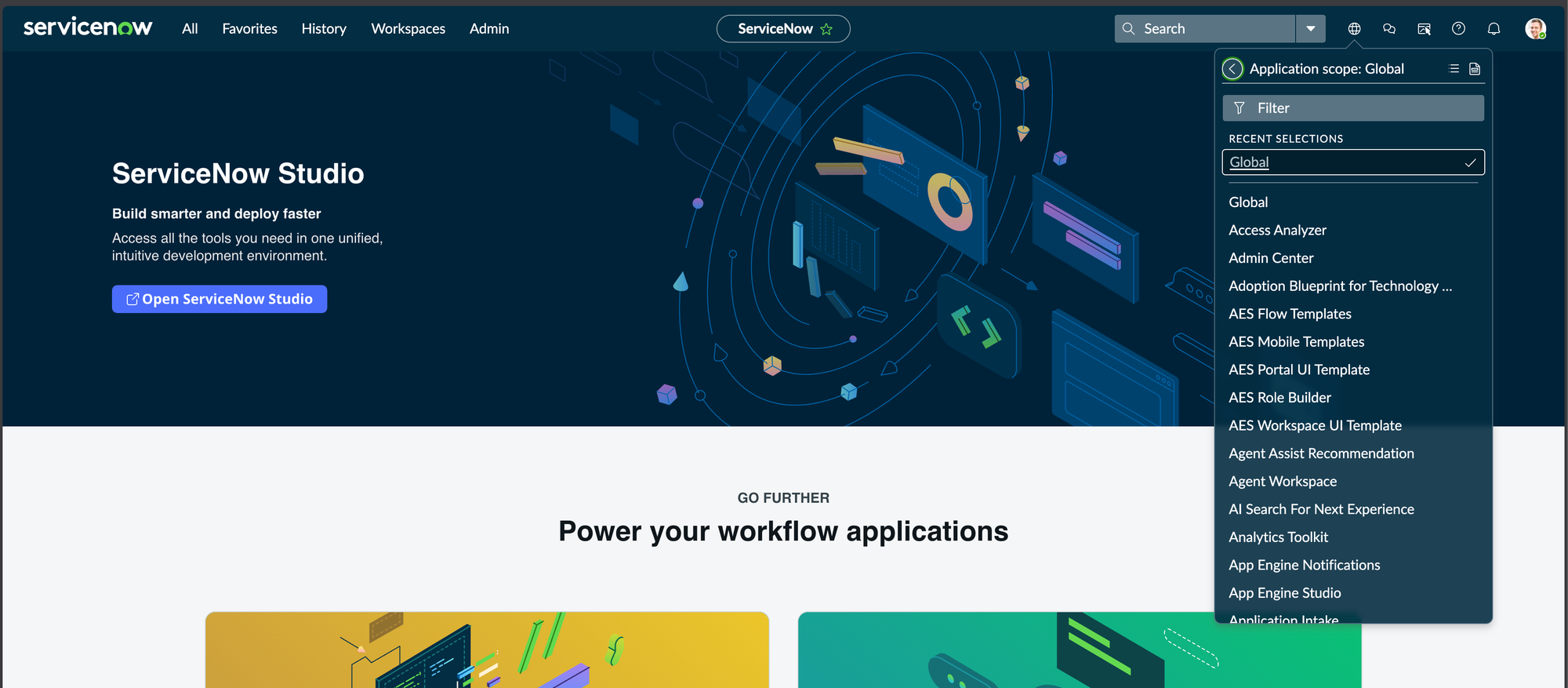
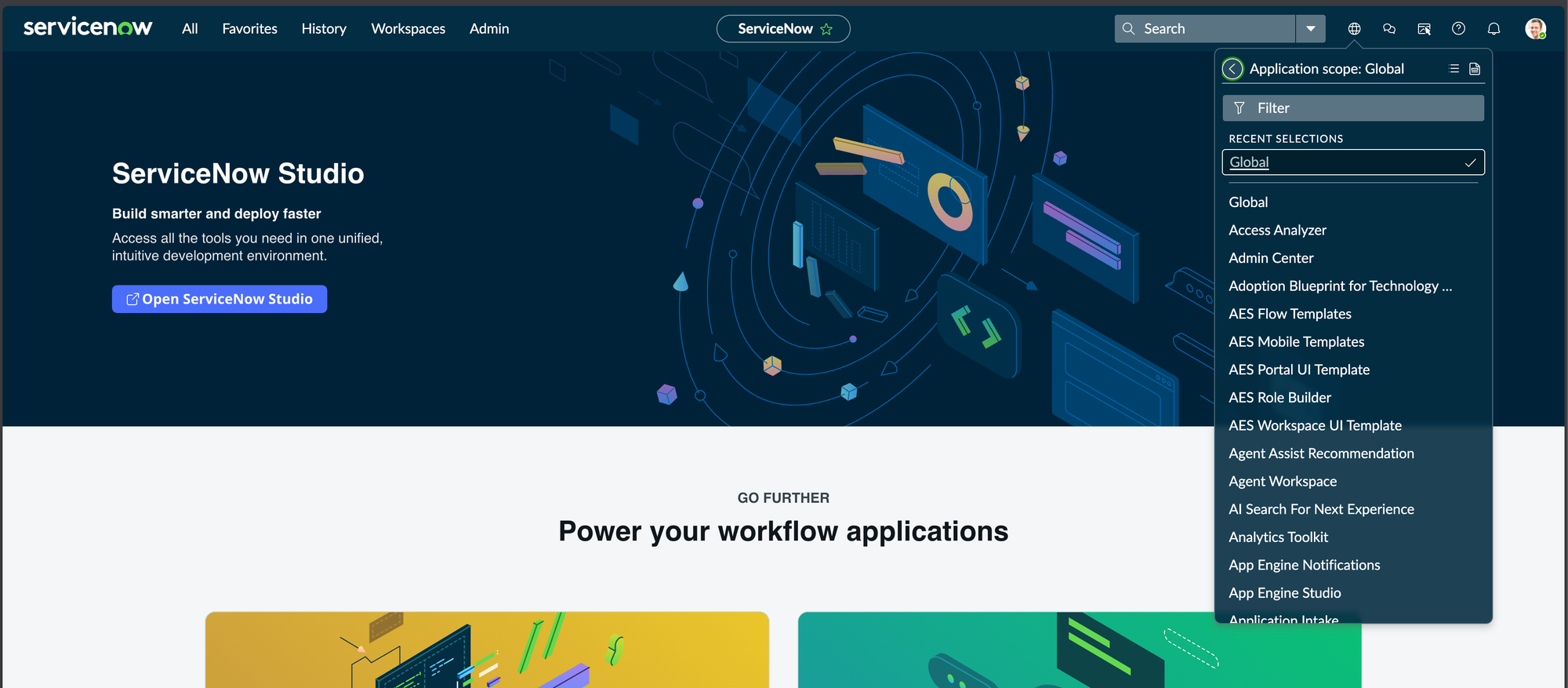
2.1 Switch to the Global Scope
1. Log in to your ServiceNow instance as an admin.
2. Open: https://<your_instance>.service-now.com/now/nav/ui/classic
3.Click the sphere icon in the top right → Application Scope → Global.
2.2 Add GitHub Credentials to ServiceNow
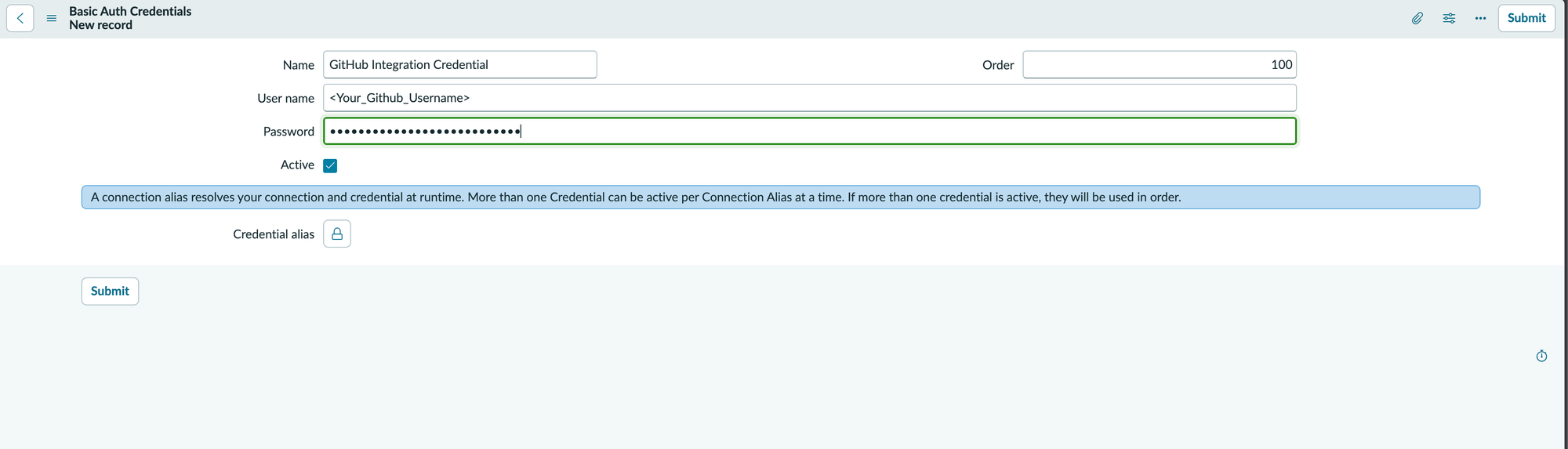
1. Go to: https://<your_instance>.service-now.com/discovery_credentials_list.do
2. Click New → Basic Auth Credentials.
3. Fill in:
- Name: GitHub Integration Credential
- User Name: Your GitHub username
- Password: The GitHub token you created in Step 1.1
4. Click Save.
2.3 Enable OAuth Client Credentials
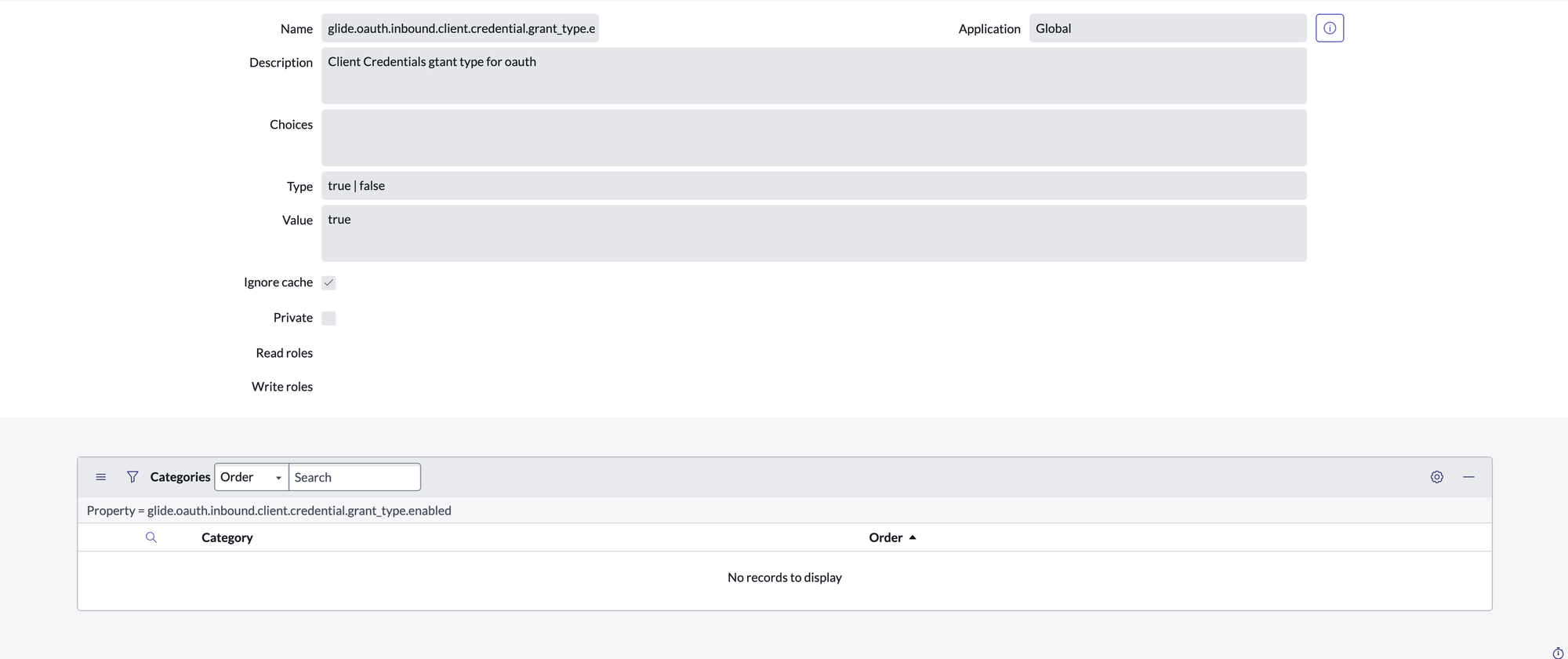
1. Go to: https://<your_instance>.service-now.com/sys_properties_list.do
2. Search for: glide.oauth.inbound.client.credential.grant_type.enabled
3. If it exists → set Value to true.
4. If it doesn't exist → create it:
- Name: glide.oauth.inbound.client.credential.grant_type.enabled
- Description: Enable Client Credentials grant type for oauth.
- Type: true/false
- Value: true
- Ignore cache: checked
5. Click Save.
3. Install the Integration in ServiceNow
3.1 Open ServiceNow Studio
Visit: https://<your_instance>.service-now.com/$studio.do?sysparm_transaction_scope=global&sysparm_use_polaris=true
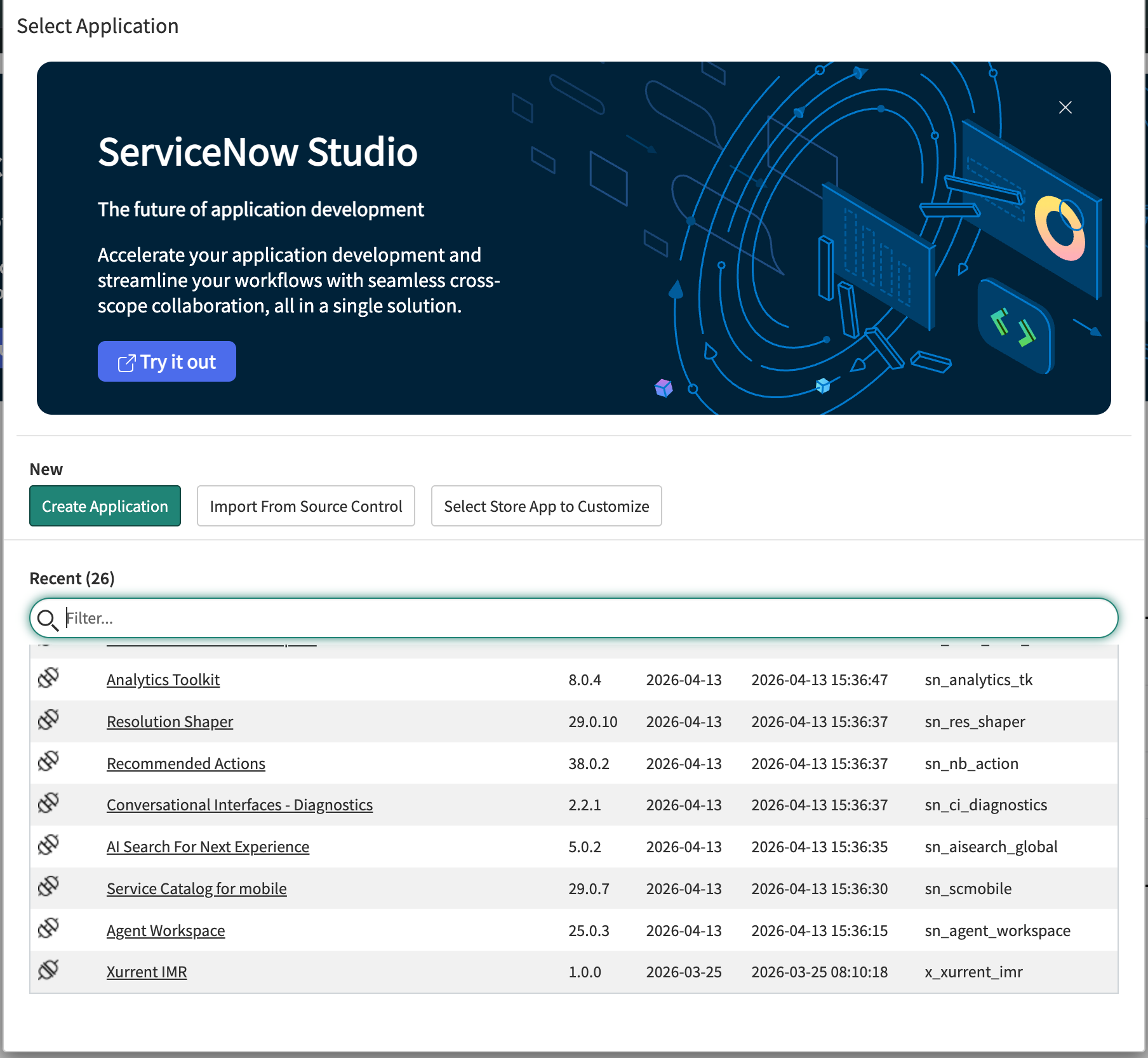
3.2 Import the App from GitHub
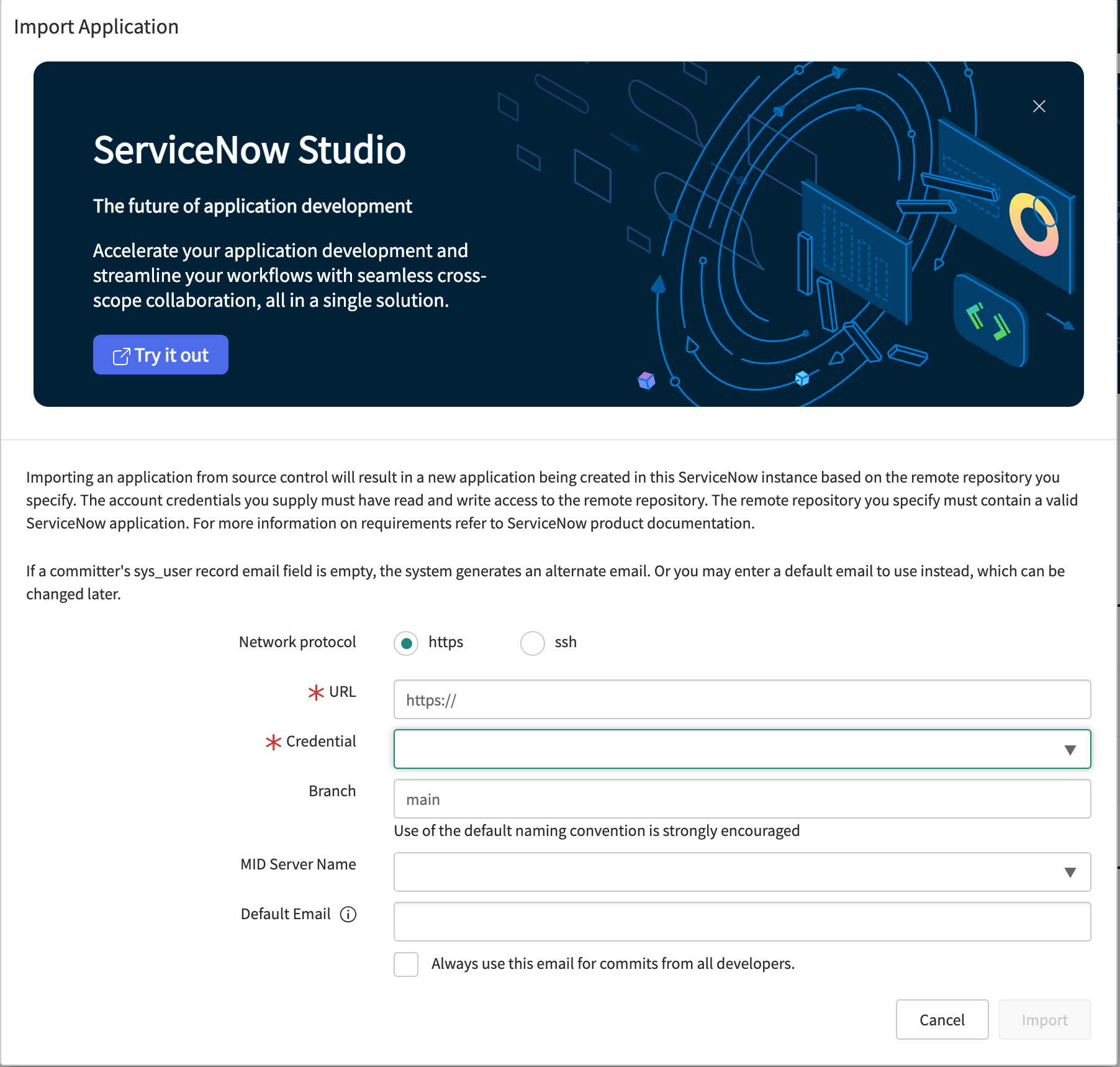
1. Click Import from Source Control.
2. Fill in:
- Network Protocol: https
- URL: https://github.com/<your_username>/xurrent-imr-servicenow
- Credential: GitHub Integration Credential (from Step 2.2)
- Branch: main
3. Click Import.
3.3 Switch to the Global Scope
1. Open: https://<your_instance>.service-now.com/now/nav/ui/classic
2. Click the sphere icon in the top right → Application Scope → Global.
3.4 Add the OAuth Application User Field to the OAuth Entity Form
1. Visit: https://<your_instance>.service-now.com/oauth_entity_list.do
2. Open the Xurrent IMR OAuth record.
3. Click the hamburger menu (three horizontal lines) at the top left of the form.
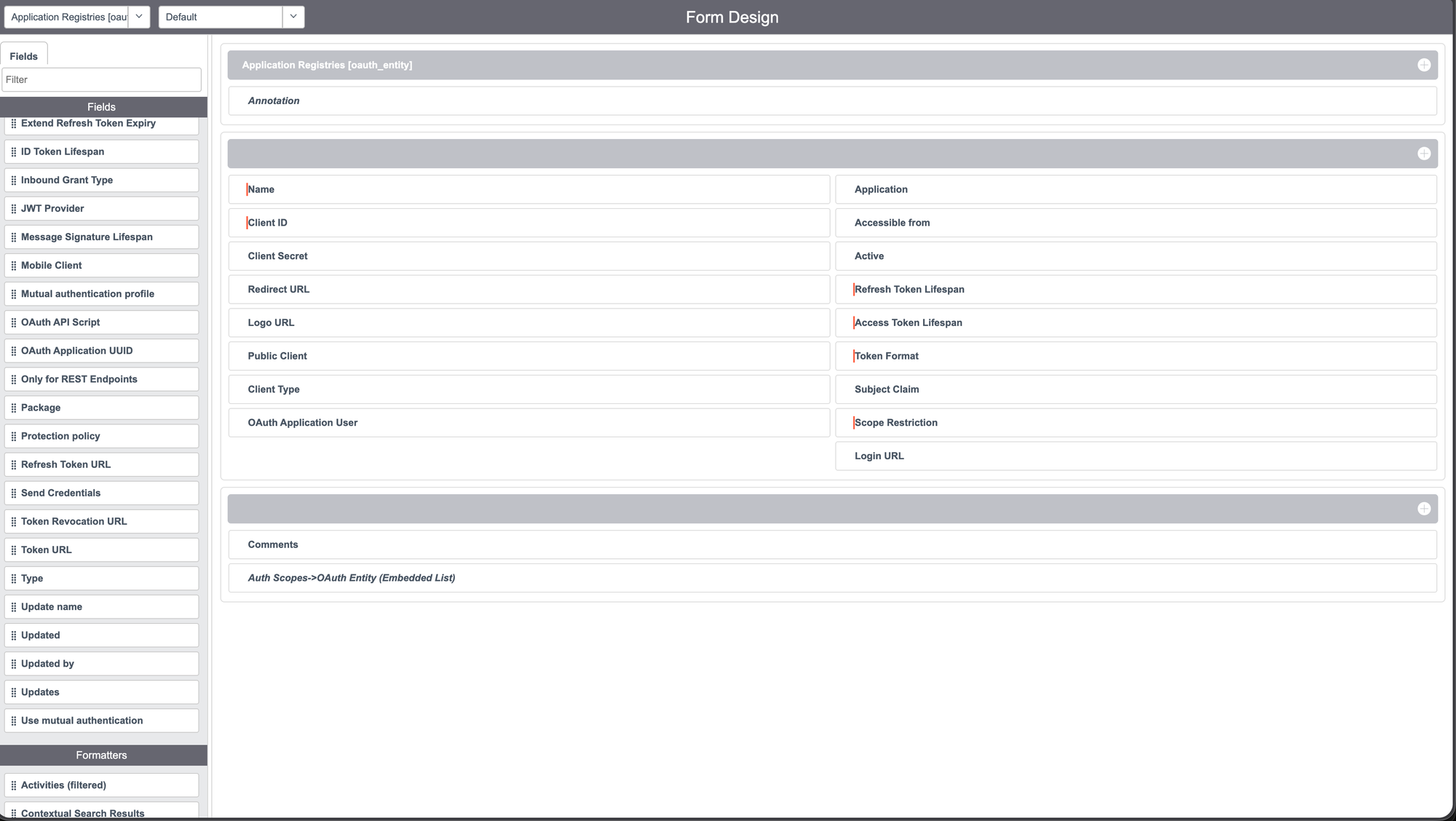
4. Click Configure → Form Design.
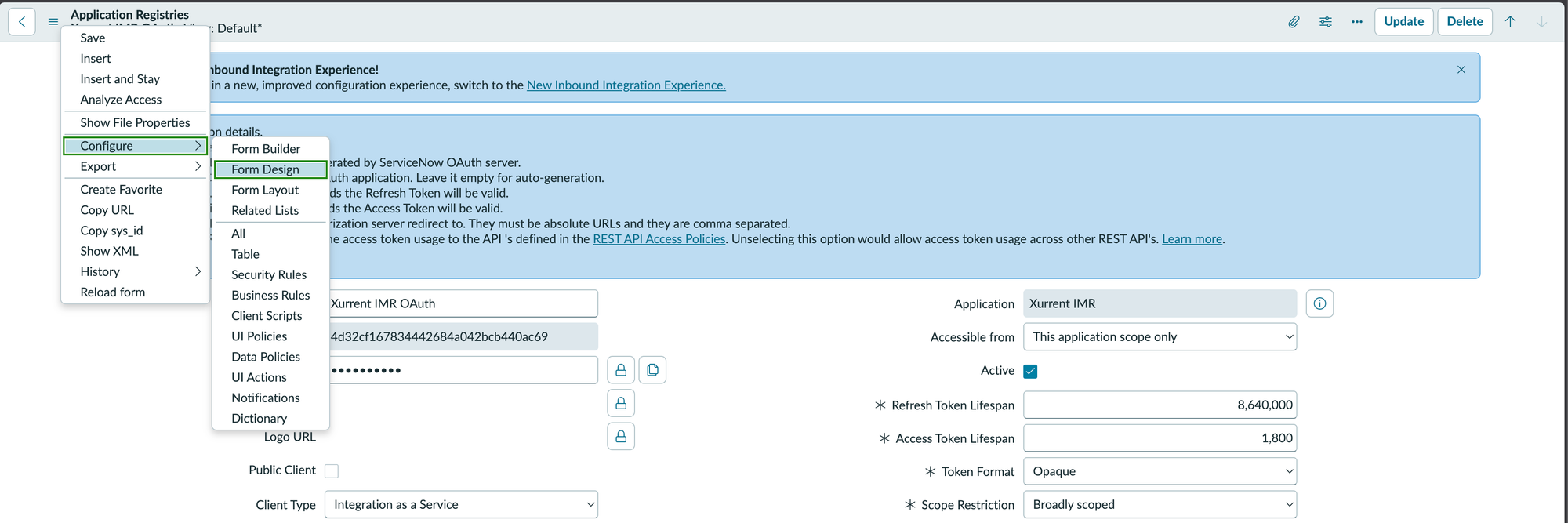
5. In the Fields section on the left, search for OAuth Application User.
6. Drag it onto the form and save.
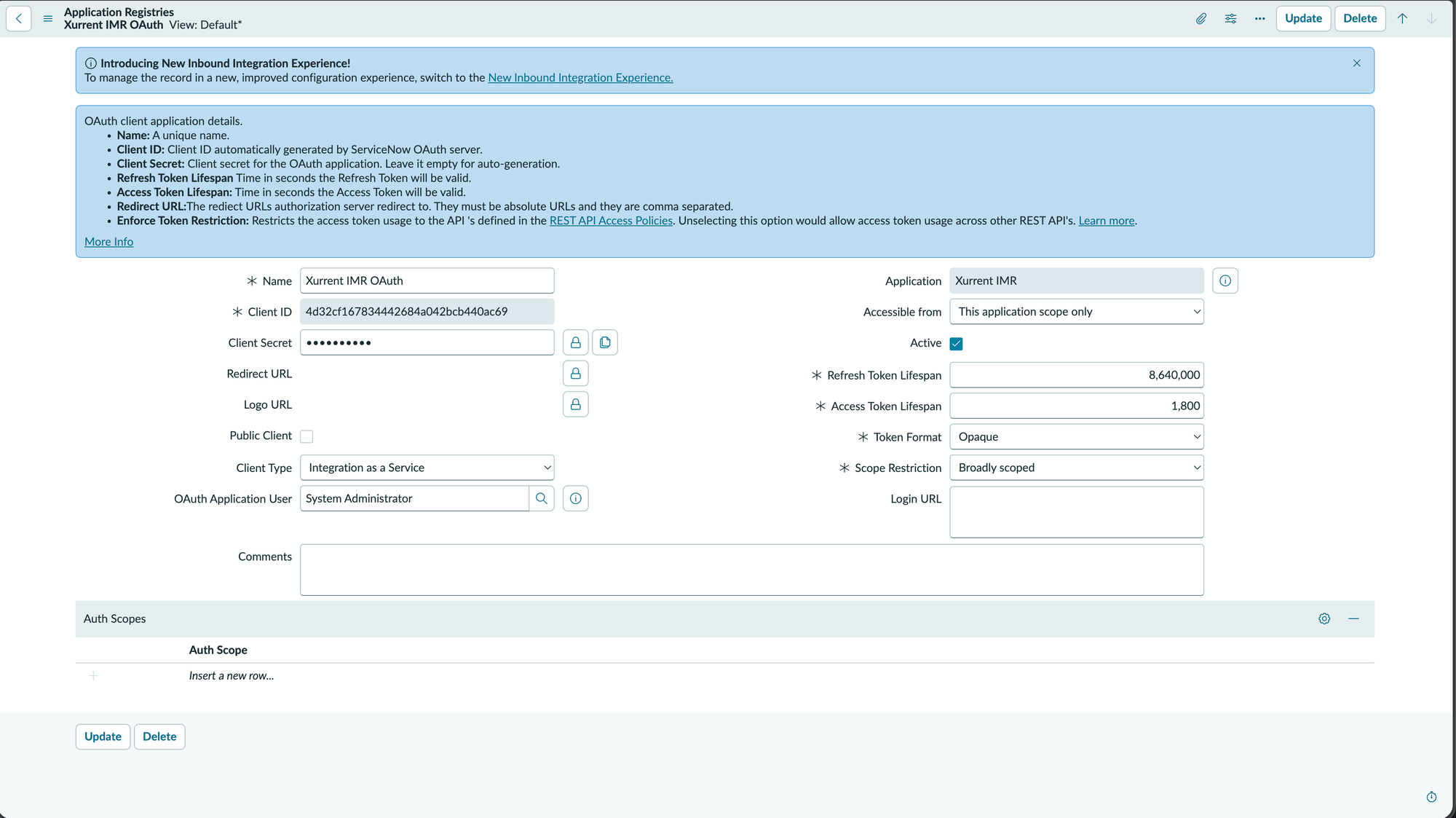
7. You will now see the OAuth Application User field in the Xurrent IMR OAuth record.
8. Assign a user to the OAuth Application User field who has the following roles:
- oauth_admin
- web_service_admin
- rest_service
- itil
9. Copy the Client ID and Client Secret and save them somewhere safe — you'll need them for the ServiceNow connection.
3.5 Add the Xurrent IMR Incident Field to the Incident Form
1. Open any incident record in ServiceNow.
2. Click the hamburger menu (three horizontal lines) at the top left of the form.
3. Click Configure → Form Design.
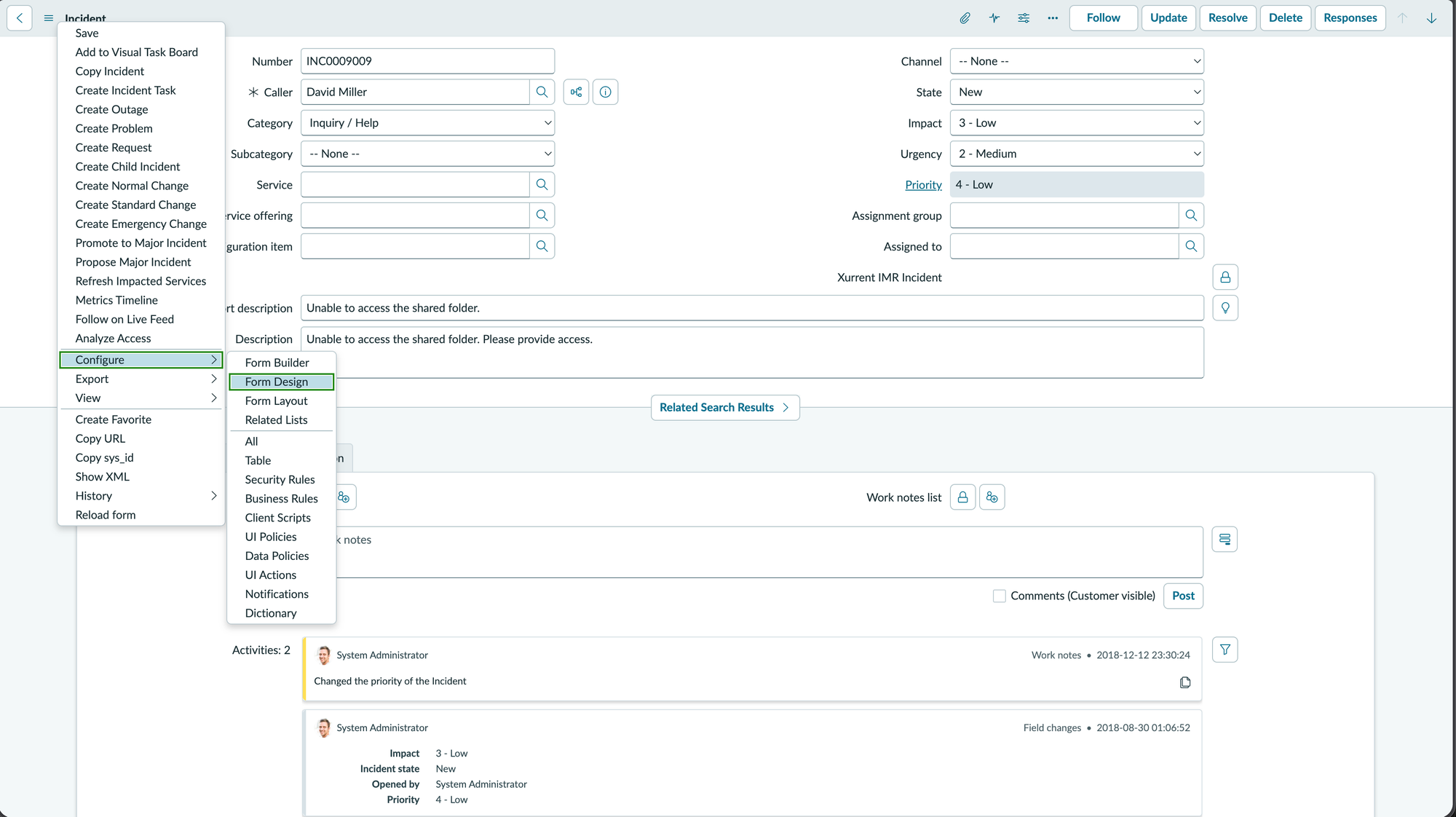
4. In the Fields section on the left, search for Xurrent IMR Incident.
5. Drag it onto the form and save.
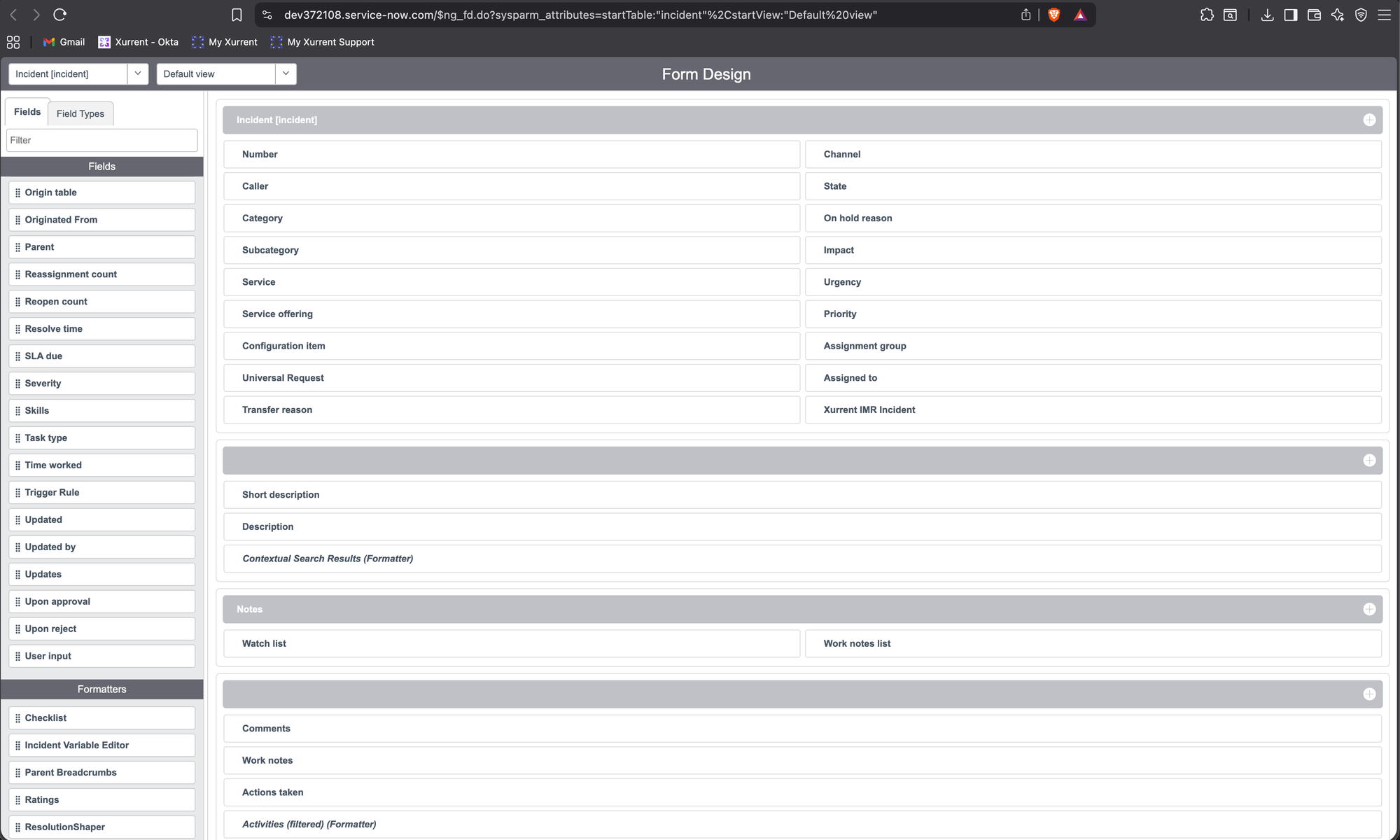
This field will display a link to the corresponding Xurrent IMR incident once the integration is active.
4. Connect ServiceNow to Xurrent IMR
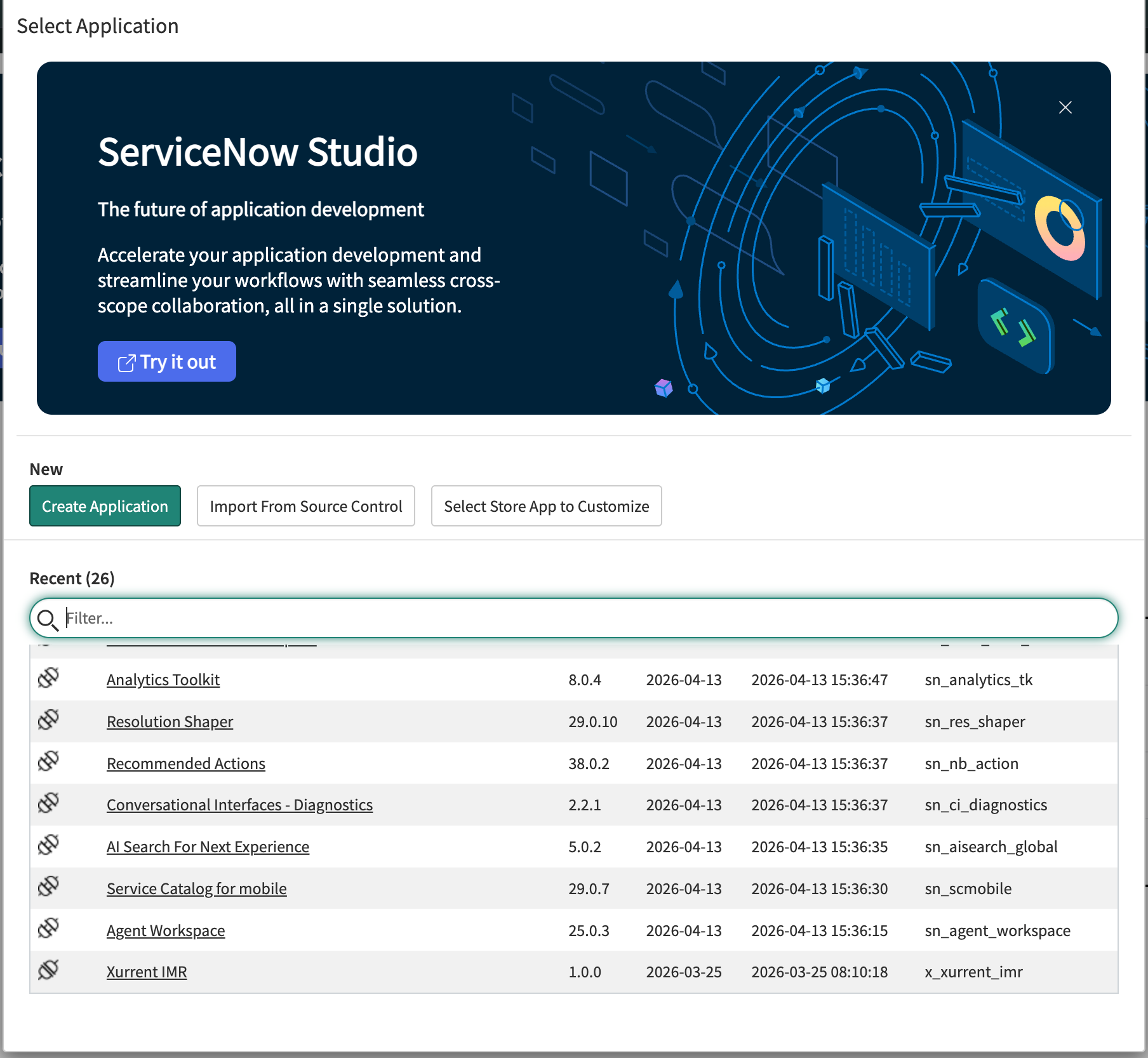
1. Visit: https://<your_instance>.service-now.com/$studio.do?sysparm_transaction_scope=global&sysparm_use_polaris=true
2. Select the Xurrent IMR application.
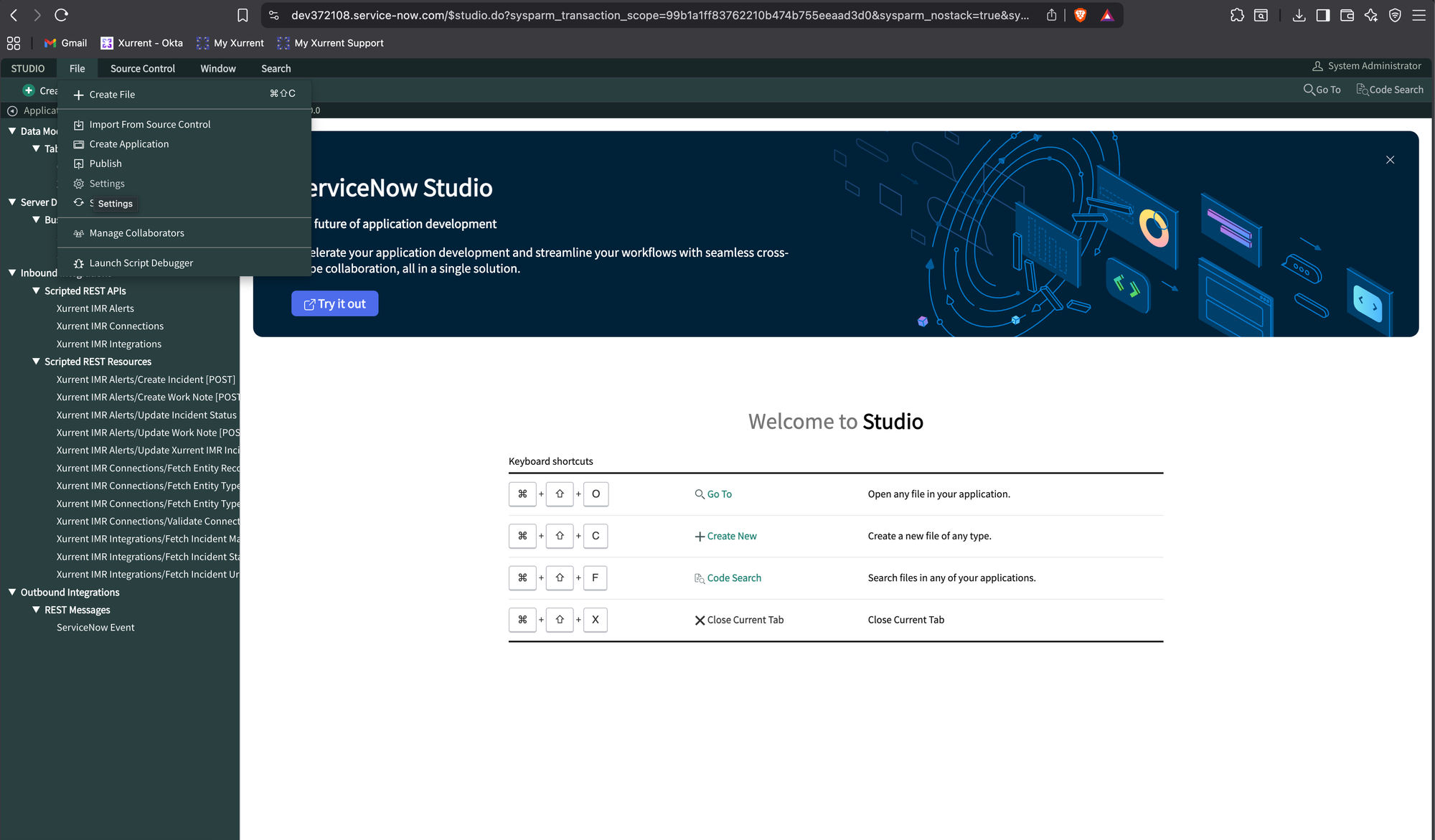
3. Click File → Settings. This will open the Application Settings for Xurrent IMR.
4. Copy the Scope and save it somewhere safe.
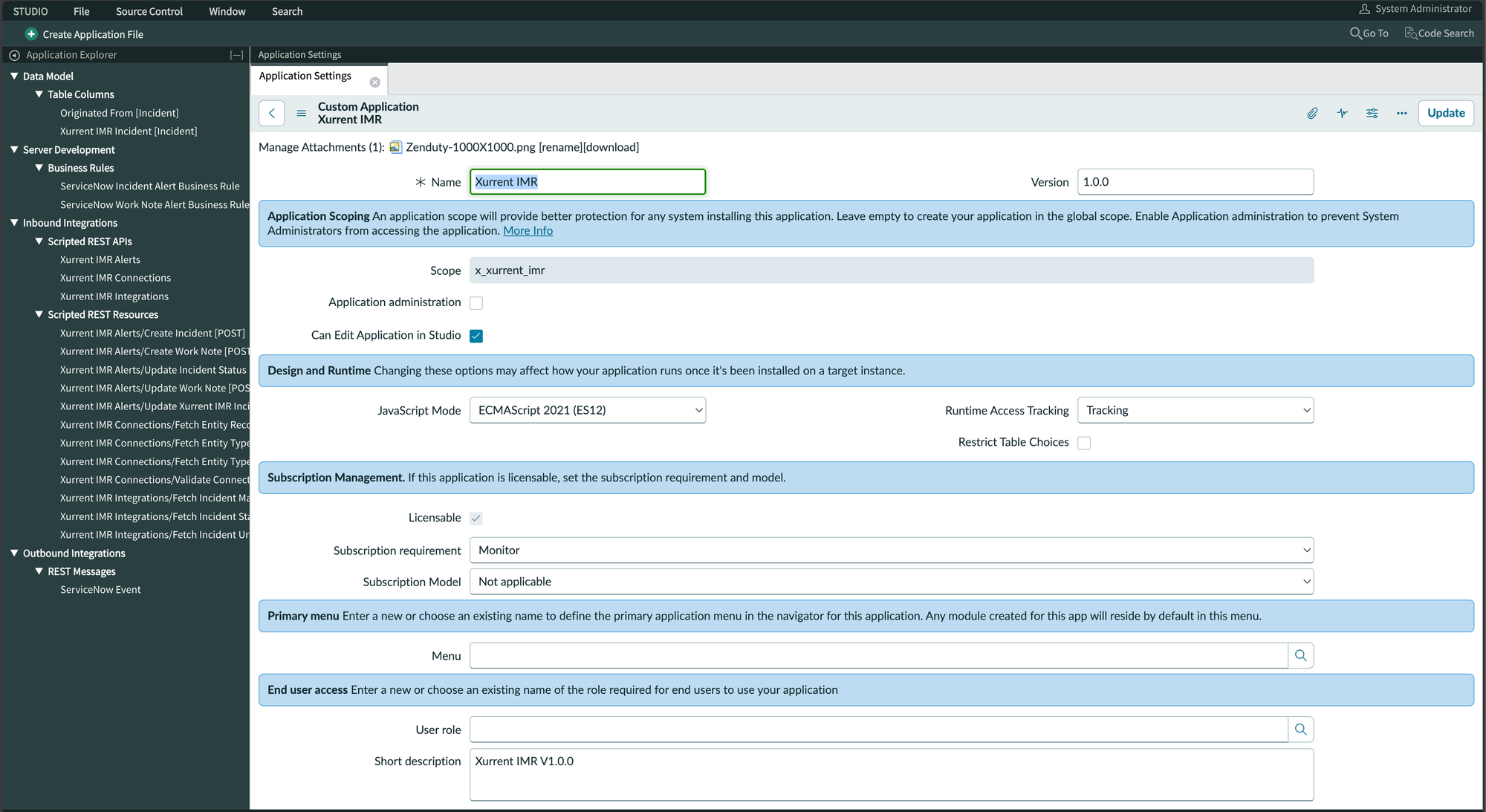
5. In Xurrent IMR, go to Profile → Account → Connections → ServiceNow.
6. Click Configure.
7. Fill in:
- ServiceNow instance name
- Client ID
- Client Secret
- Scope
Click Add.
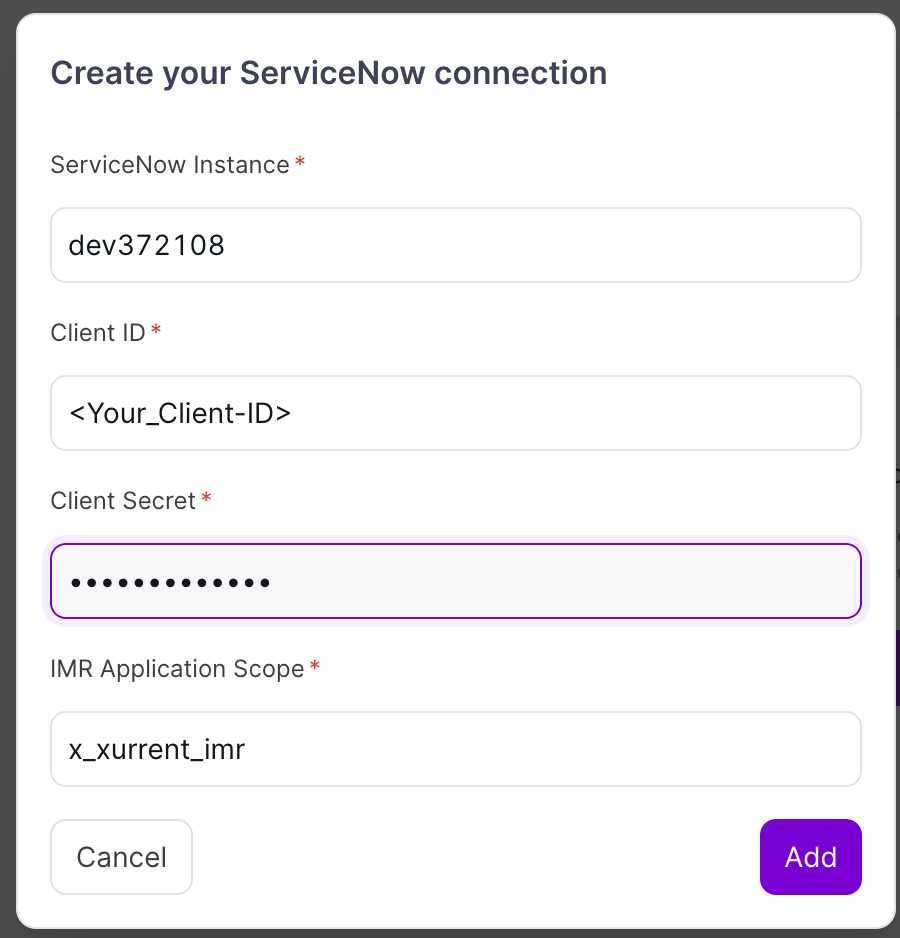
Copy only your ServiceNow instance name from the URL. For example, if your URL is https://dev12345.service-now.com/, the instance name is dev12345.
You will now see the connection between ServiceNow and Xurrent IMR. Click Continue.
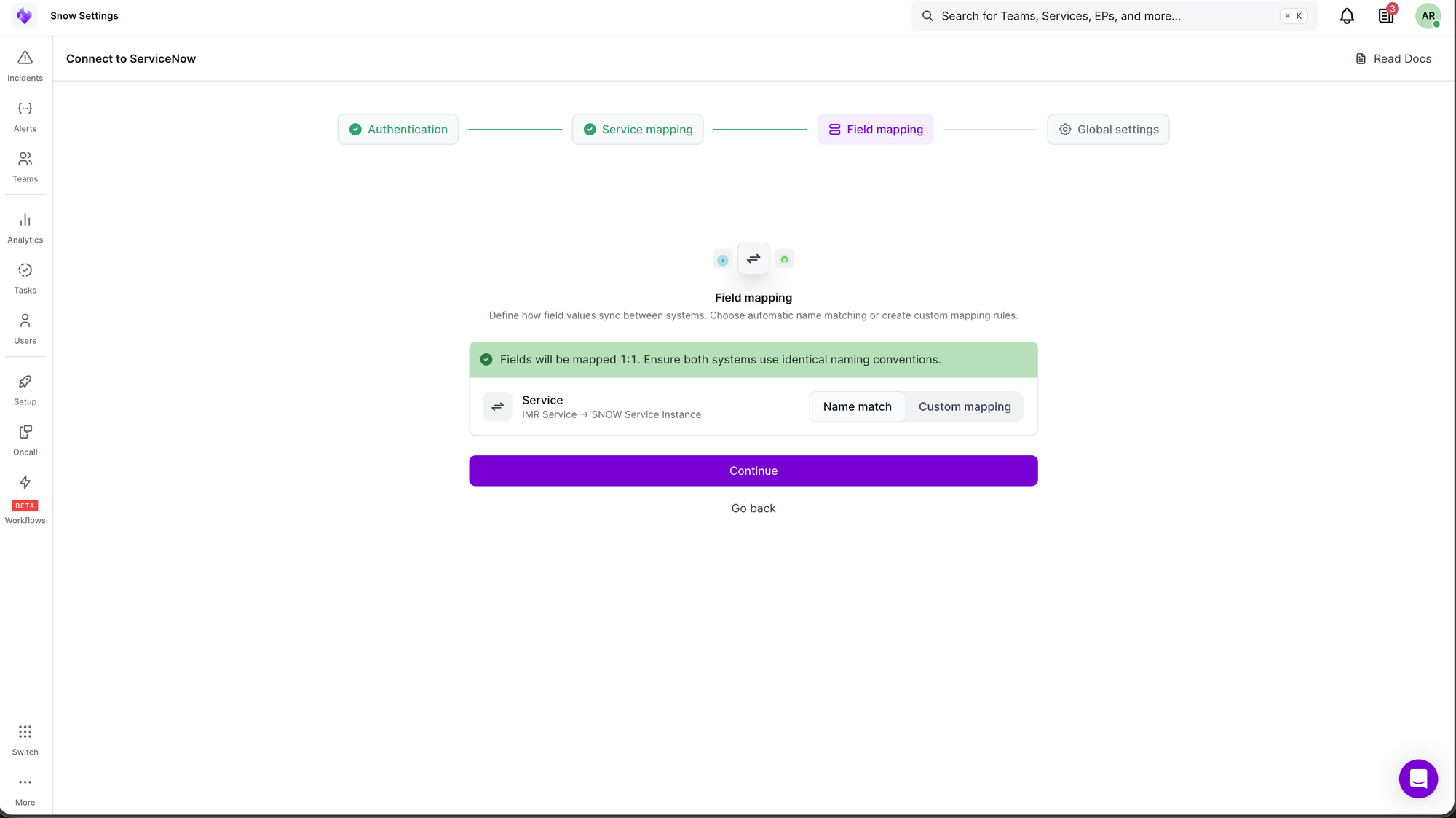
5. Map Xurrent IMR Services to ServiceNow Entities
5.1 Select an Entity Type
Map your Xurrent IMR Service to a ServiceNow entity type. For example:
- Configuration Item (cmdb_ci)
- Assignment Group (sys_user_group)
- Offering (service_offering)
Select your desired entity type and click Continue.
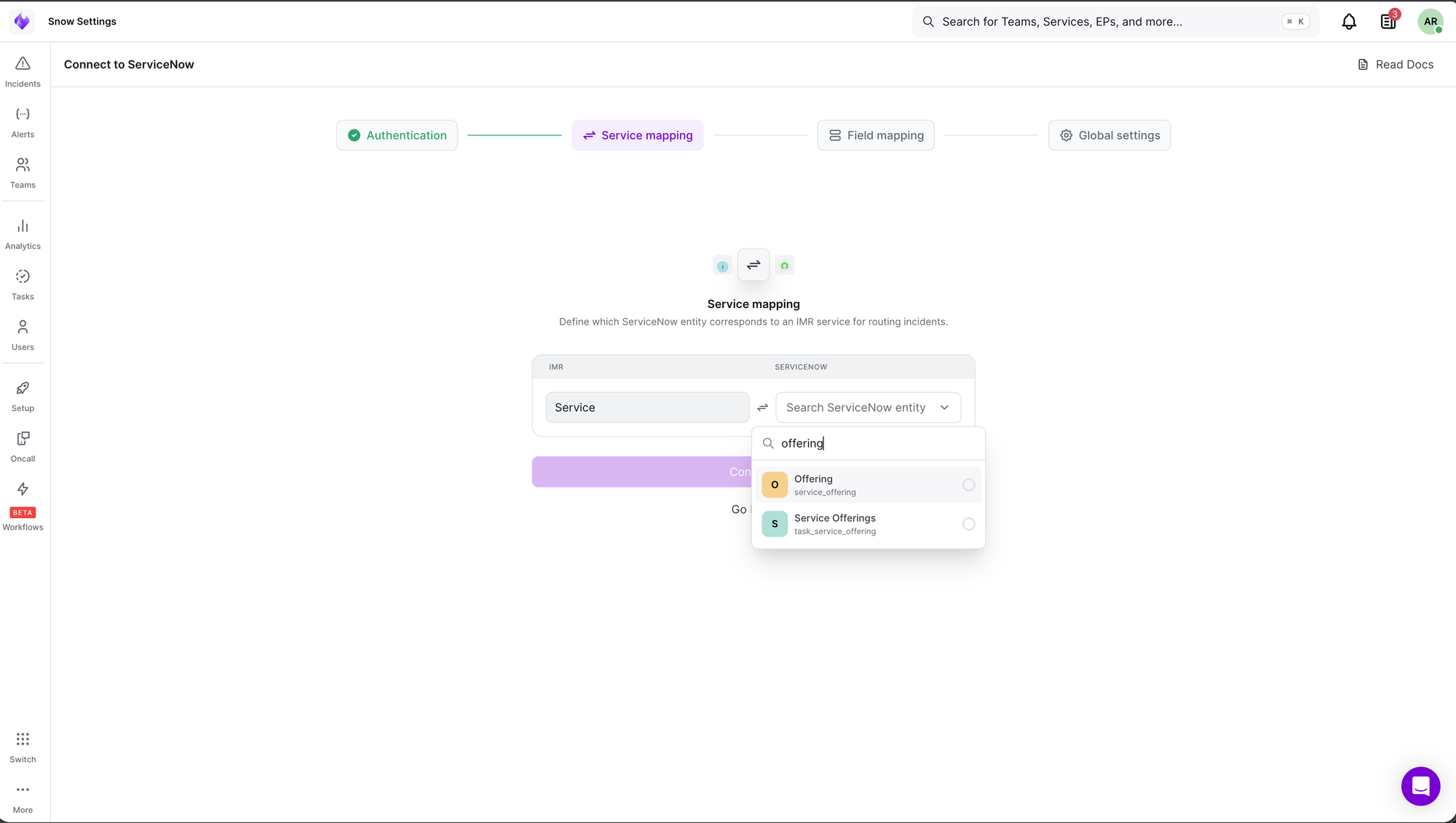
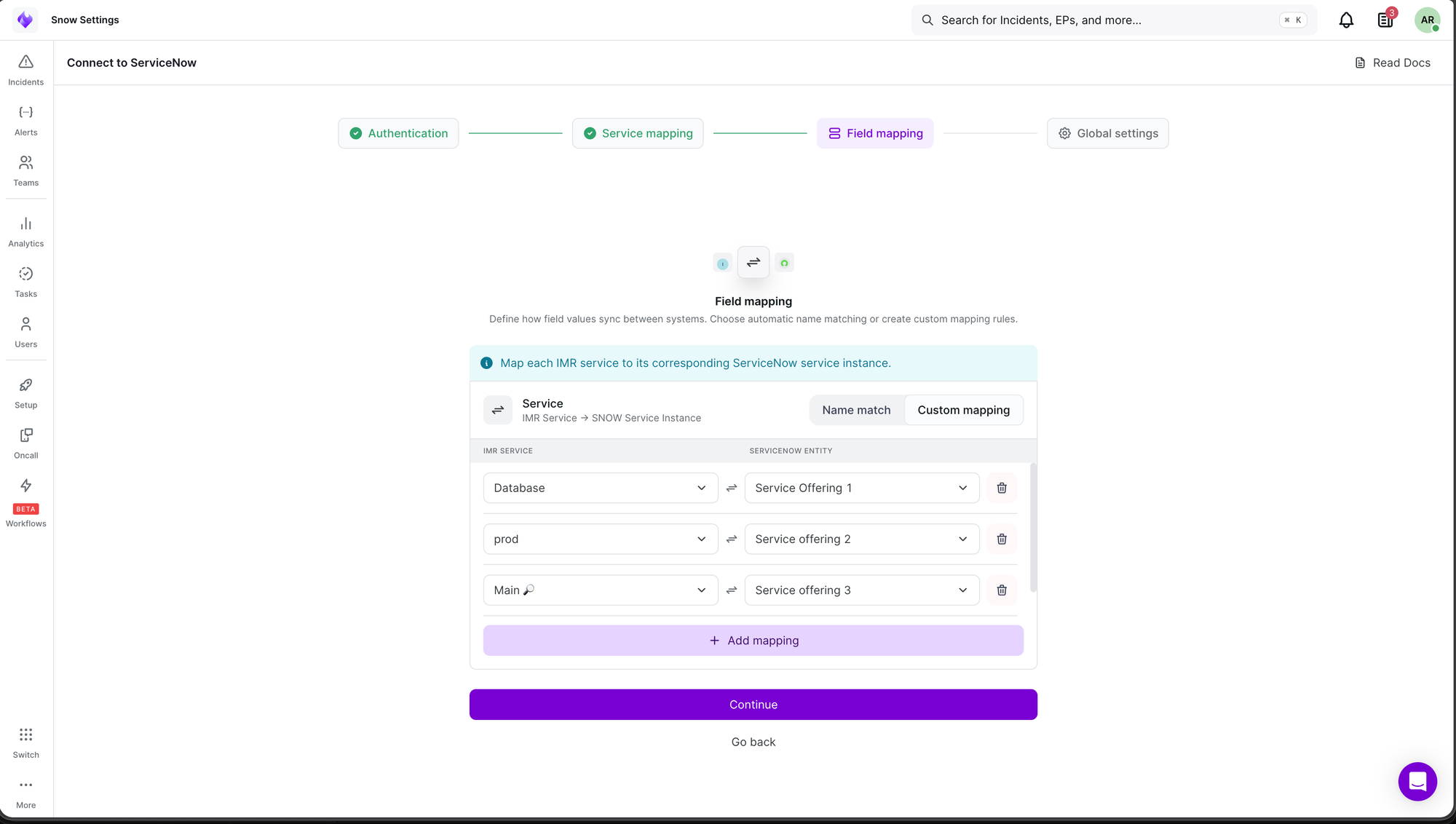
5.2 Choose a Mapping Strategy
You can map Xurrent IMR services to ServiceNow entity records using one of two strategies:
- Name Match
We match by name automatically. When receiving alerts from ServiceNow, we check the name of the entity (e.g., a service offering) and, if we find a service in your account with the same name, we create an incident in that service. For outgoing incidents created in Xurrent IMR, we check the service name and attempt to create an incident in ServiceNow with the matching entity name. When you select Name Match, ServiceNow V2 integrations will automatically be created in every service in your Xurrent IMR account.
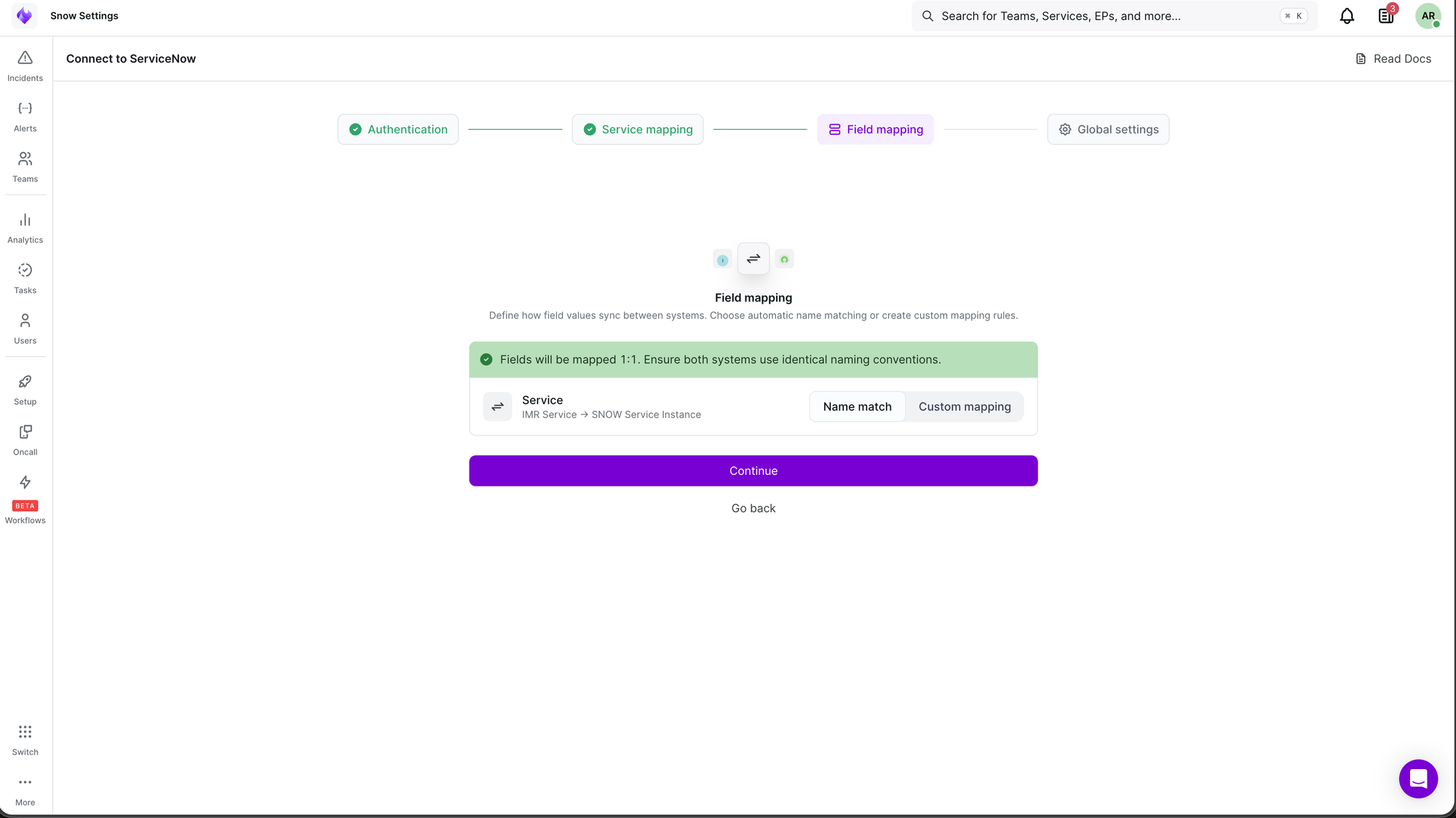
Custom Match (Recommended)
You manually map specific entity records to specific Xurrent IMR services. Only the mapped services will have ServiceNow V2 integrations created automatically. When receiving alerts, we match by the unique ID of the record rather than the name. For outgoing incidents, we send the unique ID of the entity record to create the incident. We recommend Custom Match as it gives you more control over the integration.
6. Configure Global Settings
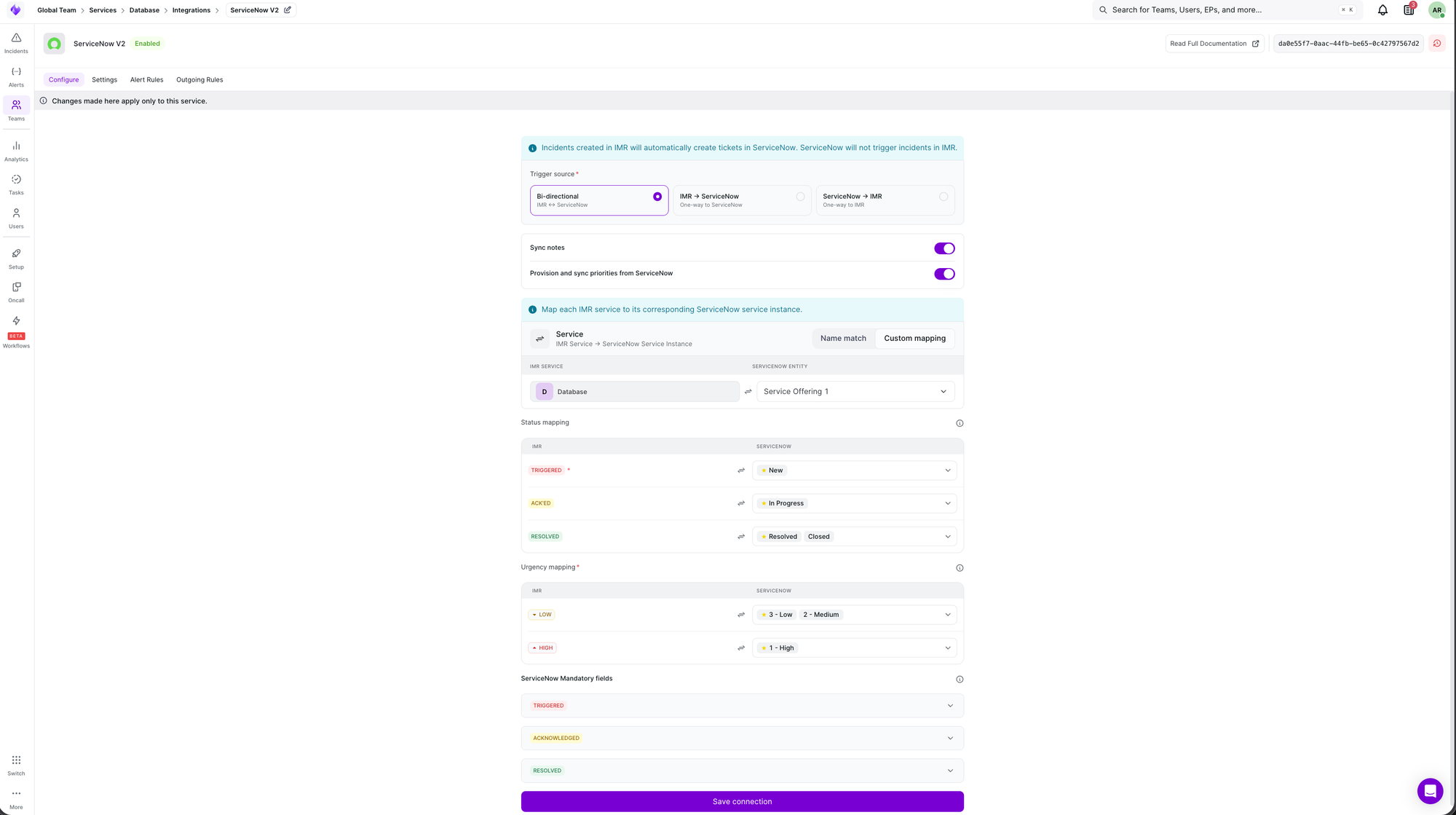
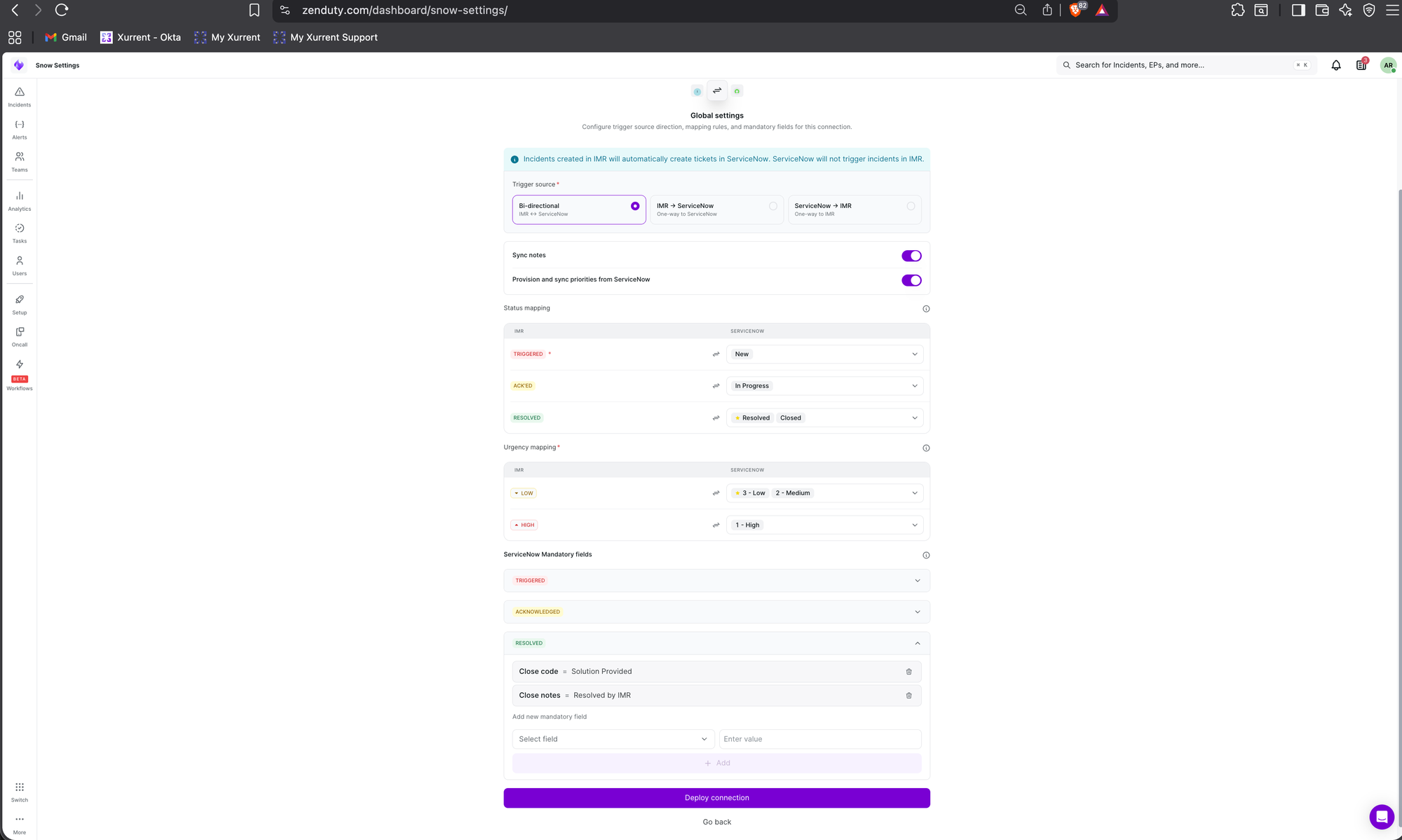
These settings serve as the base configuration for all integrations created automatically in your services. You can later change the configuration for individual integrations.
Trigger Source
- Bi-directional — Incidents sync both ways. If an incident is created in Xurrent IMR, it creates one in ServiceNow, and vice versa.
- IMR → SNOW — Xurrent IMR is the trigger source. Incidents created in Xurrent IMR create incidents in ServiceNow. Incidents created in ServiceNow do not create incidents in Xurrent IMR.
- SNOW → IMR — ServiceNow is the trigger source. Incidents created in ServiceNow create incidents in Xurrent IMR. Incidents created in Xurrent IMR do not create incidents in ServiceNow.
Restrict Sync Direction
When enabled, syncing is restricted to the initial trigger direction only. For example, if the direction is IMR → SNOW and an incident is created in Xurrent IMR, it will create an incident in ServiceNow. However, if the incident state is later changed in ServiceNow, that change will not sync back to Xurrent IMR.
Sync Notes
When enabled, work notes will sync between the two systems.
Provision and Sync Priorities from ServiceNow
When enabled, incident priorities will sync between the two systems. If a priority does not exist in Xurrent IMR, it will be provisioned (created) as a new priority in the incident's team.
Status Mapping
Map Xurrent IMR statuses to ServiceNow incident states. You can map multiple ServiceNow states to a single Xurrent IMR status. One state should be set as the default for outgoing (IMR → SNOW) incidents.
Urgency Mapping
Map Xurrent IMR urgencies to ServiceNow urgencies. You can map multiple ServiceNow urgencies to a single Xurrent IMR urgency. One urgency should be set as the default for outgoing (IMR → SNOW) incidents.
ServiceNow Mandatory Fields
If there are mandatory fields required to create or update an incident in ServiceNow, you can set their values here. You can set static values or dynamic values using the {{incident.<field>}} syntax. For example: {{incident.summary}}.
Click Deploy Connection. This will create ServiceNow V2 integrations in your Xurrent IMR account.
7. Deploy and Manage Integrations
To view or update an individual integration:
1. Go to Teams → select a team → Services → select a service → Integrations.
2. Select the ServiceNow V2 integration.
Here you can view and update the individual integration configuration.