Noise Reduction
Zenduty's Noise Reduction feature reduces alert fatigue by grouping related alerts into a single incident, ensuring your on-call engineers are not overwhelmed by repetitive notifications for the same underlying issue. Noise Reduction is configured per service and can be found under the Noise Reduction tab.
Types of Alert Correlation
Zenduty offers the following correlation modes:
1. Time-based Correlation
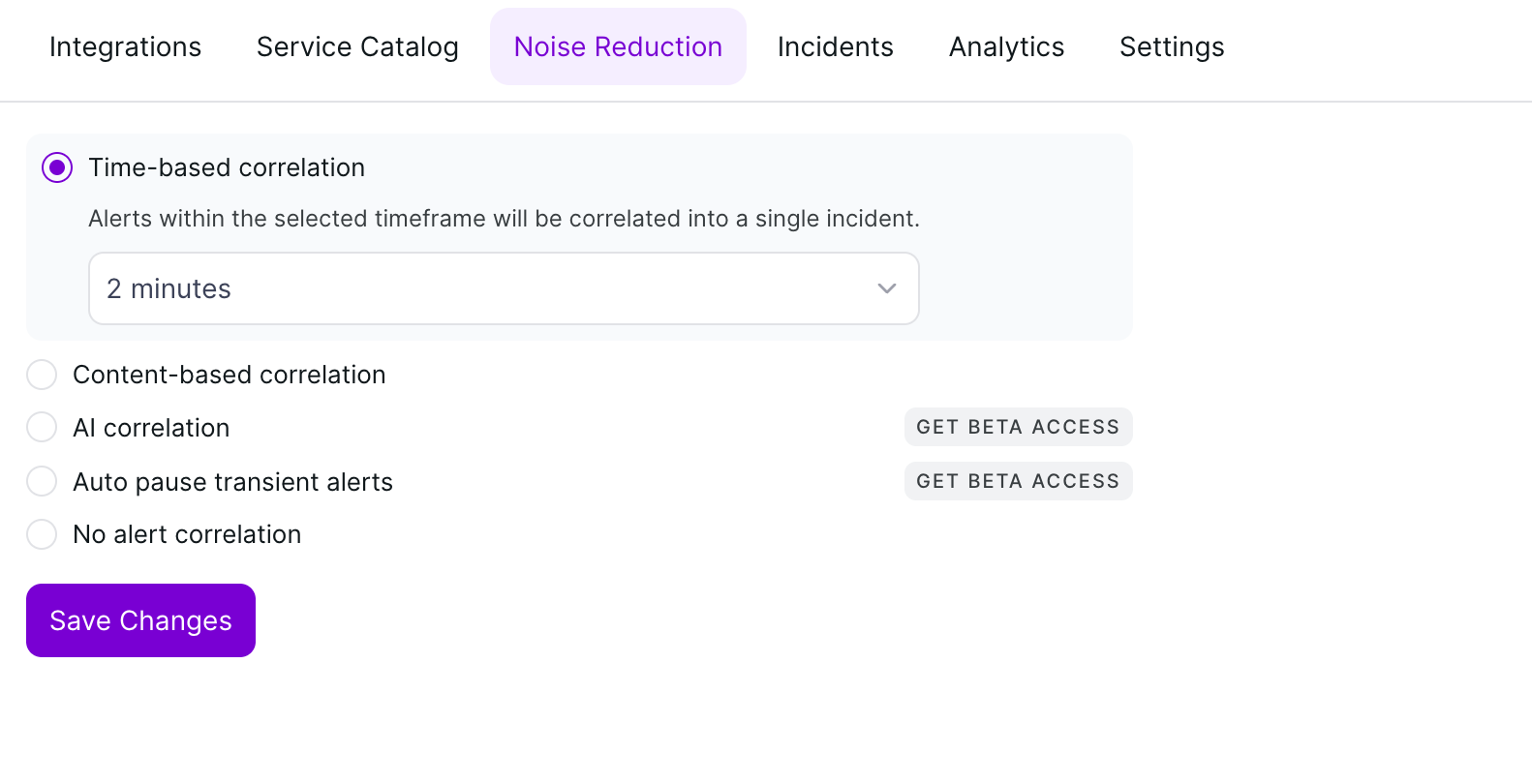
Time-based correlation groups all incoming alerts into a single incident if they arrive within a specified timeframe. This is the simplest form of correlation — any alert that fires within the configured window after the initial alert will be attached to the same incident, regardless of its content.
To configure, select Time-based correlation and choose a duration from the dropdown (e.g., 2 minutes, 5 minutes, etc.). All alerts received within that window will be correlated into one incident.
2. Content-based Correlation
Content-based correlation provides more granular control by grouping alerts based on matching payload data. Instead of correlating all alerts purely by time, this mode compares specific fields in the alert payload and only groups alerts that share matching values. See the detailed configuration guide below.
3. AI Correlation (Coming Soon)
AI correlation will use machine learning to automatically identify and group related alerts based on patterns in your alert data. This feature is currently in development. Click Get Beta Access on the Noise Reduction tab to request early access and be notified when it becomes available.
4. Auto Pause Transient Alerts (Coming Soon)
Auto pause transient alerts will automatically suppress short-lived, self-resolving alerts that would otherwise create unnecessary incidents. This feature is currently in development. Click Get Beta Access on the Noise Reduction tab to request early access and be notified when it becomes available.
5. No Alert Correlation
Select this option if you do not want any alert grouping. Each incoming alert will create a separate incident.
Setting Up Content-Based Correlation
Content-based correlation suppresses "noisy" repetitive alerts by grouping them based on specific payload data. This ensures that related alerts are attached to a single incident rather than creating multiple separate notifications for on-call engineers.
To set up content-based alert correlation:
- Navigate to the Service you wish to configure.
- Click on the Noise Reduction tab in the top navigation bar.
- Select the radio button for Content-based correlation.
- Configure the matching logic, fields, and time window as described below.
- Click Save Changes.
1. Matching Logic
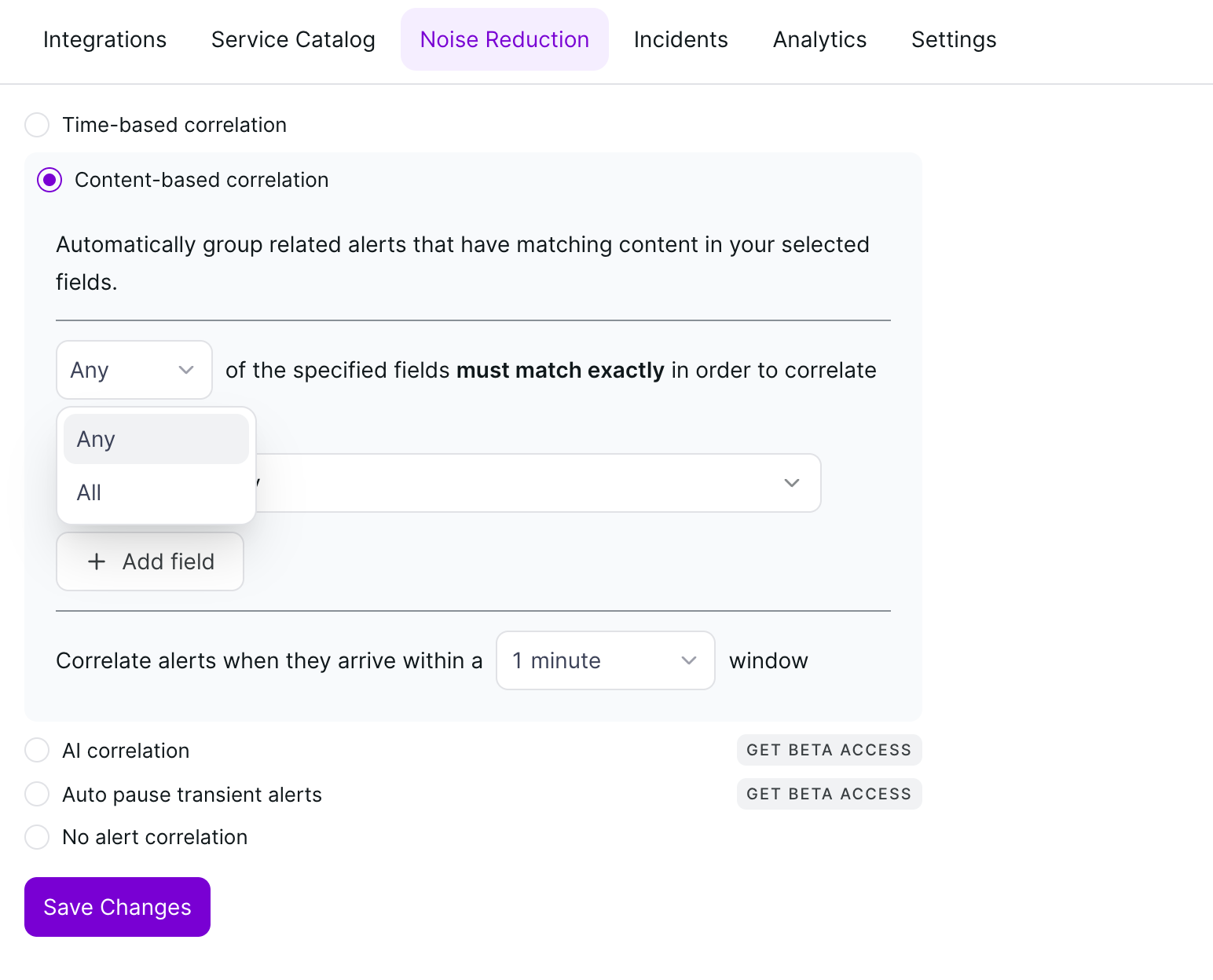
Define how strictly the system evaluates your selected fields using the logic dropdown:
- Any — Correlates alerts if at least one of the specified fields matches an existing open incident.
- All — Correlates alerts only if every specified field matches exactly.
2. Field Selection
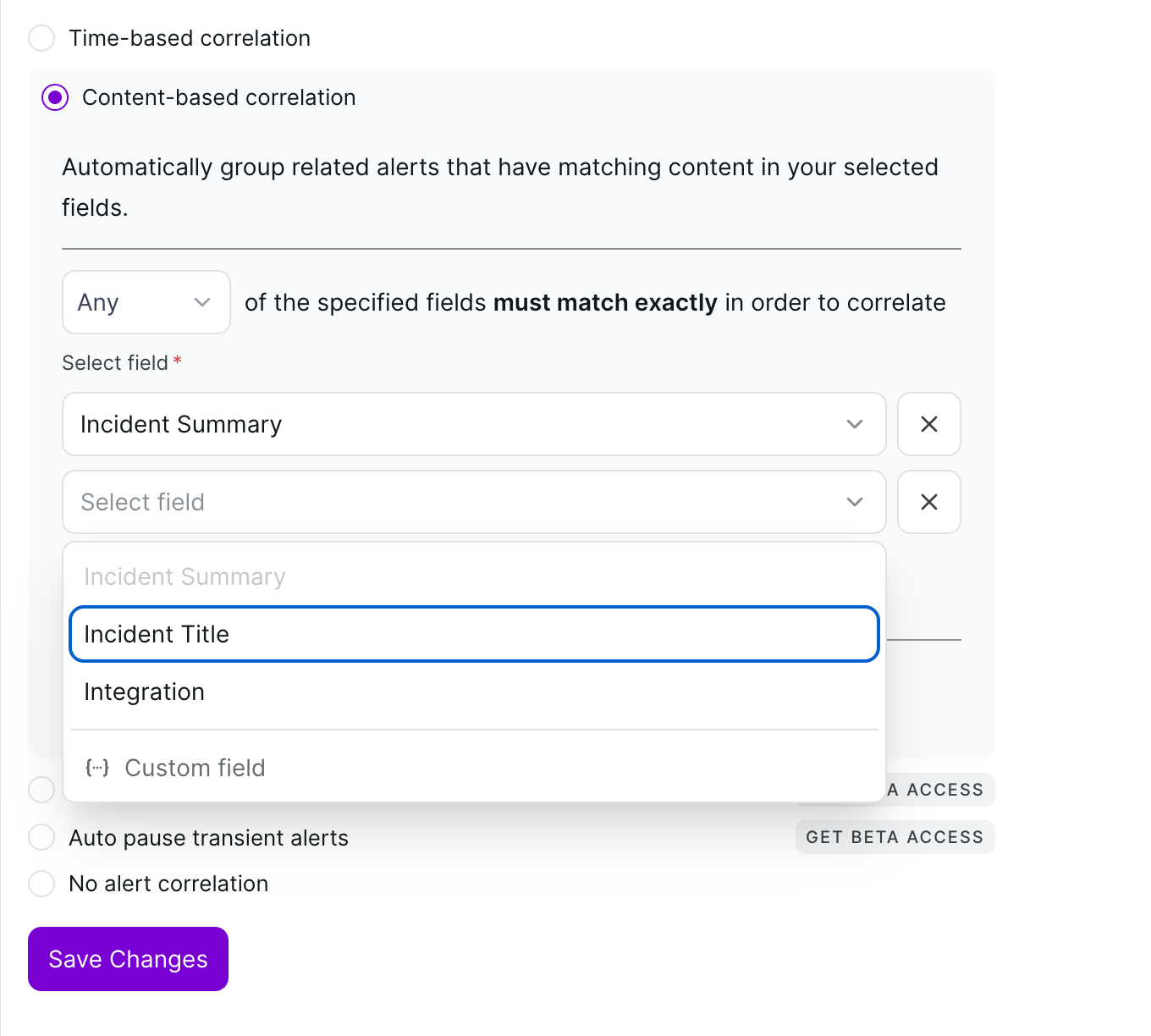
Choose which parts of the alert payload should be used for comparison. You can add multiple fields using the + Add field button:
- Incident Title — Matches based on the main headline text of the alert.
- Incident Summary — Matches based on the detailed body or description of the alert.
- Integration — Groups alerts coming from the same source (e.g., Anodot, Email V2, or CloudWatch).
- Custom Field — Enter a specific JSON key from your integration payload (e.g.,
host_id) to correlate based on unique technical identifiers.
3. Time Window
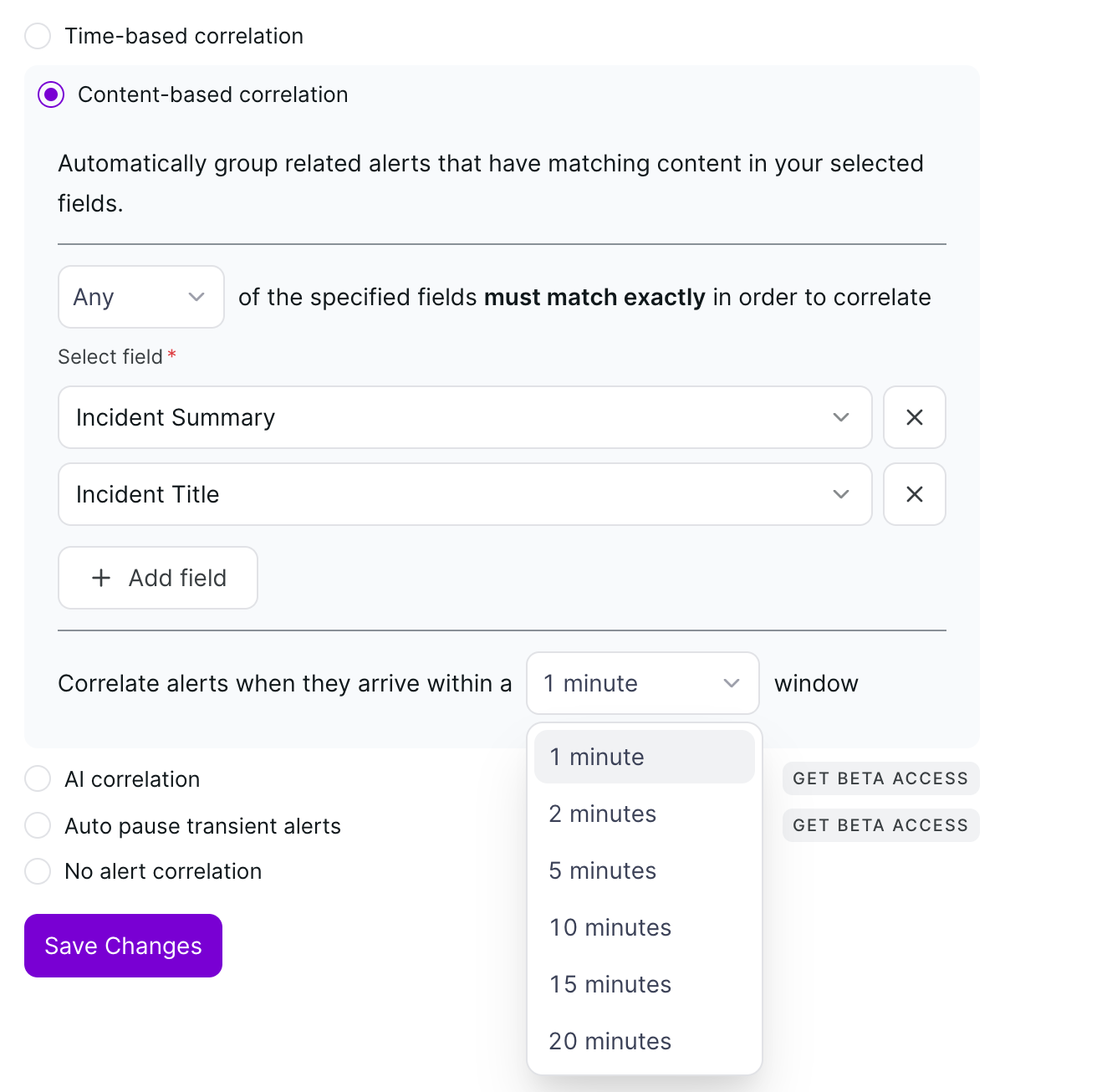
Correlation is governed by a Fixed Window. Select a duration from the dropdown — options range from 1 minute to 20 minutes. Incoming alerts will only correlate to an existing incident if they arrive within this specified timeframe after the initial alert has triggered.
Available time window options: 1 minute, 2 minutes, 5 minutes, 10 minutes, 15 minutes, 20 minutes.
Saving Your Configuration
Once you have selected your matching logic, fields, and time window, click the Save Changes button at the bottom of the form to activate content-based correlation for the service. Changes take effect immediately for all new incoming alerts.
Content-Based Correlation: Example
Suppose you configure content-based correlation with the following settings:
- Logic: All
- Fields: Incident Title, Integration
- Time Window: 5 minutes
If your Cloudwatch integration fires three alerts with the title "High CPU on prod-server-01" within a 5-minute window, all three alerts will be grouped into a single incident. A fourth alert with the title "Disk Full on prod-server-02" from CloudWatch within the same window will create a new, separate incident because the title does not match.